Advanced, not complicated
It's a bit like explaining Brexit on the children's news. Making fairly complicated material accessible and understandable. The Advance does a bit of that too. Quite an advanced device, but you'll get the hang of it straight away.
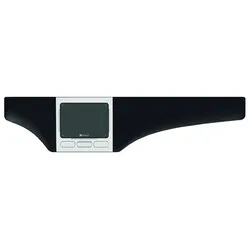
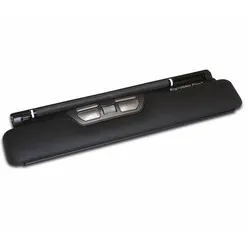
The centric Advance is perhaps Mousetrapper's most popular model. It works comfortably, has many extra (programmable) buttons and an extensive touchpad which I will come back to. Because it sits directly in front of you, between you and your keyboard, you have a compact working posture. Your arms operate the mouse and keyboard within shoulder width, which benefits relaxation, especially in the shoulders.
Using the Advance 2.0
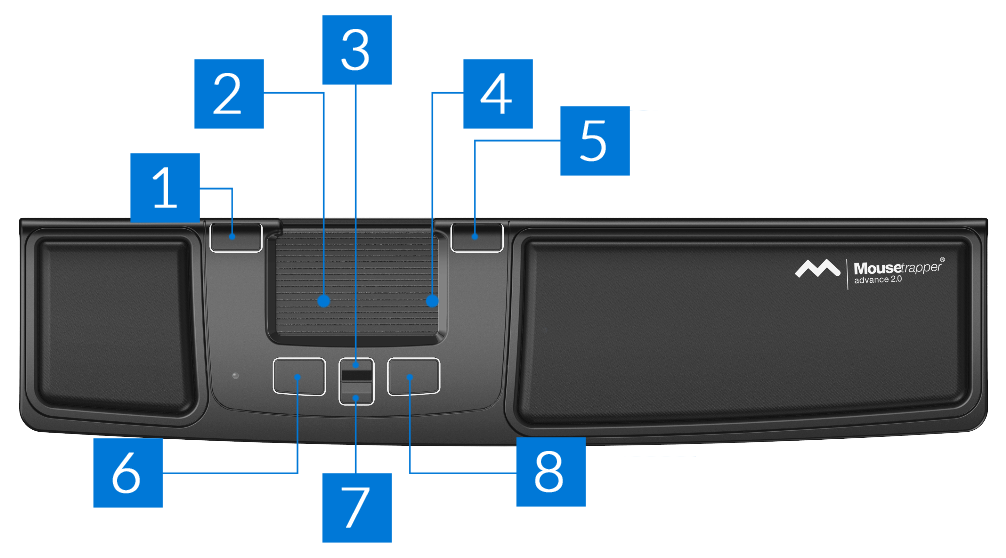
You control your cursor with the 'mat' on the trackpad. The mat is about 8 x 5 cm and can be operated with 1 to 3 fingers simultaneously. This gives you a lot of control and precision. It can be rolled vertically and slid horizontally. You have no limitations in doing so; the device will still move the cursor even if you are at the far left or far right of the mat.
With 2000 DPI (dots per inch), your cursor flies across your screen at lightning speed. The sensitivity can also be lowered, should you wish to 'train' gently towards that light speed. You can gradually increase the speed.
The mouse has 6 buttons. In addition to the usual left and right mouse buttons, there are also buttons for double-clicking, copying, pasting, scrolling up and down. Scrolling can also be done with the mat, on the right side.
Using the Mousetrapper driver, MTkeys, you can change button functions or turn scrolling with the mat on and off. Even browsing forwards and backwards in folders and within browsers is possible.
Shoulder-friendly
The Advance is only truly optimally used when you put both hands to work simultaneously. I myself (Tim) often have to work precisely. In the back office of our webshop, but also with Photoshop. The left-click function in the Mousetrapper's mat is a bit less precise because pressing it can accidentally move the cursor.
With the Mousetrapper driver, I have replaced the double-click with a left-click, allowing me to mouse with my right hand and click with my left. If that gets tiresome, I could also place my beloved click on the right, allowing me to mouse with my left hand and click with my right. As you can see, the strain on your shoulders can be nicely distributed, and you can choose which arm you give the most work.
Raising the keyboard
This trackpad is quite low at 2 cm, but it also offers the possibility to raise it to the level of slightly higher and very flat keyboards. Underneath the Advance 2.0 is a rubber mat. If you leave it folded in, the Mousetrapper is a bit higher. When you fold it out, the Mousetrapper lies a bit lower and the keyboard on the mat is a bit higher.
An additional advantage of the mat is that the keyboard rests firmly on it and cannot easily slide away.
A trackpad or centric mouse, as the Mousetrapper is called, primarily aims to centre your posture. Keyboard directly in front of you, mouse directly in front of you, shoulders maximally relaxed, and get to work.
However, there are more advantages. For example, you can nicely distribute the strain across your hands and arms. A product like the Advance also houses significantly more buttons and functions than a regular mouse, meaning you need the keyboard and cursor less.
Personalise with MT keys
Mousetrapper's intuitive driver, MTkeys, allows you to easily change functions on the trackpad. With the help of an image of the Advance and clear explanations, changing functions is a breeze.
The Advance has 6 buttons, all of which can carry a different function. It's even possible to create multiple profiles, allowing you to assign completely different functions to the buttons by switching profiles, or adjust the cursor's sensitivity.
An Excel profile with cut, paste, and paste without formatting. Or a Photoshop profile with zoom in, zoom out, and increased cursor precision. You only get the most out of the Mousetrapper when you have MTkeys installed.