




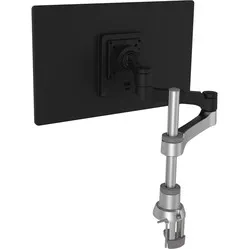
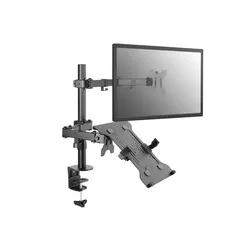
MONITOR ARM
FROM JUST £47.95
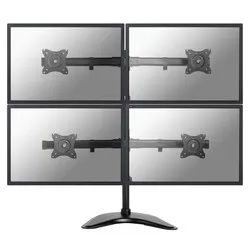
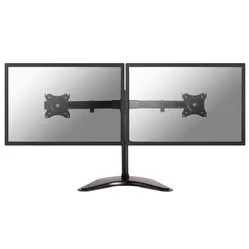
Customer reviews of their monitor arms
Why do I need a monitor arm?
A monitor arm gives you complete control over your monitor. It allows you to position the monitor at the correct height, viewing angle and distance. A monitor arm therefore provides you with the optimal viewing experience.
A monitor usually comes out of the box on a stand. In many cases, this stand isn’t adjustable. You can position it at the right distance, but that’s about it. The height and viewing angle aren’t right, and the stand takes up an annoyingly large amount of space on your desk.
A monitor arm offers benefits not only for you, but also for everyone you work with or who occasionally sits at your desk. Viewing and sharing your screen with others is much easier with a monitor arm. What’s more, you can adjust a monitor arm to suit the person sitting behind the screen.
And that’s not all! Take a look here at the comparison between using and not using a monitor arm, and see for yourself all its benefits.
| Monitor arm | No monitor arm | |
|---|---|---|
| Increases comfort | ||
| Adjustable height | ||
| Adjustable viewing angle | ||
| Flexible workspace | ||
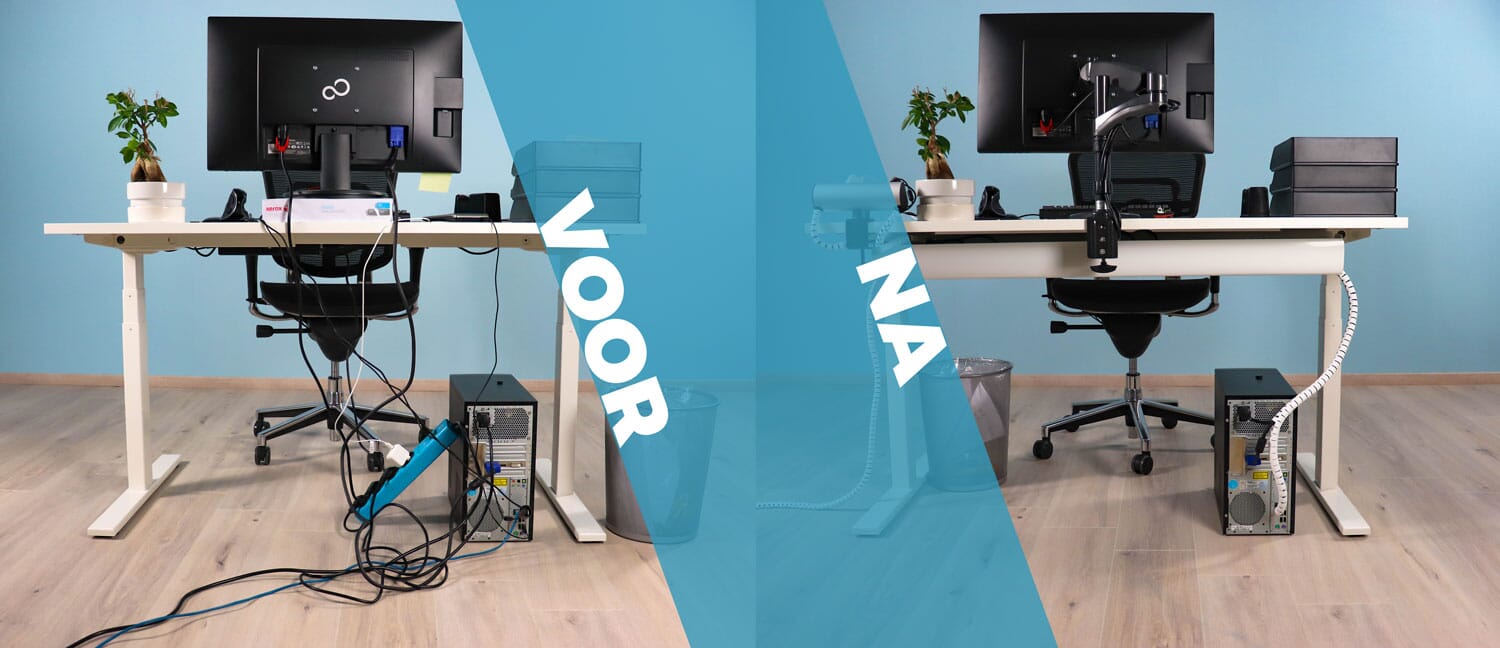
| Tidy desk | ||
| Effective against complaints | ||
| Promotes good posture | ||
| Easy collaboration |
What health issues can a monitor arm help with?
A monitor arm allows you to adopt a better posture and therefore work in a more relaxed manner. The lack of a suitable solution for your monitor can cause problems for the following parts of the body:
Back
Back pain is the most common complaint. And that’s hardly surprising. Your monitor is your source of information, the most important part of your workspace. You’re glued to the monitor all day long.
When your monitor isn’t positioned properly and your eyes start to feel tired, you unconsciously slip into a poor sitting posture. You lean forward to read the screen clearly and to compensate for your tired eyes.
Neck
The incorrect posture described above, in turn, affects other parts of your body. When you lean towards your screen, you also tilt your neck slightly. It’s a fairly harmless movement, but if it’s repeated day in, day out, you’ll eventually start to notice it.
An adult’s head weighs an average of around 5 kilograms. With good sitting posture, the pressure on your neck is ‘only’ those 5 kilograms. With a slight tilt of 15 degrees, that increases to a good 12 kilograms.
Shoulders
The moment you start leaning forward, the rest of your body moves forward too. You’ll find yourself hunching your shoulders a bit more.
To support the extra weight leaning forward, you’ll also be more likely to rest your forearms on the desk. This encourages you to raise your shoulders even more, putting further strain on them. Just like with your neck, these movements seem fairly harmless, but can have serious consequences in the long run.
Eyes
Staring at the screen all day takes its toll on your eyes. They become tired and can no longer focus as easily as they did during the first 2–4 hours of the working day. The distance between you and the screen becomes an increasingly significant problem.
Eventually, you’ll have to give in to the fatigue and lean closer to the screen. This does your shoulders, neck and back no favours.
7 tips to get the most out of your monitor arm
- Make sure your monitor is positioned centrally in front of you
To ensure you adopt a healthy working posture, your monitor should be positioned directly in front of you. This means you won’t have to twist your body, neck or shoulders to the left or right. It provides greater relaxation and comfort. Even if you work with two or more monitors, it is important to position your main monitor directly in front of you. Do not sit between two monitors.
- Keep an arm’s length away from the monitor
The correct distance from your screen ensures that you can read everything clearly and that your eyes do not tire too quickly. For this distance, you should use approximately an arm’s length.
- Position the top of the monitor at eye level
The monitor must be easy to read. Height is important here. If you align the top of your screen with your eyes, you have the correct height. Is your screen larger than 20 inches? Then it can even be positioned slightly higher. You won’t then have to tilt your neck to read the lower part clearly
- Tilt the screen slightly upwards
As your monitor is mostly positioned below eye level, it is best to tilt it slightly upwards. This improves readability. Do take care that light does not reflect too much off the screen, as this will make the tilt counterproductive.
- Use your eyes, not your neck
Your eyes have a wide range of motion. Make use of this. This prevents you from reading using your neck. As you’ve read above, even a slight tilt of the neck has a significant impact on the weight it has to bear, so you’ll want to avoid tilting it.
- Position yourself cleverly in relation to windows
Incoming light is disastrous for the readability of your monitor. So make sure you outsmart the sun. If necessary, turn your workstation away so that not too much light falls on your monitor.
- Tired? Move your screen slightly towards you
Do you find that by the end of the day you can’t see everything on your screen clearly? If so, move the monitor slightly towards you.
Variety of monitor arms
There is a huge range of monitor arms to choose from. You name it, it exists. Due to the wide variety of consumer needs and requests, many new products have been developed in recent years. These range from a monitor arm for 6 monitors to analyse large amounts of data simultaneously, to an arm with a long reach to facilitate better collaboration. And pretty much everything in between. Four features clearly distinguish monitor arms from one another.
Base, clamp or grommet
Base
Easy installation
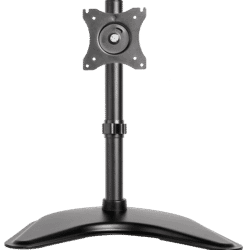
You can install a monitor arm in three different ways. Of these, the base is the simplest. However, it is also the option with the most limitations.
Long arms cannot be attached to it, as the base would tip over. In terms of ease of use, it is the best option, as you simply place it on your desk and can get started straight away.
Clamp
Sturdy, quick assembly
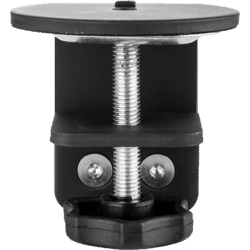
A desk clamp is the most popular option of the three. All you need for a desk clamp is your hands. Simply place the clamp where you want to attach the arm on your desk and tighten it securely.
Feed-through
Best solution

Using a grommet for your monitor arm is the best option. It is also the most time-consuming.
You drill a hole in your desk, into which the monitor is then mounted. This makes it look as though the arm disappears into your desk. A grommet therefore creates a clean and sleek look.
There are various monitor arms available that come with both a desk grommet and a desk clamp. With these products, you can always decide at home which mounting method you prefer.
Long or short arm
Short arm
For the compact workspace
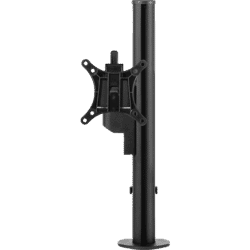
A short arm means less flexibility and fewer options. But perhaps those aren’t necessary at all. A short arm takes up less space and can be ideal for smaller workspaces.
Long arm
Nice and flexible
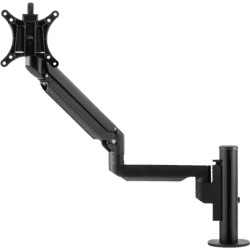
Put simply, a longer arm means you have more flexibility. You can sit in different spots at your desk and still position the screen directly in front of you. It’s also easier to collaborate or quickly show something to a colleague.
Whether you have a short desk measuring 60 cm or one measuring 100 cm, you can be sure that the monitor is positioned just right for you.
1 or more monitors
1 monitor
Sufficient for most tasks
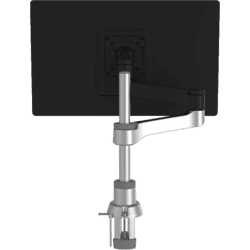
The most striking difference between monitor arms is probably the number of screens they can support. A monitor arm for a single screen is sufficient for most people.
Depending on your tasks and workload, you might consider getting an extra screen, but in practice this often proves unnecessary. If you mainly work in one programme and don’t need to switch between programmes very often, then a single monitor will serve you perfectly well.
More monitors
If you want to take it a step further
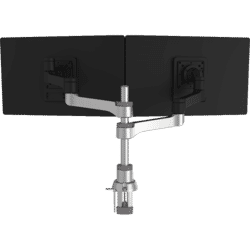
However, you may need to monitor a lot of information or work in several programmes at once. In that case, it’s handy to have all the information clearly laid out in front of you, so you don’t have to click and drag as much. It saves time and frustration, and makes your working day a lot more productive.
How far can you go? A long way, so do hold back. Before you know it, you’ll be working with a monitor arm holding six monitors.
Monitor arms are incredibly versatile. They cater to different professions, different needs and different ideas about productive and healthy working. Whether you want to work with one screen or six, there’s always an arm to suit you.
Height adjustment: fixed or dynamic
Fixed height
Firmly fixed at your preferred height
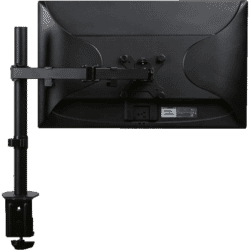
There are two ways to adjust the height of your monitor. There are clamp systems that you have to manually tighten to raise or lower the monitor. This can take a lot of effort, especially if your monitor is already attached to the arm.
A clamp system is therefore often used when the monitor rarely needs to be raised or lowered. This is mainly the case in workplaces where the same person always works and where there is no switching between sitting and standing.
Dynamic height
Adjusting the height with your fingertips
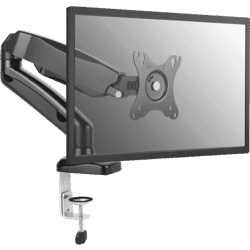
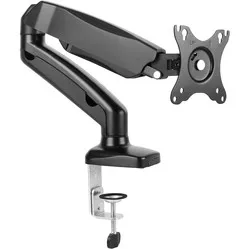
A gas spring is a brilliant invention for frequently raising and lowering the monitor. Thanks to the gas spring, the monitor can be adjusted with minimal effort. You can adjust the spring in the arm to suit the weight of your monitor.
The gas-spring monitor arm is a real boon, particularly for flexible workspaces where someone else might be sitting at the desk. The unique, slightly more rounded design of a gas-spring arm is quite easy to spot.
Choose the right monitor arm
When buying a monitor arm, there are a few things to bear in mind. By looking at the right factors, you can be sure you’re making the right choice.
- 1. How many monitors am I going to mount?
A simple but important question to start with. How many monitors are you going to mount? Perhaps you currently have one, but you’ve been wondering for a while whether you might want to use a second monitor. Now is the ideal time to make that decision.
You’ve already read above when multiple monitors can be beneficial.
- 2. How heavy is my monitor?
Monitor arms can often support much more weight than is necessary. Still, it doesn’t hurt to check this.
You can look up the weight of your monitor using its product number. Google is your friend. You can then find the maximum load capacity of a monitor arm in the specifications on our product pages. You’ll find this listed under ‘max. load capacity’.
- 3. What size is my monitor?
Your screen size is always given in inches. This information is also easy to find online.
You can then find the minimum and maximum screen sizes in the specifications on our product pages and in the product titles. These are listed as ‘min. screen size’ and ‘max. screen size’.
- 4. What is the VESA size of my monitor?
There is a pattern of holes on the back of your monitor. You will later connect this pattern to the monitor arm. Just like the weight and size, the VESA pattern is also easy to find.
However, you can also measure it yourself. Are the holes 7.5 cm apart? Then you have VESA 75. Are they 10 cm apart? Then you have VESA 100. Are they 10 cm apart horizontally and 7.5 cm apart vertically? Then you have VESA 100x75.
In the specifications on our product page, you can find the VESA size listed under ‘VESA minimum’ and ‘VESA maximum’.
- 5. How do I want to/can I mount the monitor?
How do you want to attach the monitor arm? And how can you do it? Because often the final choice is a matter of what’s possible and what you want.
You’d like a desk clamp, but the edge of your desk is curved. This means you can’t secure the clamp properly. Conversely, a through-mount is sometimes not possible because your desk is too thick. In that case, a clamp might actually be the better solution.
Always check the specifications on our product pages for the minimum and maximum thicknesses for the through-mount and the clamp. The following details are important for you: ‘mounting method’ & ‘Suitable for desktop thicknesses of’.
- 6. How long should the arm be?
The desired length of the arm depends on a number of factors, including the distance between you and the monitor and the desired flexibility. The most important factor is the distance you need to be able to position the monitor close enough.
An example: You prefer to have the monitor about 40 cm away from you (use an arm’s length to determine the distance). Your desk is 100 cm deep. A quick calculation tells us that you therefore need a 60 cm monitor arm to achieve the ideal distance.
Do you collaborate a lot and often share work with your colleagues? Then a long arm with plenty of joints can give you complete freedom. You can swing it to the left, you can swing it to the right. Everyone can watch along without any problems. You can find the maximum length of an arm in the specifications under ‘Depth’.
- 7. How high should my monitor be positioned?
Ideally, your monitor should be positioned with the top edge roughly at eye level, or even slightly higher. Check the monitor you’re considering to see how high it can go. This information can be found in the specifications under ‘lowest position’ and ‘highest position’.
Please note: the positions indicated refer to the centre of your screen, as this is where it is attached to the arm. So measure the distance from the centre of your screen to the top to determine how high the monitor will hang.
- 8. Do I need to adjust the height often?
Do you have a fixed workstation where only you work? Then the answer is no. You adjust the height once and you’re done.
However, if you work at a flexible workstation where someone else might sit there every day, then the answer is definitely yes. Everyone of a different height must be able to adjust the monitor to the height that suits them best. A gas spring is the solution. With a gas spring, you can effortlessly adjust the arm’s height without any effort.
Frequently asked questions about monitor arms
- Can a desk clamp be attached to any desk?
On most desks, yes, but there are exceptions. For example, very thick desks are often unsuitable. Desks that curve at the bottom are also not ideal for attaching a clamp.
- Do I need tools to install a monitor arm?
To find out, it’s best to check the specifications of the monitor arm you’re interested in. Under ‘tools required’, you’ll find what you need.
- Which monitor arm is the best?
There is no single monitor arm that is universally the best. Choosing the right stand depends on your requirements and the work you do. Follow the step-by-step guide on our category page to choose the right monitor arm.
- My desk is against the wall. Can I still use a desk clamp?
You can try pulling the desk slightly away from the wall. If that isn’t possible, it’s best to measure whether the arm can be positioned on the side of your desk. If it’s long enough, you can still position the monitor directly in front of you.