





WIRELESS CHARGER
CHARGING WITHOUT A CABLE ON YOUR DESK

When do you choose a wireless charger?
You choose a wireless charger if your phone is within reach all day and you want to top it up in between without fiddling with cables. You put it down, it charges. You pick it up, charging stops. It is that simple.
Ask yourself a few questions. If you answer yes, a wireless charger on your desk is a logical step.
- Does your phone usually lie on your desk during the day?
- Does your phone support wireless charging?
- Do you want the charging cable and adapter out of sight?
- Do you have a fixed workplace where you can build a charger in?
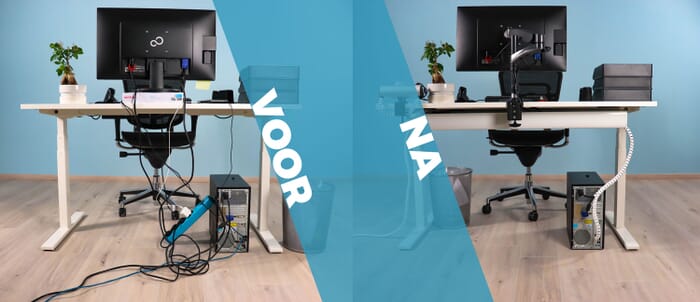
If you work in changing places, a freestanding wireless charger or a plain USB-C cable is more practical. For a fixed workplace, a flush-mount model is the tidier solution. Want to tidy your whole desk first? Read the blog hide cables with the top 5 products.
Why is a wireless charger different from charging with a cable?
Charging with a cable is not worse than wireless charging. It is often even faster. The difference lies in convenience, cable order and the place your phone gets on your desk.
No cable, no wear on the port
With a cable you push a plug into your phone's charging port dozens of times a week. With a wireless charger that does not happen. You put the phone down and pick it up again. The charging port stays free, and there is no cord curling across your desk.
A fixed place for your phone
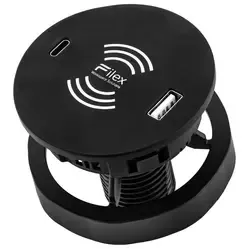
A wireless charger gives your phone its own place on the desk. That sounds small, but it saves searching and tempts you to put the phone down instead of holding it. With a flush-mount model that place is also unobtrusive: a flat circle in the desktop.
Charging speed and power
Wireless chargers for the desk usually deliver 10 to 15W. That is enough to fill a phone in a few working hours, but less than a fast USB-C charger. How fast it really goes is decided by your phone. If it has to be quick, keep a cable at hand.
How does a wireless charger help at the workplace?
A wireless charger changes nothing about your sitting posture, but a lot about the calm of your workplace. You no longer reach for a cable behind your screen or bend down to a power strip under the table to find the adapter.
That can help with:
- less unnecessary reaching and bending during the working day
- a clearer desk without loose charging cables
- less distraction, because the phone has a fixed place
- a more professional look for desk or meeting table
If you also want power and USB ports neatly in the desktop, have a look at the built-in power strips. The remaining cables from monitor and laptop are tidied away with the solutions under cable management.
What should you look for when choosing a wireless charger?
Not every wireless charger suits every workplace. Look at the mounting, the power, the power supply and whether your phone sits well on it.
Flush-mount or freestanding
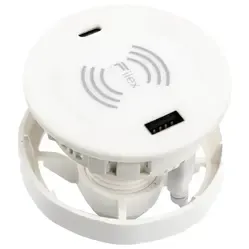
A flush-mount model needs a hole in the desktop, for the Powerdot Charge 01 for example Ø79 mm with a desktop up to 30 mm thick. Check the required size and whether there is room under the desktop for the housing and the cable. If you cannot or do not want to drill, choose a freestanding model.
Charging power
Look at the maximum power, usually 10 or 15W. More important is what your phone itself allows: many devices charge wirelessly at 7.5 to 15W. A charger with more power does not make a phone that accepts less charge any faster.
Power supply and adapter
A wireless charger needs power itself, through a USB-C cable and an adapter. Check whether the adapter is included and how many watts it delivers. The Powerdot Charge 01 comes with a 20W adapter with a Euro plug in the box. That way you know the charger reaches its full power.
Case and position
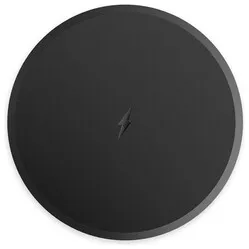
Wireless charging works through a thin case, but not through metal or a magnetic plate. Your phone also has to sit well centred on the charging surface. A marking on the charging surface, like the lightning bolt on the Powerdot Charge 01, helps with that.
Tips for installing a wireless charger
- Measure your desktop before you drill
Check the required hole diameter and the maximum desktop thickness of the flush-mount model. Also check that there is no drawer or frame under that spot.
- Pick a spot within reach, but outside your typing zone
Place the charger next to your keyboard or mouse, not between them. That keeps your phone close without bumping into it while you type.
- Tidy the USB-C cable and adapter away under the desktop
Route the cable to the power strip with a cable tray or cable ties. The top of the desk then stays completely free.
- Place your phone with its back in the middle of the charging surface
If the phone lies well off centre, it charges slowly or not at all. After installation, test where it sits best.
- Test charging with and without the case
A thin case is usually no problem. If your phone does not charge, take the case off and check for a magnetic plate or card holder on the back.
Frequently asked questions about wireless chargers
- What is a wireless charger?
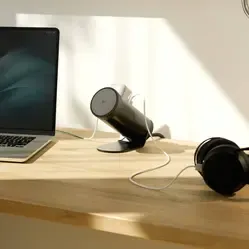
A wireless charger charges your phone, earphones or watch without a cable. You place the device on the charging surface and charging starts by itself. For the desk there are freestanding models and flush-mount models that sit recessed in the desktop.
- Who is a wireless charger suitable for?
For anyone with a phone or earphones that support wireless charging who wants the charging cable off the desk. Flush-mount models are especially suitable for a fixed workplace or meeting table.
- Does a wireless charger work with every phone?
No. Your phone has to support wireless charging. Most smartphones from recent years do, but check the specifications of your device. The power your phone allows determines the charging speed.
- Can I also build power and USB into the desk?
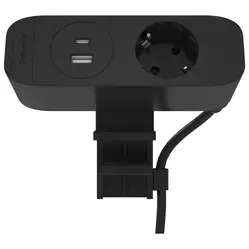
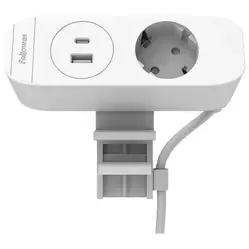
Yes. Besides wireless chargers there are flush-mount modules with 230V sockets and USB ports. You will find them under power strips with USB. Models from the same family, such as the Powerdot Ø79 mm series, use the same hole.