





Stel hier je vraag over dit product
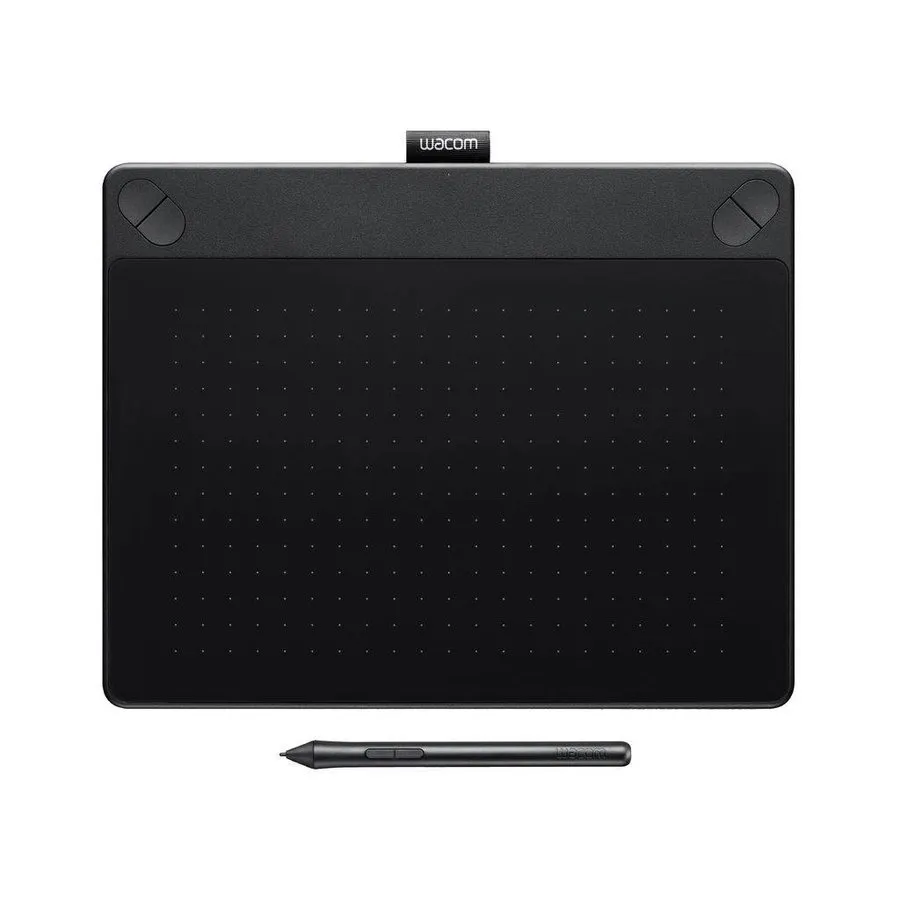
Wacom Intuos 3D Pen & Touch Medium Black drawing tablet

Product description of Wacom Intuos 3D Pen & Touch Medium Black drawing tablet
Wacom Intuos 3D Pen & Touch Medium graphics tablet - black
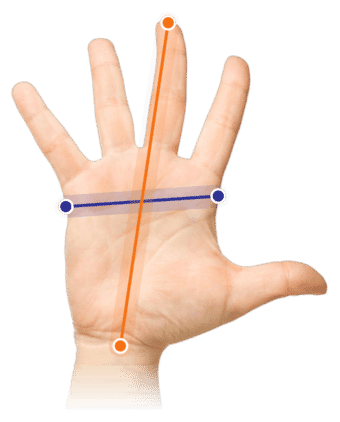
Which size fits your hand?
Measure your hand as shown in the image and choose your size using the table below:
| Size | Width | Length |
|---|---|---|
| Any hand size | suitable | suitable |
Description
Enjoy sculpting!
With the Intuos 3D, you can enjoy sculpting, just like you used to do at school. Only now, it doesn't need to go in the oven to see the result… and the teacher can't mess it up.
Why the Wacom Intuos 3D graphics tablet?
The Intuos 3D could easily become your new best friend. Eye-catching design, high quality, and a pleasure to use. Whether you want to use it purely as a mouse or also as a drawing tool. When you think of a pen tablet, you think of Wacom. And not without reason. Without exaggerating, the quality is fantastic, and you can tell these products were made not only for users, but also by users.
With the Wacom Intuos 3D graphics tablet you can conjure up lifelike animations on your screen in no time. Fine details are no problem at all for this sensitive graphics tablet.
Of course you can also simply use the graphics tablet as a mouse. Move the pen and the cursor faithfully follows across the screen, and you click by simply tapping the pen on the tablet.
Had enough of the pen for a moment? Then you can easily work on the tablet with your fingers. Thanks to multi-touch support, you can use your fingers to scroll, zoom in and switch between windows.
What does a graphics tablet mean for your posture?
Because holding a pen is such a familiar posture, you can work in a more relaxed way. This puts considerably less load on your wrist and arm muscles than a flat mouse does.
You can also place the pen tablet neatly in front of the centre of your body, so you do not have to work outside shoulder width. Your shoulder muscles will appreciate that too.
On top of that comes the extra benefit that the graphics tablet makes no distinction between left-handed and right-handed users. So you can easily switch hands to spread the load. That also makes it possible to operate the tablet with two hands. You can move the cursor with one hand and use the buttons with the other.
For good posture, place the graphics tablet as close to your body as possible. Put the keyboard directly above it so that it does not sit too far from your body either. If you are going to do more keyboard work for a while, it is wise to slide the graphics tablet aside.
During testing we noticed that you are quickly inclined to squeeze the pen. In our view this is made slightly worse by the small buttons on the standard supplied pen. We therefore advise you not to use these buttons and to assign their functions to the keys on the graphics tablet instead. That is very easy to do with the supplied Wacom driver.
Squeezing the pen is also partly a matter of getting used to it. So give yourself a week or two to get used to the new way of working.
With multi-touch you can simply use your fingers for regular mouse and click work. That gives you one more option to alternate with, which can make mousing that little bit more pleasant.
This is what makes the Wacom Intuos 3D so good
Wacom's many years of experience in developing high-quality graphics tablets comes through clearly in this model too. Everything has been carefully thought through. The pen weighs about 10 grams, the same as a normal pen, so it does not add any extra strain. The flat design of the Intuos 3D (6 mm at the front) means you do not have to lift your arm while operating the graphics tablet.
Moving the pen across the Intuos 3D graphics tablet feels very pleasant. It gives you enough resistance to create the sense that you really are drawing with a marker. The tablet also registers how hard you press on the pen.
That makes drawing work a lot easier to do. For maximum precision, it is best to switch off the pen functions so that the pen only moves the cursor. You can then use the extra buttons as your mouse buttons.
You will find the extra buttons on the top of the graphics tablet, and you can programme them however you like using the Wacom Intuos driver. The functions can even be adjusted per application.
Incidentally, you do not necessarily have to touch the graphics tablet with the pen to move the cursor. You can set it up so that it registers movements from about one centimetre above the surface. That can be very handy while drawing, because you also want to be able to move your brush without leaving all kinds of lines across your work.
The fine details
The Intuos 3D graphics tablet is not one for the little ones. It is only available in the larger format of 275 by 217 mm. The thickness matches the rest of the Intuos family: 6 mm thick at the front and 10 mm at the back. At 480 grams it is not particularly heavy.
The area that registers the pen measures 216 x 135 mm. That means you can easily reach the edges of your screen too. The Wacom tag on the top serves as a holder for your pen and makes sure you do not lose the pen while travelling.
For an additional charge you can fit the graphics tablet with a rechargeable Li-Ion battery and a wireless USB receiver. You can find the kit to make your Wacom wireless here. On the underside of the graphics tablet you will find a compartment where both the battery and the USB receiver fit neatly. This compartment is easy to reach through the detachable cover.
We also discovered 3 spare pen nibs hidden in there. Which is handy, because the pen nibs do wear down over time. Friction builds up between the pen and the surface of the graphics tablet. This is deliberate, to bring the experience as close to reality as possible. If you do not press too hard, nib wear is really not much of an issue. You can also play with the pressure sensitivity to extend the life of the nib.
Wear naturally depends on the work you do with it. If you press hard or make lots of short movements, the nib will wear down faster. Wacom states that the nib should last around 20 million pen strokes and advises replacing it once only 1 mm is still sticking out. By replacing the nib in good time you avoid scratching your tablet.
The pressure sensitivity of the pen is a lovely extra, by the way. It lets you influence the thickness of your lines without having to change all kinds of settings. That makes it possible, for example, to start with a thin line and gradually let it become thicker.
Something else you should not miss
Wacom has created an extensive driver for its graphics tablets that lets you set the tablet up entirely to your own liking. Without the driver, the graphics tablet works only to a limited extent on Windows. For Mac users, installing the driver is essential, because it does not work without it.
Installing is little trouble: the driver is supplied on a CD-ROM. If your PC or Mac does not have a CD-ROM drive, you can find the driver on this page or on the Wacom website. The driver lets you programme the 4 extra keys and change the settings and sensitivity of the pen, among other things.
This product is good for
wrist - arm - shoulder
The more natural posture that a pen tablet offers takes the load off your wrist, arm and shoulder. You can also easily spread the load between your left and right arm.
Pros and cons
- Natural posture thanks to the pen
- Multi-touch
- High precision
- Extra buttons on the graphics tablet
- Extensive driver
- Keyboard sits slightly further away
Key specifications
| Warranty | 2 years |
| Ergonomic design | |
| Use | Right-handed and left-handed |
| Number of buttons | 6 |
| Plug & play | No, driver required |
| Multi-touch | |
| view all specifications |
Product features
- More natural posture thanks to the pen
- Multi-touch
- Suitable for right-handed and left-handed use
- 4 extra buttons on the graphics tablet
- Extensive driver
- Programmable buttons
- Adjustable sensitivity
What's in the box?
- Black graphics tablet
- Intuos Pen
- Connection cable
- Manual
- Installation CD-ROM
- Corel Painter Essentials 5 software
(free to download)
Getting started with the Intuos graphics tablet
Connecting the graphics tablet
Setting up the graphics tablet
BONUS!

Pixologic ZBrushCore®
To bring your stories to life, Wacom supplies the software you need. With the Intuos 3D you receive Pixologic's ZBrushCore® software. For beginners this software comes with examples, but more advanced users will find plenty to enjoy in this programme too.
You can download the free software from the Wacom website. You do need to register yourself, but after that you can download ZBrushCore®. The only thing that may take some searching is the software bundle download key. You can find it on the product packaging, under the flap.
How do I download the software?
The steps below will let you download the free software from the Wacom website.
- Find the software bundle key
- Register yourself with Wacom
- Add the software to your software library
- Download the software
- Copy the serial number from the software library
Frequently asked questions
Specifications
| Item number | ERGO-WACI3D |
| Manufacturer's item number | CTH-690TK |
| Brand | Wacom |
| Warranty | 2 years |
| Type of guarantee | Ergowerken free warranty return service |
| Colour | Black |
| Ergonomic design | |
| Management | Pen |
| Left- or right-handed | Can be used by both left- and right-handed people |
| Hand length | Suitable for any arm length |
| Hand width | Suitable for any hand size |
| USB port | |
| USB version | 2.0 |
| Number of buttons | 6 buttons |
| Adjustable buttons | |
| Scroll wheel | |
| Adjustable sensitivity | |
| Resolution | 2540 Ipi |
| Pressure sensitivity | Yes, 2048 pressure levels |
| Reading speed | 133 pps |
| Control surface dimensions | 216 x 135 millimetres |
| Dimensions length x width x height | 275 x 217 x 6–10 millimetres |
| Product weight | The drawing tablet weighs 480 grams and the pen weighs 10 grams. |
| Minimum system requirements | Mac OS X v10.8 and above / Windows 7 and above |
Reviews Wacom Intuos 3D Pen & Touch Medium Black drawing tablet
Every month a review with a photo or video wins a voucher. We choose on content and publish all reviews, including critical ones. Read how we handle reviews