





Stel hier je vraag over dit product
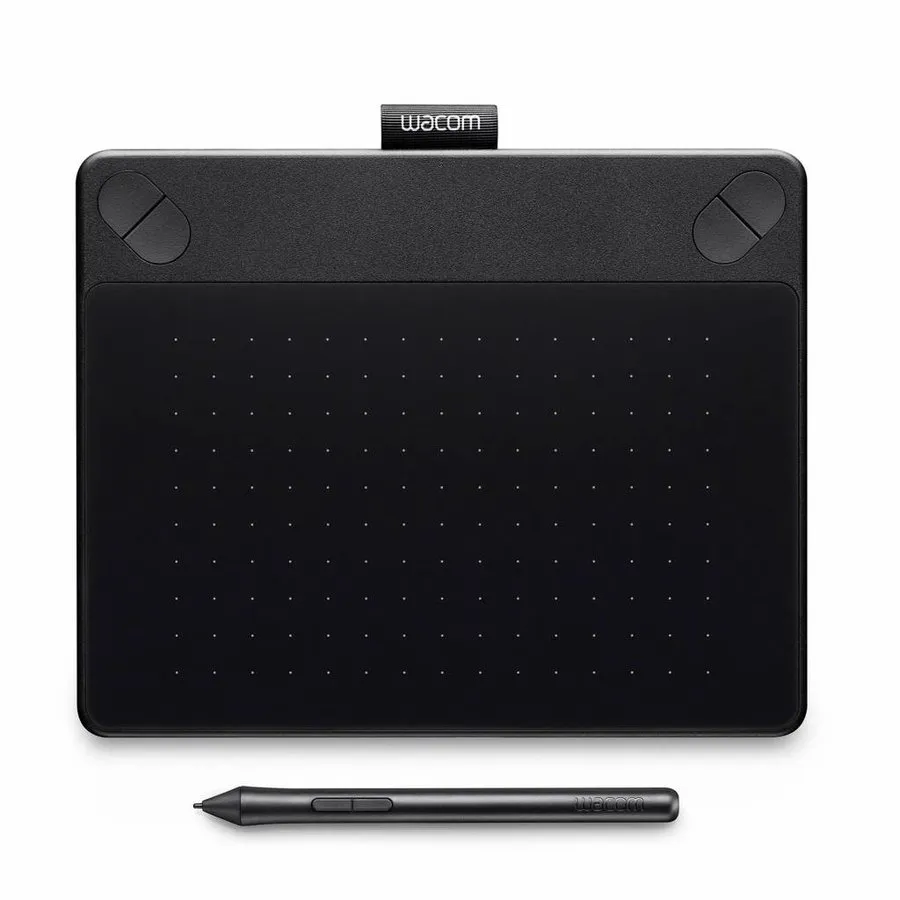
Wacom Intuos Photo Pen & Touch Small drawing tablet Black

Product description of Wacom Intuos Photo Pen & Touch Small drawing tablet Black
Wacom Intuos Photo Pen & Touch Small pen tablet - black
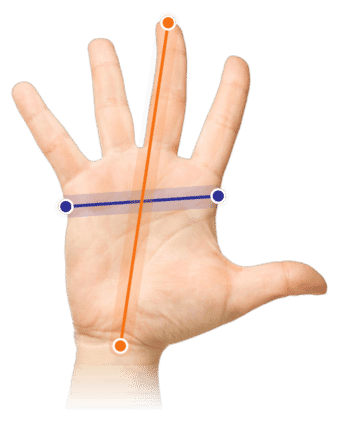
Which size fits your hand?
Measure your hand as shown in the image and choose your size using the table below:
| Size | Width | Length |
|---|---|---|
| Any hand size | suitable | suitable |
Description
Photographer
Do your photos always look like they were taken from the wrong angle and with the wrong lighting? Look no further. Be the star at family gatherings with your perfectly edited photos.
Why the Wacom Intuos Photo pen tablet?
The Intuos Photo could easily become your new best friend. Eye-catching design, high quality and a joy to use. Whether you want to use it purely as a mouse or also as a tool for editing photos. When you think of a pen tablet, you think of Wacom. And not without reason. The quality is, without exaggeration, fantastic, and you can tell the products are made not only for users, but also by users.
Do you often work with photo editing programs such as Photoshop? Then a drawing tablet like the Wacom Intuos Photo will definitely come in handy. Whether you work professionally or as a hobbyist, the drawing tablet lets you edit your photos faster and better.
Just want to touch up that unsightly blemish? With simple pen movements, you can retouch even the smallest imperfections. You can also simply use the drawing tablet as a mouse. Move the pen and the cursor follows faithfully across the screen; you click by simply tapping the pen on the tablet.
Had enough of the pen for a moment? Then you can easily work on the tablet with your fingers. Thanks to multi-touch support, you can easily move the cursor, scroll, zoom in, rotate and switch between windows with your fingers.
What does a drawing tablet mean for your posture?
Because holding a pen is such a familiar posture, you can work in a more relaxed way. This puts far less strain on your wrist and arm muscles than a flat mouse.
You can also place the pen tablet nicely centred in front of your body, so you do not have to work beyond shoulder width. Your shoulder muscles will appreciate that too.
An added advantage is that the drawing tablet makes no distinction between left-handed and right-handed users. So you can easily switch hands to spread the load. It also makes it possible to operate the tablet with two hands. You can move the cursor with one hand and operate the buttons with the other.
For a good posture, place the drawing tablet as close to your body as possible. Put your keyboard directly above it, so it is not too far from your body either. If you are going to work with the keyboard for a while, it is wise to slide the drawing tablet aside for a moment.
During testing, we noticed that you quickly tend to squeeze the pen. In our opinion, this is somewhat encouraged by the small buttons on the pen supplied as standard. We therefore advise you not to use these buttons and to assign their functions to the keys on the drawing tablet instead. That is very easy to do with the included Wacom driver.
Squeezing the pen is also partly a matter of getting used to it. So give it a week or two to get accustomed to the new way of working.
Thanks to multi-touch, you can simply use your fingers for regular mouse and click work. That gives you yet another option to alternate with. It can make mousing just that little bit more pleasant.
This is what makes the Wacom Intuos Photo so good
Wacom's years of experience developing high-quality drawing tablets clearly shows in this model too. Everything has been carefully thought through. The pen weighs about 10 grams, the same as a normal pen. So it does not add any extra strain. The flat design (6 mm at the front) of the Intuos Photo means you do not have to lift your arm while operating the drawing tablet.
Moving the pen across the drawing tablet feels the same as working with a marker on paper. This makes drawing tasks a lot easier. For maximum precision, it is best to disable the pen's functions, so you only move the cursor, and use the extra buttons as the mouse buttons.
You will find the extra buttons at the top of the drawing tablet, and you can program them as you wish using the Wacom Intuos driver. The functions can even be adjusted per application.
By the way, you do not necessarily have to touch the drawing tablet with the pen to move the cursor. You can set it up so that it registers movements from about one centimetre above the surface. This can be very pleasant while drawing. After all, you want to be able to move your brush without leaving all sorts of streaks across your work.
The surface of the drawing tablet corresponds to your screen(s), so if you place the mouse in the top right corner of the tablet, the cursor on the screen will take over that position. This works differently from a normal mouse, where you always have to move the mouse towards the desired position.
The finer details
The Intuos Photo is only available in the small size. This variant is particularly suitable for travelling between different workplaces. It weighs 280 grams and comes with a detachable 150 cm USB connection cable. The Wacom label at the top serves as a holder for your pen and ensures you do not lose the pen while travelling.
The tablet measures 210 x 170 x 6-10 mm. The area that registers the pen is slightly smaller, namely 152 x 95 mm. The main reason these dimensions differ is the extra buttons at the top. It also helps prevent you having to balance on the edge of the tablet to reach the edges of your screen.
For an additional charge, you can equip the drawing tablet with a rechargeable Li-Ion battery and wireless USB receiver. You can find the kit to make your Wacom wireless here. At the bottom of the drawing tablet you will find a compartment where you can neatly store both the battery and the USB receiver. This compartment is easily accessible via the removable cover.
We also discovered that 3 spare pen nibs are hidden here. That is very handy! The pen nibs wear down over time, because friction occurs between the pen and the surface of the drawing tablet. This is deliberate, to bring the experience as close to reality as possible. If you do not press too hard, the wear on the nibs is very limited. You can also play with the pressure sensitivity to extend the life of the nib.
The wear naturally depends on the work you do with it. If you press hard or make lots of short movements, the nib will wear down faster. Wacom states that the nib should last about 20 million pen strokes and advises replacing the nib when it still protrudes 1 mm. By replacing the nib in time, you help prevent scratching your tablet.
The pen's pressure sensitivity is a nice extra, by the way. It lets you influence the thickness of the lines without having to change all sorts of settings. This makes it possible, for example, to start with a thin line and let it gradually become thicker.
One more thing you should not miss
Wacom has created an extensive driver for the drawing tablets, which lets you set up the tablet entirely to your liking. Without the driver, the drawing tablet only works to a limited extent on Windows. For Mac users, installing the driver is essential, because it does not work without it.
Installing it takes little effort; the driver is supplied on a CD-ROM. If your PC or Mac does not have a CD-ROM drive, you can find the driver on this page, or on the Wacom website. Using the driver, you can program the 4 extra keys and change the pen's settings and sensitivity, among other things.
This product is good for
wrist - arm - shoulder
Thanks to the more natural posture a pen tablet offers, you relieve your wrist, arm and shoulder. You can also easily spread the load between your left and right arm.
Pros and cons
- Natural posture thanks to pen
- Multi-touch
- High precision
- Extra buttons on drawing tablet
- Extensive driver
- Keyboard sits slightly further away
Key specifications
| Warranty | 2 years |
| Ergonomic design | |
| Use | Right- and left-handed |
| Number of buttons | 6 |
| Plug & play | No, driver is required |
| Multi-touch | |
| view all specifications |
Product features
- More natural posture thanks to pen
- Multi-touch
- Suitable for right- and left-handed use
- 4 extra buttons on the drawing tablet
- Extensive driver
- Programmable buttons
- Adjustable sensitivity
What's in the box?
- Black drawing tablet
- Intuos Pen
- Connection cable
- Manual
- Installation CD-ROM
- Corel Painter Essentials 5 software
(free to download)
Getting started with the Intuos drawing tablet
Connecting the drawing tablet
Setting up the drawing tablet
BONUS!

Photo editing software
To let the Intuos Photo really shine, Wacom includes an extensive free software package to transform your photos from good to great. The package includes: Corel® PaintShop® Pro X8 for Windows users and Corel® Aftershot® Pro 2 for both Windows and Mac users. Mac users can also download the Macphun Creative Kit (consisting of: Tonality Pro, Intensify Pro, Snapheal Pro, Noiseless Pro).
You can download the free software via the Wacom website. You do need to register. But then you can download the programs mentioned. The only thing that may take a little searching is the software bundle download key. You can find it on the product packaging under the flap.
How do I download the software?
Using the steps below, you can download the free software from the wacom website.
- Find the software bundle key
- Register with Wacom
- Add the software to your software library
- Download the software
- Copy the serial number from the software library
Frequently asked questions
Specifications
| Item number | ERGO-WACIPSBK |
| Manufacturer's item number | CTH-490HP |
| Brand | Wacom |
| Warranty | 2 years |
| Type of guarantee | Ergowerken free warranty return service |
| Colour | Black |
| Ergonomic design | |
| Management | Pen |
| Left- or right-handed | Can be used by both left- and right-handed people |
| Hand length | Suitable for any arm length |
| Hand width | Suitable for any hand size |
| Connection | Wired via USB |
| USB port | |
| USB version | 2.0 |
| Number of buttons | 6 buttons |
| Adjustable buttons | |
| Scroll wheel | |
| Adjustable sensitivity | |
| Resolution | 2540 Ipi |
| Pressure sensitivity | Yes, 2048 pressure levels |
| Reading speed | 133 pps |
| Control surface dimensions | 152 x 95 millimetres |
| Dimensions length x width x height | 210 x 170 x 6–10 millimetres |
| Product weight | The drawing tablet weighs 280 grams and the pen weighs 10 grams. |
| Minimum system requirements | Mac OS X v10.8 and above / Windows 7 and above |