





Stel hier je vraag over dit product
TEX Shura 60% mechanical keyboard with pointing stick


Product description of TEX Shura 60% mechanical keyboard with pointing stick
Is this keyboard right for me?
| Width | 3130 mm |
| Depth | 135 mm |
| Height | 33 mm |
| Version | Windows, macOS, Linux |
| Key layout | QWERTY (ANSI US int.) |
| Switches | Cherry MX1A silent red, blue, brown |
| Connection | Cable |
An ode to the Shura mechanical keyboard
Pointing dot
My keyboard has a quirky streak: the pointing stick. Sometimes it seems to have a life of its own and decides to jump around wildly, right when I am seriously typing. As if it wants to say: "Let me do a little dance between those letters too!".
Why the Shura mechanical keyboard?
Pointing stick cursor
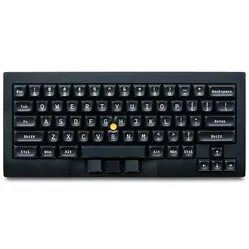
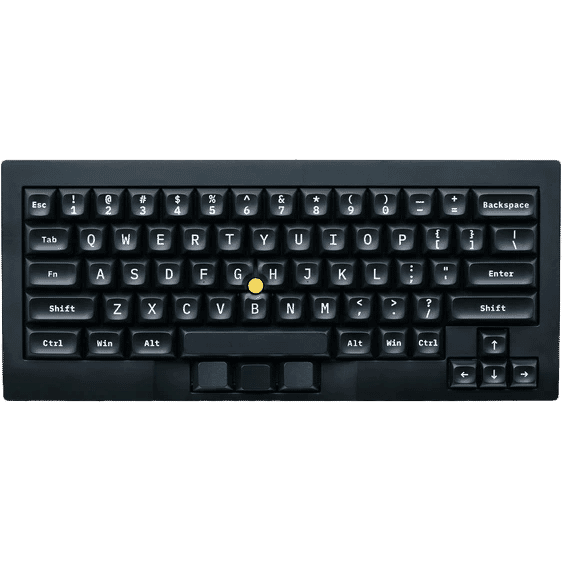
What makes the Shura keyboard unique is the pointing stick in the centre of the keyboard. This rubber knob can be used as a mouse, letting you control the cursor on your screen. Using a pointing stick has several advantages.
Space-saving
Because a pointing stick is placed directly on the keyboard, it takes up no extra space on the desk. This can be handy for people who work in a small workspace or are often on the move. In addition, with a pointing stick you do not have to take your hands off the keyboard to move the cursor, as you do with a mouse. This can boost productivity because you can keep your hands on the home position while you work. From an ergonomic point of view, this can be an advantage too.
In short, using a pointing stick can improve the efficiency and comfort of computer use, especially for people who do a lot of word processing or precise work and would rather not keep switching between keyboard and mouse.
Adjusting the mouse sensitivity
Using the key combination M_Fn + 1 up to M_Fn + 9, you can set the sensitivity of the pointing stick in steps. Your cursor then moves either slower (1) or faster (9).
We advise you to try out different sensitivities to find out what works best for you. Several rubber caps are supplied with the keyboard, which you can attach to the pointing stick. The M_Fn key is the middle key below the space bar.
Mouse click
Handy, of course, that you can steer the cursor with the pointing stick, but actually clicking with this dot is not possible. That is what the three keys below the space bar are made for. The left key acts as the left mouse button and the right key as the right mouse button.
The middle key is the M_Fn key. With it you can, as described above, adjust the sensitivity of your pointing stick. In addition, when you hold down the M_Fn key, you can use the scroll function.
This is what makes the Shura keyboard so good
N-key rollover
To prevent incorrect key registration, the Shura keyboard has N-key rollover (also known as NKRO). This refers to the ability to detect and correctly display several keystrokes at the same time. With NKRO the keyboard can accurately register every key that is pressed, even when several keys are pressed at once. This is especially handy for gamers and people who type fast, because it prevents keystrokes from being missed or registered incorrectly.
Sturdily built
With dimensions of 31.3 x 13.5 x 3.3 cm and a corresponding weight of 1000 grams, you can safely say it is a sturdy keyboard. The housing is made of ABS plastic (Acrylonitrile Butadiene Styrene). This is a widely used plastic for keyboards because of its strong and durable properties.
The keycaps are made of double shot PBT, which means the symbols and characters are not printed onto the keycap but moulded into the plastic. This makes for durable keys that keep their clear symbols, even after prolonged use.
Get the most out of your Shura mechanical keyboard
Programmable
The Shura keyboard is programmable using the tool on the website of supplier TEX. Here you can set macros so you can work faster. Macros are combinations of keystrokes configured to carry out a series of actions when they are pressed.
Macro examples
Automating repetitive tasks: If you regularly have to carry out the same series of keystrokes, you can create a macro to automate this process. For example, entering a long series of numbers or characters.
Productivity: For business use, macros can be used to create shortcuts for frequently used actions in software programs such as word processors, spreadsheets or graphic design software.
Multimedia functions: Macros can be used to trigger multimedia functions, such as playing music, adjusting the volume or opening specific programs.
Gaming: In the gaming world, macros are often used to simplify complex key combinations for game commands. With them you can, for example, quickly carry out a series of actions in a strategy game or trigger a special combo in a fighting game.
You should not miss this either
Switch choice
The Shura keyboard is fitted with mechanical MX1A switches from the brand Cherry. Switches are the mechanisms under the keycaps. They make sure keystrokes are registered by the keyboard. In the case of the Shura keyboard you have a choice of 3 types of switch: silent red, blue and brown.
The silent red switch is a linear switch that you can press with an even pressure, without any resistance. What is unique about this switch is, as the name suggests, that it is virtually silent. This makes the keyboard one of the quietest mechanical keyboards we have ever heard.
The brown switch is also silent, but gives a slight resistance while you press the key. This is handy, for example, when you have to do a lot of (touch) typing. You can then sense clearly when a key has been pressed far enough to be registered.
The blue switch feels the same as the brown switch. However, it gives a loud click at the moment of pressing. Some people like the sound of this and therefore prefer a blue switch. There are also people (often colleagues of the user) who find this sound very annoying. We therefore advise you to choose a blue switch only if it will not bother anyone.
Pros and cons
- With pointing stick
- Prevents hand movements
- No separate mouse needed
- Programmable
- No macOS keycaps supplied
- Brief manual compared with the keyboard's possibilities
Brief specifications
| Switches | Cherry MX1A silent red, blue, brown |
| Ergonomic design | |
| Wireless use | No |
| Programmable | Yes |
| Dimensions | 31.3 x 13.5 x 3.3 cm |
| Weight | 1000 grams |
How happy will my body be with this?
| Arm | |
| Hand | |
| Finger | |
| Wrist |
Product features
- QWERTY US layout
- Cherry MX1A switches
- Keycap material: ABS double shot
- Keyboard material: ABS plastic
- N-Key rollover
- Has a pointing stick cursor
- Connection: USB-C to USB-A cable
- Suitable for Windows, Mac OSX and Linux
- Dimensions: 31.3 x 13.5 x 3.3 cm
- Weight: 1.0 kg
What is in the box?
- 1 x Shura keyboard
- 1 x Brief manual (English)
- 1 x USB-A to USB-C cable
- 3 x Extra keycaps
- 1 x Keycap puller
- 3 x Rubber cap for pointing stick
Frequently asked questions
Which switch suits you?
With this keyboard you choose which switches go underneath. They cost the same, so it comes down to preference. A linear switch travels smoothly with no noticeable bump; a tactile switch has one, and a clicky switch lets you hear it too.
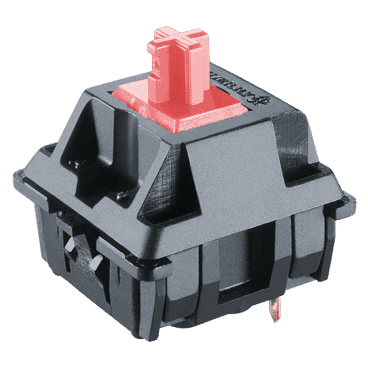 | 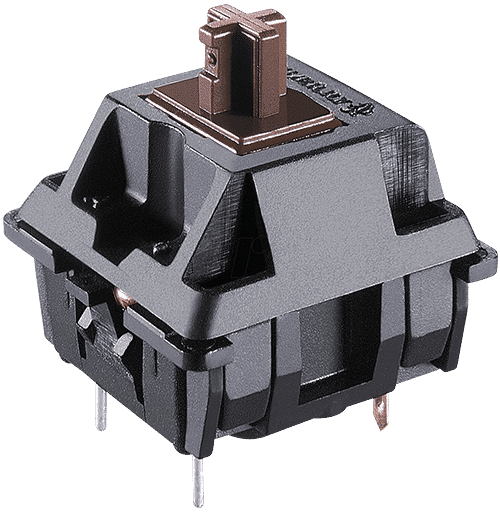 | 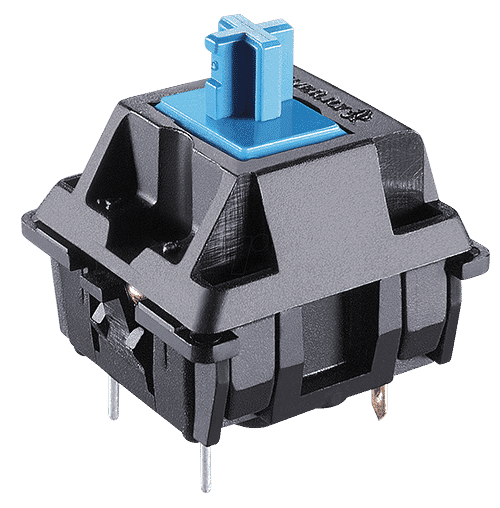 | |
| Type:Linear travels evenly. Tactile has a noticeable bump. Clicky adds an audible click to that bump. | Linear (silent) | Tactile | Clicky |
| Actuation force:Force:The force needed to register a keystroke. A regular rubber dome keyboard needs 55 to 60 g, so lower means lighter typing. | 45 g | 45 g | 50 g |
| Tactile bump force:Bump force:The force at the point where you clearly feel the key give way. Only tactile and clicky switches have this; a linear switch does not. A dash means the switch does have one, but the manufacturer states no figure. Technical term: pressure point force. | Not applicable | 55 g | 60 g |
| Registers after:The distance the key travels before the keystroke registers. You do not have to press the key all the way down. Technical term: pre-travel or actuation point. | 1.9 mm | 2.0 mm | 2.2 mm |
| Full travel:Travel:The total distance until the key can go no further. | 3.7 mm | 4.0 mm | 4.0 mm |
| Lifespan:The number of keystrokes per key stated by the manufacturer. | 50 million | 100 million | 50 million |
| Sound:Indication for normal typing. Even a silent switch makes noise if you bottom out the key. | Silent | Quiet | Audible click |
Specifications
| Item number | ERGO-TEX-SR-002 | ERGO-TEX-SR-003 | ERGO-TEX-SR-005 |
| Brand | Tex |
| Warranty | 2 years |
| Type of guarantee | The Ergowerken free return guarantee service |
| Colour | Black |
| Keyboard type | Mechanical |
| Ergonomic design | |
| Keyboard layout | QWERTY (ANSI US int.) |
| Connection | Cable |
| Bluetooth | |
| Type of keys | Cherry MX1A |
| Numeric keypad | |
| Shortcut keys | |
| Programmable buttons | |
| Trackball/touchpad | |
| Type of power supply | Cable |
| Rechargeable | |
| Minimum system requirements | Mac OS X v10.5, Mac OS X v10.6, Mac OS X v10.7, Mac OS X v10.8, Mac OS X v10.9, Mac OS X v10.10, Mac OS X v10.11, Windows XP, Windows Vista, Windows 7, Windows 8, Windows 10 |
| Plug and play | |
| Dimensions length x width x height | 31.3 x 13.5 x 3.3 cm |
| Product weight | 1000 grams |
Reviews TEX Shura 60% mechanical keyboard with pointing stick
Customers who write a review enter a prize draw for a voucher. We pick one winner and publish all reviews, including critical ones.