





Stel hier je vraag over dit product
Delux Seeker Wireless Right-handed


Product description of Delux Seeker Wireless Right-handed
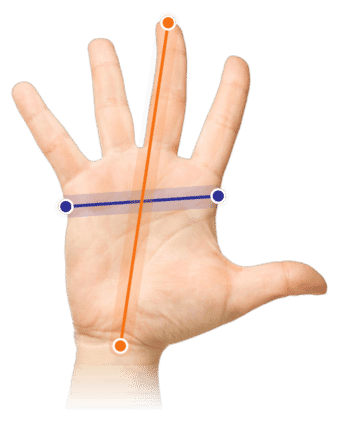
Which size fits your hand?
Measure your hand as shown in the image and choose your size using the table below:
| Size | Width | Length |
|---|---|---|
| One size | < 90 mm | < 190 mm |
An ode to the Delux Seeker
Just keep scrolling!
Beware. Once you get used to this mouse, you won't want anything else. The Delux Seeker is so versatile that we can't really think of anything this mouse doesn't have. Starting with two scroll wheels, so you can scroll both horizontally and vertically. But wait! There's so. Much. More.
Why the Delux Seeker?
For all kinds of work
With this gem, Delux has made a very good move in the market. The Seeker has a regular scroll wheel between the normal left and right mouse buttons, which you can use to scroll vertically as you are used to. What makes the Seeker unique is the scroll wheel above the thumb, which lets you scroll horizontally in programs such as Excel or Photoshop.
The Seeker has 6 buttons, including the regular left and right mouse buttons. The two buttons under the thumb let you easily go forward and back, for example when browsing the internet. One minor drawback is that the 'forward' button is placed a touch too far away, which means it is not equally easy to reach for everyone. On top of the mouse is a DPI button, with which the sensitivity of the mouse can be set (800, 1200, 1600, 2400 or 4000). On the bottom of the mouse there is a button that lets you switch between the different modes (BT5.0, 2.4G wireless connection or wired connection).
Attractive
The packaging includes a wrist rest for the mouse. This can easily be placed against the mouse using a magnetic connection. The advantage of a wrist rest is that it can help reduce wrist complaints, because you are less inclined to move from your wrist. A disadvantage of the wrist rest is that precise work, such as editing photos, becomes a little harder, because you can move the mouse slightly less smoothly.
Besides the wrist rest, the rear cover of the mouse is also easy to swap thanks to a magnetic connection. By default, the cover with the honeycomb pattern is fitted, which gives you a backlight effect from the lighting built into the mouse. To save the battery, there is a sensor in the back of the mouse. It registers when a hand is placed on the mouse and switches the backlight off that way. If you don't want any backlight at all, you can choose to replace the honeycomb cover with a solid cover.
What makes the Delux Seeker so good?
Connected to 4 devices at once
We have already written a lot, but we're not done yet! The Seeker has a Multiple Device Connection, which means the mouse can be used not only for your PC, but also for a tablet and even a phone. You can easily switch between up to 4(!) devices using the small button on the bottom of the mouse. One possible arrangement is shown below.
| Connection | Light on the bottom | Device | |
| #1 | Wired | None | PC |
| #2 | 2.4G wireless | 2.4G | Laptop |
| #3 | Bluetooth 5.0 | BT1 | Phone |
| #4 | Bluetooth 5.0 | BT2 | Tablet |
When you press the button on the bottom, the 2.4G light will glow red. That means the mouse is in 2.4G mode, and in this case is active on the laptop. Press again and the mouse switches to BT1 mode, so the mouse is active on the phone. Press once more and the mouse is in BT2 mode, and after another press nothing lights up. The mouse can then be used with the cable, which is 160cm long, by the way.
Horizontal scrolling
What was the shortcut for horizontal scrolling again? Control + scroll? No, that's zooming. Command + scroll, then, maybe? Nope, only works in Photoshop. Oh wait, this mouse has another scroll wheel!
Delux has placed a second scroll wheel on the left side of the Seeker, just above the thumb. By moving it up, your screen (in Excel, for example) easily slides to the right. If you scroll the wheel down, the screen moves back to the left. The reason the scroll wheel moves up and down rather than left and right is to help reduce thumb complaints. Well done, Delux!
Get the most out of your Delux Seeker with the driver
Adjustments
As if all that weren't enough, the Seeker also has various adjustable options. A driver can be downloaded from the Delux website that lets you change all the settings of the mouse. You can find the manual for the driver under the downloads heading.
Delux has developed a surprisingly intuitive and clear driver for the Seeker. With this driver you can adjust all sorts of things, from aesthetic changes such as the RGB lighting to creating macros for productive purposes. For the wireless models, the driver also shows how full the battery still is.
Important: to be sure the driver applies all the changes to the buttons correctly, it is best to keep the mouse wired while programming.
Buttons and lighting
Adjusting the different light modes is fun, but you can also switch the lighting off if you find it annoying. All button functions can be changed with the 'button settings'. Are you not going to use the standard 'forward' and 'back' navigation buttons near the thumb, but do you edit a lot of data in Excel? Then change them to 'cut' and 'paste'.
'Macro management' is fairly extensive, since the driver can register all keyboard strokes as well as mouse movements and clicks. So you can even build macros that combine all three.
Other settings
The other settings cover the sensitivity of the mouse (DPI) and the USB report rate/polling rate, which indicates the speed at which the computer translates data from the mouse to the screen. A higher report rate can be useful for gaming in particular. Delux has also given some thought to the usefulness of the DPI levels. You can personalise the 5 default values. Of the default values 800-1200-1600-2400-4000, the first ones might feel a little too slow, for example. You can then choose to go for 1500-2000-2500-3000-4000, for instance.
All these settings are loaded into a profile. It is possible to create several profiles, each with different settings linked to it. Depending on the programs you work in, you can then choose the most suitable profile.
Don't miss this either
A little too much of a good thing?
Perhaps all this information makes you lose sight of the wood for the trees, and this versatile mouse is a bit too versatile for you. We completely understand. In that case you can take a look at the wired version. Or would you rather have a bit more? Then you can look at this mouse but with an OLED display. To make it easy for you, we have listed all the differences on the right-hand side of this page.
Stickers
Do you notice that your mouse moves a little stiffly on the bottom? On the bottom of the mouse there are white-grey stickers on the contact points. You can simply pull these off. All being well, you can now glide smoothly across your desk or mouse mat.
Pros and cons
- Wrist rest with magnetic attachment
- Also available wired or with a display
- Scroll wheel at the thumb for horizontal scrolling
- Wired, wireless or Bluetooth connection
- Sensor in the mouse where the hand is placed
- Downloadable driver for personalising the buttons
- Driver does not work for MAC
- Not available left-handed
- Thumb buttons are not easy to reach for everyone
Brief specifications
| Brand | Delux |
| Ergonomic design | |
| Connection | Wired, wireless and Bluetooth |
| Colour | Black |
| Model | Right-handed |
How happy will my body be with this?
| Wrist | |
| Arm | |
| Hand | |
| Shoulder |
Product features
- Can also be used with a cable
- 6 buttons and 2 scroll wheels
- Can be used for up to 4 devices at the same time
- BT4.0, BT5.0 or 2.4G wireless connection
Downloads
What's in the box?
- 1 x Delux Seeker ergonomic mouse
- 1 x wrist rest
- 1 x user manual
- 1 x USB-A to USB-C cable (160cm)
- 1 x honeycomb cover
- 1 x solid cover
Connecting to an iPhone
First make sure that AssitiveTouch is switched on. This gives the mouse a cursor. To switch it on, do the following:
- • Go to Settings
- • Tap Accessibility
- • Tap Touch
- • Tap AssistiveTouch
- • Switch AssistiveTouch on
Then go to the Bluetooth settings of your iPhone and make sure Bluetooth is switched on.
- • Press the small button on the bottom of the mouse and make sure BT1 or BT2 is switched on
- • In the meantime, ‘’BT5.MOUSE1’’ will appear among the other devices in your Bluetooth menu
- • Tap BT5.MOUSE1 and then tap pair.
- • Congratulations! You can now use the Seeker on your iPhone.
With AssitiveTouch you can now go to your home screen or open your control centre, for example. To slide your home screen from left to right, hold down the left mouse button and drag from right to left. Then release the mouse button again. Apart from that, all mouse buttons work the same as on a PC, except for the navigation buttons near the thumb. These do not work for the iPhone.
Differences between the models
| Model | Wireless + display | Wireless | Wired |
| Article number | ERGO-DESXWID | ERGO-DESXWI | ERGO-DESX |
| Storage pouch | Yes | No | No |
| Maximum number of devices | 4 | 4 | 1 |
| User mode indication | Display and bottom of the mouse | Bottom of the mouse | n/a |
| OLED display | Yes | No | No |
| Connection | Bluetooth, wireless or with a cable | Bluetooth, wireless or with a cable | With a cable |
| Battery status | Readable on the display | Not readable | n/a |
Frequently asked questions
Specifications
| Item number | ERGO-DESXWID |
| Manufacturer's item number | M618XS |
| Brand | Deluxe |
| Warranty | 2 years |
| Type of guarantee | The Ergowerken free return guarantee service |
| Colour | Black |
| Ergonomic design | |
| Management | Wireless, wired or Bluetooth |
| Left- or right-handed | Right-handed |
| Hand length | Less than 190 mm, measured from the top of the middle finger to the edge of the wrist |
| Hand width | Smaller than 90 mm, measured on the palm, 1 cm below the four fingers |
| Operation | Buttons and scroll wheels |
| Connection | Wireless or with cable (160 cm) |
| Included receiver | |
| Bluetooth | |
| USB port | |
| USB version | 2.4 GHz |
| Number of buttons | 6 |
| On/off button | |
| Adjustable buttons | |
| Scroll wheel | 2 |
| Trackball | |
| Adjustable sensitivity | |
| Sensitivity | 800 / 1200 / 1600 / 2400 / 4000 DPI |
| Type of power supply | Wired and battery-powered |
| Battery type | not applicable |
| Rechargeable | |
| Minimum system requirements | Mac OS X v10.5, Mac OS X v10.6, Mac OS X v10.7, Mac OS X v10.8, Mac OS X v10.9, Mac OS X v10.10, Mac OS X v10.11, Windows XP, Windows Vista, Windows 7, Windows 8, Windows 10 |
| Plug and play | |
| Dimensions length x width x height | 166 x 97 x 82 mm |
| Product weight | 131 grams |
Reviews Delux Seeker Wireless Right-handed
Customers who write a review enter a prize draw for a voucher. We pick one winner and publish all reviews, including critical ones.