





ERGONOMIC KEYBOARD
FROM JUST €34.95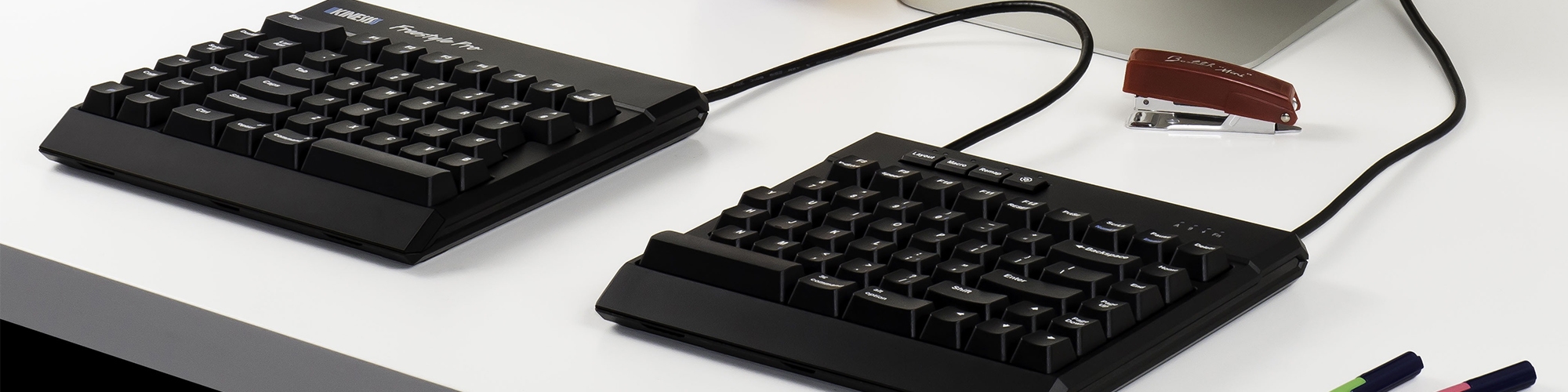




Customer reviews of their ergonomic keyboards
Why do I need an ergonomic keyboard?
An ergonomic keyboard is designed with you, the user, at the centre. It’s comfortable to type on, adapts better to your working posture and also takes other tools, such as your mouse, into account. All this is done to improve your working posture and allow you to work for longer without discomfort. In particular, you can combat discomfort in the hand, wrist, forearm and shoulder with an ergonomic keyboard.
Standard keyboards are often too wide, too high or not the right shape, and do not allow for ergonomic working. In fact, they strain the muscles in the forearm and shoulder to such an extent that they significantly increase the risk of RSI complaints.
The two main differences compared to a standard keyboard are usually the compact size and the flat design. These are traditionally the biggest advantages over an old-fashioned keyboard. Many new improvements have been added in recent years. How about, for example, a lighter keystroke so that there is less strain on the fingers? Or a split keyboard so that your hands are in a nice straight line with your arms?
| Ergonomic keyboard | Non-ergonomic keyboard | |
|---|---|---|
| Promotes a healthy working posture | ||
| Light keystroke | ||
| Compact working position | ||
| Relaxes the muscles | ||
| The user comes first | ||
| Effective against RSI | ||
| Increases comfort |
What health issues can an ergonomic keyboard help with?
An ergonomic keyboard can help alleviate all sorts of complaints. Thanks to its design and various features, it can offer you much greater relaxation whilst working. This isn’t just beneficial if you have existing complaints; your mood, physical health and productivity can also receive a real boost. Research shows that an ergonomic workspace can lead to an increase in productivity of up to 11%.
There are now many different ergonomic keyboards available. Each model is developed with you in mind, but based on different ideas and concepts. This has ensured that an ergonomic keyboard can help alleviate all sorts of complaints. For example, keyboard A is particularly effective for wrist complaints, whilst keyboard B mainly helps with painful hands. In our range, you can find keyboards that provide relief for:
- Hands/fingers
- Wrist/forearm
- Shoulder

Hands/fingers
Your fingers are under constant pressure whilst typing. Every keystroke requires some effort to actually make the desired letter appear on your screen. And you perform that single action hundreds, sometimes thousands, of times a day.
Keyboards can have quite a heavy keystroke, which puts a lot of strain on your hand with every key. This can result in a painful hand and fingers.

Wrists
The wrists and forearms can experience unnecessary strain in two ways. One drawback is that the hands are positioned quite close together. This almost always means your wrist has to bend slightly to position both hands correctly. A slight bend may sound harmless, but can cause irritation during prolonged typing.
The height of the keyboard also affects the wrist. When typing, you ideally want a nice straight line in your arm/wrist/hand. A traditional, thicker keyboard also forces your wrist into the aforementioned bend.

Shoulders
The main problem with a standard keyboard is its layout, featuring a large numeric keypad on the right-hand side. Praised by users who need to enter lots of numbers, but hated by the shoulders of those very same users.
The problem with a numeric keypad on your keyboard is that it makes the keyboard too wide. Because of the wide keyboard, your mouse cannot be in the ideal position: within shoulder width. The further away you place the mouse, the more strain is placed on your shoulder.
8 tips to get the most out of your ergonomic keyboard
- Size matters
The problem with a numeric keypad on your keyboard is that it makes the keyboard too wide. Because of the wide keyboard, your mouse cannot be in the ideal position: within shoulder width. The further you place the mouse away from you, the more strain is placed on your shoulder.
- Flat, flatter, flattest
For the most relaxed posture, your wrist should be in line with your forearm. A flat QWERTY keyboard allows you to keep your wrist as straight as possible whilst typing. (Just fold those little legs under your keyboard back in)
- Think about those angles
For the most relaxed posture, your arm should be slightly bent. However, don’t make the angle too wide – around 110 degrees. Otherwise, you’ll end up ‘reaching’ for your mouse, which puts extra strain on your arm
- Two is better than one
A split keyboard allows you to relieve pressure on your wrists by positioning the separate halves so that your wrists no longer have to bend sideways
- Be kind to your keyboard
Everyone has that one person in the office who’s notorious for it. That colleague who hammers every key right through the keyboard. Be kind to your keyboard, and it will be kind to your fingers. Press the keys only until they ‘click’ – no further – to avoid putting pressure on your fingers
- Keep your keyboard close
Try to keep your elbows at an angle of about 90 degrees. This means you should position the keyboard fairly close to your body to relieve pressure on your elbows
- Take your hands off the keyboard when you’re not typing
Variety is the best prevention against RSI. Rest your hands in a different position when you don’t need to type. They already spend so much of the day resting in the same position on the keyboard
- Invest in yourself, learn touch typing
As well as increasing your productivity, touch typing is also good for your posture. You’ll use all your fingers instead of just your two index fingers, so you’ll distribute the strain more evenly. What’s more, you won’t be constantly looking down, something your neck will thank you for
Variety of ergonomic keyboards
Ergonomic keyboards differ not only in connectivity – wired, wireless and Bluetooth keyboards – but also in the type of keys. There are membrane keyboards, scissor-switch keyboards and mechanical keyboards. They also come in all sorts of shapes and sizes. Examples include split keyboards, flat keyboards and compact keyboards. In the Netherlands, we use a QWERTY keyboard layout, whilst in Belgium AZERTY is used and in Germany QWERTZ.
Depending on the task at hand, you can also choose keyboards with or without a numeric keypad. External numeric keypads are also available separately. We briefly outline the main differences below. You can find a detailed blog post about the different keyboards and switches here.
Wired, wireless or Bluetooth
Wireless
No hassle
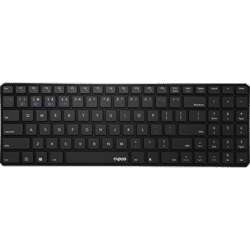
Wireless keyboards connect via nano USB receivers that you plug into the device you want to connect the QWERTY keyboard to. The obvious advantage is that you don’t have to deal with loose cables.
Wireless keyboards also often work from a distance of several metres. These two advantages greatly enhance your freedom of movement. Wireless keyboards are also ideal for taking with you.
Wired
No dead batteries
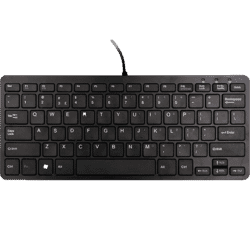
The main advantage of wired keyboards is that the keyboard will never stop working unexpectedly because it is constantly powered. In addition, the wired version is almost always cheaper than the wireless version. The disadvantage is that the cable can somewhat restrict where you can place your keyboard. Furthermore, a wired keyboard is less convenient if you’re often on the move with your keyboard and laptop. You can also only connect wired keyboards to one device at a time.
Furthermore, a wired keyboard is less convenient if you’re often on the move with your keyboard and laptop. Also, you can only connect wired keyboards to one device at a time.
Bluetooth
Connecting to multiple devices
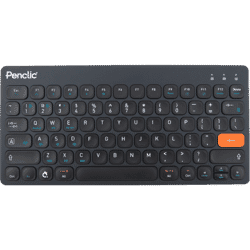
A major advantage of a Bluetooth keyboard is that it often allows you to connect your keyboard to multiple devices at the same time.
What’s more, you can’t lose a cable or receiver, as you don’t need them with a Bluetooth keyboard. The only thing you need to check is that your laptop or computer has Bluetooth.
Scissor-switch, membrane and mechanical keys
Membrane
The cheapest of the three
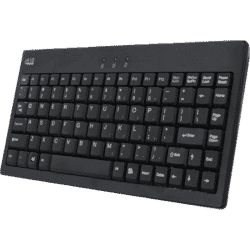
This is the switch you’ll find in most (standard) keyboards. This is mainly because it’s an outdated technology that uses cheaper materials, meaning the cost of keyboards with membrane switches is relatively low.
Disadvantages of membrane keys include a shorter lifespan and a key travel that is often quite deep.
Scissor
Low profile with a light keystroke
Keys that use a scissor mechanism are found in low-profile keyboards (laptops). The keys have a light touch, so you only need to press them down slightly to register a keystroke.
In addition to its compact design, this mechanism also ensures a stable key that does not wobble when pressed.
Mechanical
The choice is huge
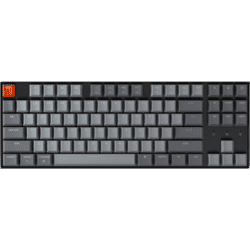
The removable – and therefore replaceable – mechanical keys allow you to customise your keyboard entirely to your own liking. For example, you can put together the ideal gaming keyboard.
Mechanical keys are long-lasting, the keyboard is easy to clean, and you don’t need to press the keys all the way down, ensuring a fast response. However, these types of keyboards are quite pricey and often a lot heavier.
Fixed, integrated and separate numeric keypad
Fixed
But ergonomically sound
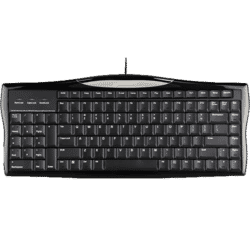
Keyboards with a fixed numeric keypad are particularly useful if your work involves a lot of data entry. However, the extra section of the keyboard means you have to move the mouse further away from you, which is far from ergonomic.
That is why some manufacturers have been ingenious enough to, for example, place the numeric keypad on the left-hand side of the keyboard, make it slide in and out, or integrate the mouse into the keyboard.
"Integrated"
With or without a numpad
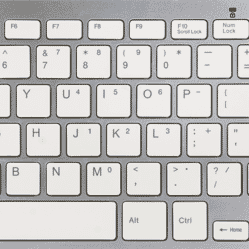
We are increasingly seeing keyboards where the numeric keypad has simply been omitted (for ergonomic reasons), and this is often resolved by integrating the number keys into the letter keys.
The advantage of this is that you still have access to the number keys whilst retaining the keyboard’s ergonomic design and compactness. A disadvantage is that you have to use these keys in combination with another key (the Fn key).
Separate
Freely movable
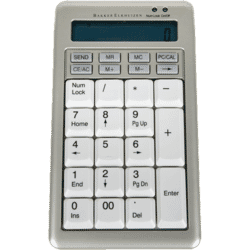
Standalone numeric keypads, also known as NumPads, are gaining popularity. This is because you can place a NumPad wherever you like, and in theory you could even hold it in your hand whilst using it.
After use, you can store it away neatly, ensuring optimal ergonomic working. A major drawback is the high price of such keyboards, which can cost just as much as full-size keyboards.
Split, compact and flat QWERTY keyboard
Split
Looks broken but fixes you
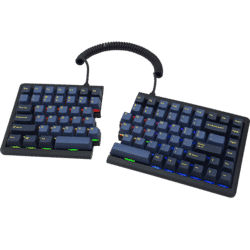
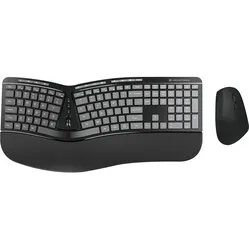
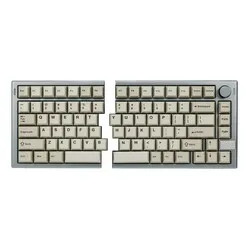
Split keyboards are your wrists’ best friends because they allow you to keep your arms, wrists and hands in a natural and relaxed position whilst typing.
One drawback of split keyboards is that they require ten-finger and touch typing. You’ll also need to go through a period of adjustment.
Compact
Small but mighty
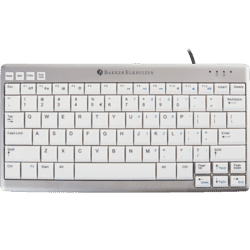
The compact design of these keyboards allows you to keep your mouse within shoulder width. From an ergonomic point of view, this is a major advantage. However, they almost always lack a numeric keypad. That is why these keyboards are also known as Tenkeyless.
Often, the numeric keypad is integrated into the keys and can be used in combination with another key (the Fn key). Other keys may also be missing, smaller, or positioned differently compared to ‘standard’ keyboards.
Flat
Like a pancake
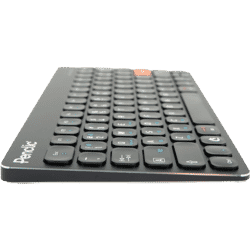
Good wrist posture is achieved when the arm, wrist and hand are in a straight line. This is the main advantage of flat keyboards. Because you don’t have to lift your hands to reach the keys, you don’t need to bend your wrists either. Furthermore, due to their size and weight, these keyboards are ideal for taking with you. However, you have little choice in terms of keys, as only keys with a scissor mechanism are very flat.
Although low-profile mechanical keyboards are starting to appear on the market, they are less flat and considerably more expensive.
Special keyboards
Kinesis Advantage2
A keyboard, but with a difference
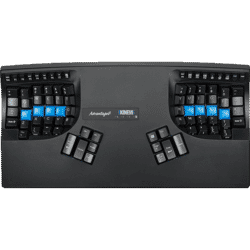
The best example of a unique keyboard has to be the Kinesis Advantage. The keyboard is designed in such a way that the arms are positioned at shoulder width and the wrists remain in a natural position. Furthermore, the included palm rests minimise strain on the wrists, and a relatively large number of keys are operated with the thumbs to relieve pressure on the weaker little finger.
The cockpit-style design also ensures much greater relaxation for the fingers, as the keys are positioned closer together.
Keyboard and mouse
The ultimate space-savers
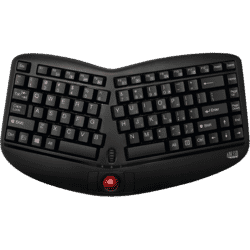
Some manufacturers combine a keyboard and mouse into a single product. For example, there are keyboards with a touchpad (like on a laptop) and keyboards with a trackball mouse. This way, your input devices are always right in front of you.
As you therefore don’t need any extra space for the mouse, there is room left over for, say, a numeric keypad.
X-Bows
Adds its own twist
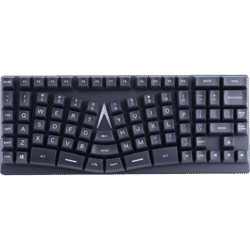
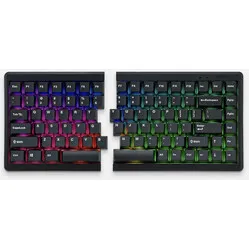
This is an example of a keyboard that offers a lot in one package with its own twist. The X-Bows is a split, mechanical, ortho-linear and RGB LED keyboard with programmable keys.
Furthermore, extra keys have been placed in the centre that you would normally press with your little finger. Now you can operate these with your stronger thumb so that your little finger isn’t overloaded.
Choose the right ergonomic keyboard
As you’ve read above, buying a keyboard is no longer a simple matter. The many shapes, sizes and options available today can make it hard to see the wood for the trees. Don’t worry! We’re here to help you find the ideal ergonomic keyboard for you. Ask yourself the following questions to make a good choice more quickly:
- 1. Do I want a wired or wireless model?
The first question is perhaps the simplest, and the answer will depend on how you intend to use the keyboard. A wired keyboard will never run out of power but is less convenient when you’re on the move. A wireless model is ideal for travelling but almost always costs more and, apart from a ‘cleaner’ desk, doesn’t really offer any noticeable advantage at a fixed workstation.
Use the filters on the left to make your choice.
- 2. Which layout do I need?
In the Netherlands, we use a QWERTY keyboard; you’ll find this layout on almost all keyboards on our website. Why QWERTY? Just look at the ‘Q’ at the top left of your keyboard and read rightwards. For Belgian (AZERTY) and German (QWERTZ) users, we have separate categories where these other layouts can be found.
- 3. Do I have specific issues I want to address?
One of the reasons for the many different types of keyboards is that they are designed to address different issues. If you suffer from shoulder pain, it is best to opt for a compact, split or combination keyboard that incorporates a mouse. In any case, it is important that you can work within shoulder width.
If you suffer from pain in your wrist or forearm, a flat or split keyboard is best. These ensure that your forearm, wrist and hand remain in a straight line. If you have problems with your elbow, hand or fingers, opt for a split keyboard. These keyboards ultimately offer the most comfort because they maintain a natural posture whilst typing.
Use the filters on the left to make your selection.
- 4. How often do I use the number keys?
This determines the type of NumPad. For little to no use, it is best to choose a keyboard without a numeric keypad or one with an integrated NumPad. For average use, a NumPad is recommended. This keyboard from Evoluent is ideal for right-handed users. This keyboard from Posturite has a slide-out NumPad and is therefore suitable for both left- and right-handed users.
If data entry is a major part of your daily work, it is best to choose a separate numeric keypad for ergonomic reasons.
- 5. What will I be using the keyboard for?
The answer to this question will determine what type of keys you need on your keyboard. If you’re a writer or a keen gamer, it’s best to choose mechanical keys. If weight is important because you’ll be carrying the keyboard around a lot, opt for keys with a scissor mechanism.
If you need a keyboard for occasional typing, it’s best to go for the cheaper membrane keys.
- 6. What extras would I like?
For example, there are keyboards with programmable keys, RGB backlighting and multimedia keys. Furthermore, some Bluetooth keyboards can be connected to multiple devices at the same time, and one keyboard may have an integrated wrist rest whilst another does not.
The options are plentiful. The question is: what do you want?
- 7. Which operating system do I use?
The question is so simple that it’s easy to overlook, but that doesn’t make it any less important. Although manufacturers are increasingly producing keyboards that work well on both Windows and Mac, this isn’t always the case. You should therefore always check which operating system the keyboard is designed for to ensure you can use it.
- 8. What do others say about the product I’m considering?
As a final check, it’s always a good idea to read the reviews of the product you’re considering. Here you can often find crucial information about how it performs in practice. Bear in mind, however, that these are personal opinions. What someone else likes might not suit you, and vice versa.
- 9. What should I do if I really can’t make up my mind?
Ask us! Every day, we help people who are struggling to make the right choice for their situation, complaint or work. Based on that experience, we give slightly better advice every day.
And what if we recommend something you’re not entirely happy with? Then you can return the product free of charge within 90 days. That makes us unique in the market and gives you peace of mind.
Frequently asked questions about ergonomic keyboards
- "What are the main differences between all the keyboards?"
The differences mainly lie in the shape, the extra keys/functions and the type of keys on the keyboard. These are explained in detail here.
- "Do all keyboards address the same issues?"
No, not always. Compact keyboards, for example, mainly address shoulder complaints, whilst split keyboards also provide relief for your wrist and arm.
- "How do I know if I’m choosing the right keyboard?"
We always recommend the following: 1) Use the filters on the left-hand side of this page, where the connection type and specific issue are particularly important. 2) Read the product pages carefully and check the reviews. 3) Ask us for live advice via chat.
- "Why is there such a big price difference between some keyboards that appear to be the same?"
You are most likely comparing a keyboard with membrane or scissor switches to one that uses mechanical switches. Mechanical switches last much longer and are replaceable. In addition, these keyboards often come with many extras, such as backlighting and programmable buttons.
- "Which type of keys is right for me?"
For light to moderate use of your QWERTY keyboard, membrane and scissor switches will be the best choice. If you often take your keyboard with you, scissor switches are the better choice of the two. For intensive use of the keyboard, mechanical switches are the way to go. You can read more about the differences between the switches here.
- "I can’t see the wood for the trees. What’s the best thing to do?"
Breathe in. Breathe out… Don’t worry! You can always reach us live via chat. We’ll take a look at it together.
- "I’ve received the keyboard but I can’t get used to it. What should I do?"
In that case, please get in touch with us. We might be able to help you get started with a few tips. If that still doesn’t help, you’re always entitled to a free return within 90 days of receiving your purchase.
- "I have other questions that aren’t listed here. Where’s the best place to ask them?"
In this case, it’s always easiest to get in touch with us via chat. We can help you further from there.