




COMPACT KEYBOARD
FROM JUST 34.95



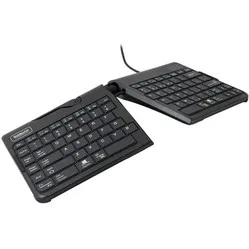
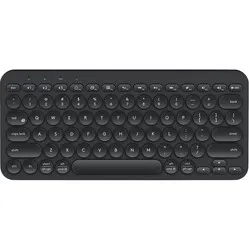
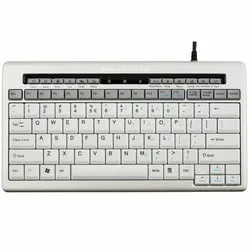
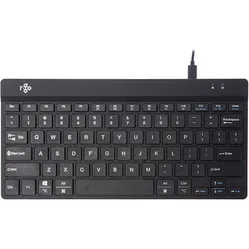
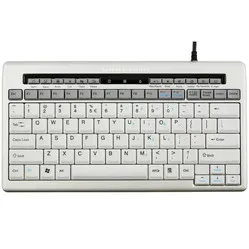
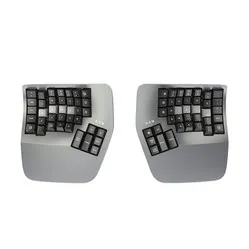
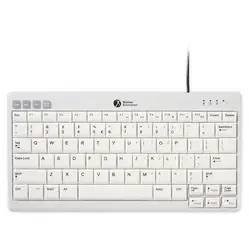
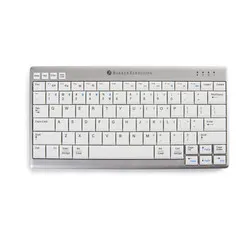
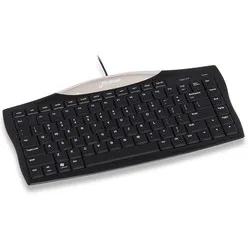
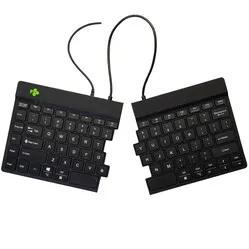
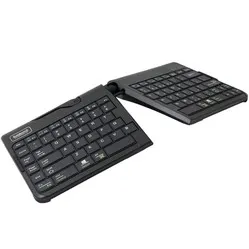
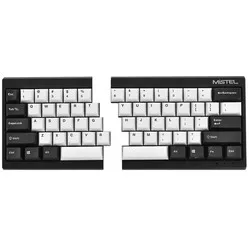
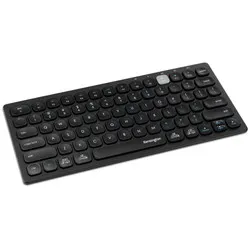
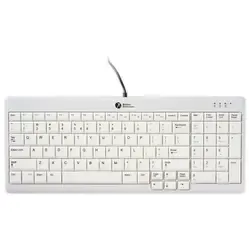
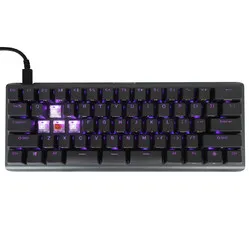
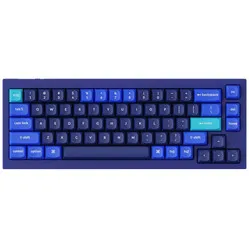
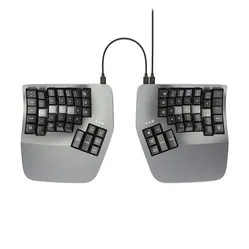


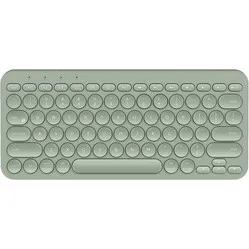
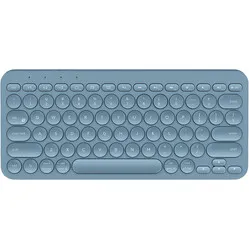
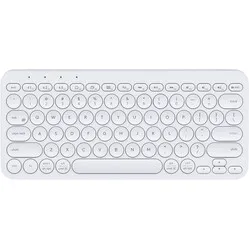
Why do I need a compact keyboard?
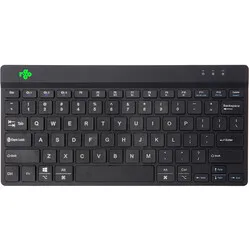
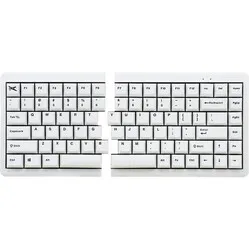
When a keyboard is compact, you'll notice that some keys have been omitted to keep it much narrower. Besides the numeric keypad, these are usually keys that are duplicated on a keyboard or are used less frequently.
Common terms include Tenkeyless (TKL) for keyboards without a numeric keypad on the right side, compact, and percentage designations such as 60%. This indicates how large/small the keyboard is compared to a full-size keyboard.
Most people use the traditional combination of a keyboard and a mouse to operate the computer. However, a normal keyboard is quite wide, which often places the mouse outside your body's shoulder width.
Ergonomically, you want input devices directly in front of your torso, within shoulder width. This ensures that your shoulders, elbows, and wrists don't have to make awkward angles but can remain relaxed in their natural position.
A compact keyboard without a numeric keypad makes this possible. Due to the smaller size of the keyboard, you can place the mouse closer and make smaller movements when switching between keyboard and mouse.
I still need a numeric keypad
In most cases, a compact keyboard without a numeric keypad offers a NumPad function by holding down a function key. Additionally, there are keyboards available that have the NumPad on the left side for right-handed users. This way, functionality is not lost, but you still benefit from a compact keyboard.
You can also add a separate numeric keypad that can be placed on the left. If you prefer it on the right, simply move it aside when not in use.
Compact keyboards and function keys
It may not have escaped your notice, but the first step towards a more ergonomic keyboard is reducing its size. We prefer to maintain the same key dimensions. The only way to achieve a smaller size is therefore to display fewer keys on the board. However, this does not mean that a compact keyboard has fewer functions.
A compact keyboard uses so-called layers; you typically only use the 1st layer for typing. By holding down the ‘Fn’ (function) key, you can use the 2nd layer. Your normal keys will now change function. This is often indicated on the keyboard with a blue or other contrasting colour.
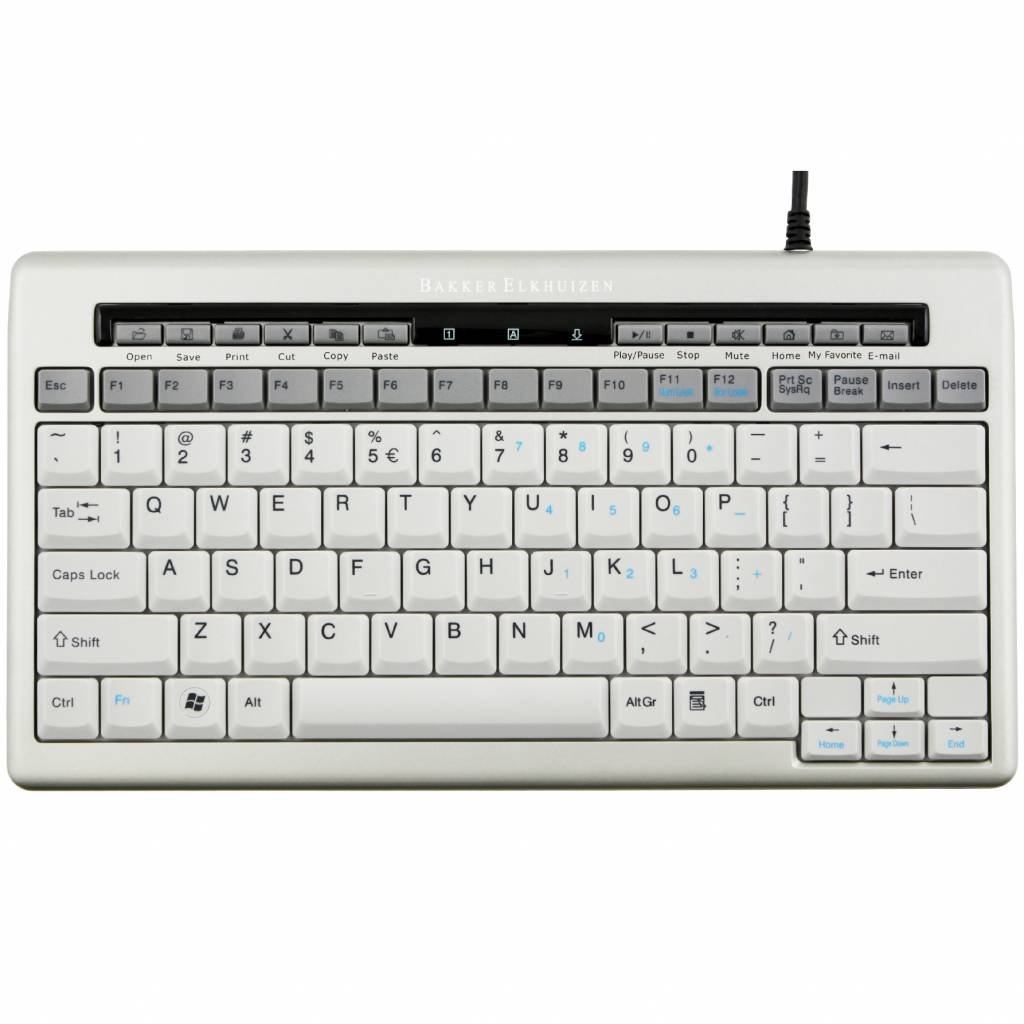
Below you can see an example of the function keys on an S-board 840. As you can see, the ‘Fn’ key on this keyboard is located at the bottom left. The ‘Fn’ key is usually found on the bottom row, almost always to the right of the ‘Ctrl’ key at the bottom left of the keyboard. Some keyboards have two, with the second function key also on the bottom row but on the right side of the keyboard.
So you retain the same functionality with fewer keys; you just need to use a key combination to access your familiar functions such as the NumPad, home, end, etc.
Numpad
If you are used to using a Numpad, don't be deterred when purchasing a new (more compact) keyboard. Many modern keyboards no longer have a fixed Numpad for ergonomic reasons.
However, this does not mean that this function has been removed. By turning on ‘Numlock’, the letters on the right side of your keyboard will change into a Numpad. You can also see this in the image shown below. The keys with blue printed numbers double as the numeric part of the keyboard. Often, the other letters are disabled when the numeric keypad is activated.