






Stel hier je vraag over dit product
Wacom Intuos Pro Small drawing tablet


Product description of Wacom Intuos Pro Small drawing tablet
Wacom Intuos Pro Small drawing tablet
Which size fits your hand?
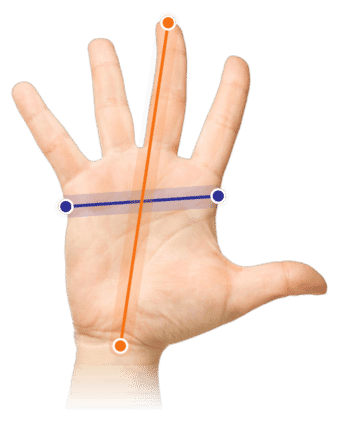
Measure your hand as shown in the image and choose your size using the table below:
| Size | Width | Length |
|---|---|---|
| Any hand size | suitable | suitable |
Description
Pro or not
Whether you've just started colouring within the lines or have been conjuring up real Rembrandts on screen for years, the Intuos Pro Small makes your life just that little bit easier.
Intuos Pro Small for the mobile artist
The Intuos Pro Small is a great asset for every image editor and artist. The possibilities are practically endless, and it also offers significant ergonomic benefits.
Healthy choice
As we are fans of ergonomic products, let's first shed some light on the benefits that working with the Intuos Pro Small drawing tablet offers you.
For your posture, working with a drawing tablet means it can become more compact. You place the pen tablet between your body and the keyboard, so you no longer need to reach to the right (or left for left-handers). This results in a significantly lower load on the shoulder and upper arm muscles.
The posture of your hand is also a lot more natural and therefore more relaxed than when holding a flat mouse. Also, thanks to Multi Touch support, you can switch between operating with the pen and operating with your fingers. Especially when you're not doing precise work, operating with your fingers is very pleasant.
The multi-touch function can be switched on and off using a slider on the side of the drawing tablet. Especially while drawing, switching off the touch function can be handy. This prevents unwanted actions caused by your hand moving over the tablet.
"Was that it?" No. The Intuos Pro Small drawing tablet also has 6 extra (programmable) buttons, the ExpressKeys, and a Touchring. These extras allow you to divide the workload between both arms.
What makes the Wacom Intuos Pro Small so good
The addition of Pro to the Intuos name already gives it away: if you want to take it more seriously, this is where you should start. "But what actually justifies the addition of Pro?" We can best show you that in a list.
- Multi Touch functionality
- High resolution of 5080 Lpi (Lines per inch)
- Pressure sensitivity with 8192 pressure levels
- 6 ExpressKeys™ and TouchRing
- Tilt recognition up to 60° of the pen
- Wacom Pro Pen 2 with pen stand included
- Extra nibs (6 standard and 4 felt nibs)
Of course, you can also use Wacom's extensive driver to fully tailor the tablet to your work.
The Intuos Pro Small has dimensions of 27 x 17 x 0.8 cm, so you can easily take it with you in your laptop bag, for example. If you don't have room for that, a special carrying case is also available for the drawing tablet. As usual, the drawing surface is smaller, namely 16 x 10 cm.
Because the active area is smaller than the tablet itself, you can simply rest your hand on the tablet while drawing. This means your hand won't slide off the tablet when you're working near the edge.
The drawing surface is indicated by a light at each corner. If you'd prefer a smaller drawing surface, you can adjust this via the driver. This can be handy if you want to control the full screen with smaller movements.
The surface corresponds to your screen, or screens. This means that when you draw in the bottom right of the tablet, you also do so in the bottom right of your screen. This makes it easier to work precisely, but it also means you'll need to get used to it for a moment. You can use the driver to fine-tune this.
The pressure sensitivity and tilt recognition let you influence the line thickness and shape of the line by pressing harder or softer on the pen or placing it at a different angle. This enhances the natural drawing feel.
If you're used to drawing on paper, the tilt feature will certainly add value to your experience. Just be careful not to press too hard. This causes the pen tip to wear out faster and can lead to scratches on the surface.
Once you've worn down a tip, you can easily replace it using the included tool. You can find the tool in the included pen holder.
Wired or wireless
The Wacom Intuos Pro Small can be used both wired and wirelessly via Bluetooth. Wired, you can connect it to a USB 2.0 port. This cable is of course included. The cable also serves as a charging cable for when you want to use it wirelessly.
If you don't want to work wirelessly, you can connect the drawing tablet with the included USB cable. This has a length of 2 m, giving you enough flexibility to find the right spot. Because the drawing tablet features a USB-C connector, you can easily route the cable differently by plugging it in the other way round.
If you do go wireless, keep in mind that you need to charge the battery regularly. According to the manufacturer's specifications, the battery lasts 15 hours, depending on use. But you can assume you can work a full day non-stop without a cable. So it's certainly wise to keep the USB cable close at hand. You can also easily find the battery level in Wacom's software.
Wacom Grip Pen
With the Wacom Intuos Pro Small drawing tablet, Wacom supplies its Pro Pen 2. This features a rubber grip. This provides a good hold and makes the pen just a bit nicer to hold. Especially with prolonged use, you'll benefit from this. The Pro Pen 2 has 8192 pressure levels, which contributes to a realistic drawing feel.
The pen features a standard pen tip, and if you flip the pen over, you'll find the eraser there. As we're used to from Wacom, the pen works without a battery and you can swap the pen tips.
In the box, you'll also find a pen holder with a storage compartment for extra nibs. In fact, the holder comes already filled with 10 spare tips. In the holder you'll find standard and felt nibs.
Standard
These tips speak for themselves. You can carry out most tasks with them without any problems.
Felt
These felt nibs are softer than the standard tips. Due to the higher friction this creates, the pen approaches the feel of drawing with a pencil on paper.
Get the most out of it
Besides working precisely, you can also work a lot more efficiently with the Wacom Intuos Pro Small. On the left side of the drawing tablet are 6 extra buttons and a TouchRing. You can also assign 4 separate functions to this ring. Think of scrolling, zooming, rotating, and so on.
You operate the ring by rubbing your finger over it. Pressing the round button lets you call up a different function. Which functions those are, you can programme yourself with the Wacom driver.
The 6 ExpressKeys™ are divided into 2 groups of 3, one above the other. The middle button of the 3 has a small ridge, like the J and F on your keyboard, so you can find the right button without looking.
This product is good for
wrist - arm - shoulder
The more natural posture a pen tablet offers relieves the wrist, arm, and shoulder. You can also easily divide the load between your left and right arm.
Pros and cons
- Natural posture thanks to pen
- Multi-touch
- High precision
- Extensive driver
- Wireless use
- Requires some getting used to
Brief specifications
| Warranty | 2 years |
| Ergonomic design | Yes |
| Use | Right- and left-handed |
| Number of buttons | 6 ExpressKeys |
| Plug & play | No, driver is required |
| Multi-touch | Yes |
| view all specifications |
Product features
- More natural posture thanks to pen
- Multi-touch
- 8192 pressure levels
- Tilt recognition up to 60 degrees
- Right- and left-handed use
- Wireless and wired via USB
- Extensive driver
What's in the box?
- Wacom Intuos Pro Small
- Wacom Pro Pen 2
- Connection cables
- Manual
- Pen holder with spare nibs
Frequently asked questions
Specifications
| Item number | ERGO-WACIPROS |
| Manufacturer's item number | PTH-460 |
| Brand | Wacom |
| Warranty | The Ergowerken free warranty return service |
| Type of guarantee | The Ergowerken free return guarantee service |
| Colour | Black |
| Ergonomic design | |
| Management | Pen and touch |
| Left- or right-handed | Can be used by both left- and right-handed people |
| Hand length | Suitable for any arm length |
| Hand width | Suitable for any hand size |
| Connection | Wired and wireless via Bluetooth |
| USB port | |
| USB version | 2.0 |
| Number of buttons | 6 ExpressKeys™, Home Button, Touch Ring, and 2 buttons on the pen |
| Adjustable buttons | |
| Scroll wheel | Yes, via Touch Ring |
| Adjustable sensitivity | |
| Resolution | 5080 LPI (lines per inch) |
| Pressure sensitivity | 8192 levels |
| Control surface dimensions | 160 x 100 millimetres |
| Dimensions length x width x height | 269 x 170 x 8.45 millimetres |
| Product weight | 450 grams |
| Minimum system requirements | Windows® 7, 8.1 and 10 (32 and 64-bit) or macOS 10.12 or later |
Reviews Wacom Intuos Pro Small drawing tablet
Customers who write a review enter a prize draw for a voucher. We pick one winner and publish all reviews, including critical ones.