










Battle of the keyboards
Table of Contents
1. The history of the QWERTY keyboard2. Keyboard glossary
3. Posture
4. Narrower keyboards
5. Membrane, scissor or mechanical switches?
6. Which keyboard is right for you?
1. The history of the QWERTY keyboard
The typewriter, and with it the first keyboard, was developed for Morse code receivers so that they could easily and quickly transcribe the Morse messages they received. The first keyboard was therefore quite primitive; it resembled a piano more than a modern keyboard.
The letters were mainly arranged alphabetically, and numbers such as 1 and 0 were replaced by the letters i and o. Understandably, such a layout did not really benefit speed or ergonomics. That is why the precursor to the QWERTY keyboard was developed in the late 1800s.
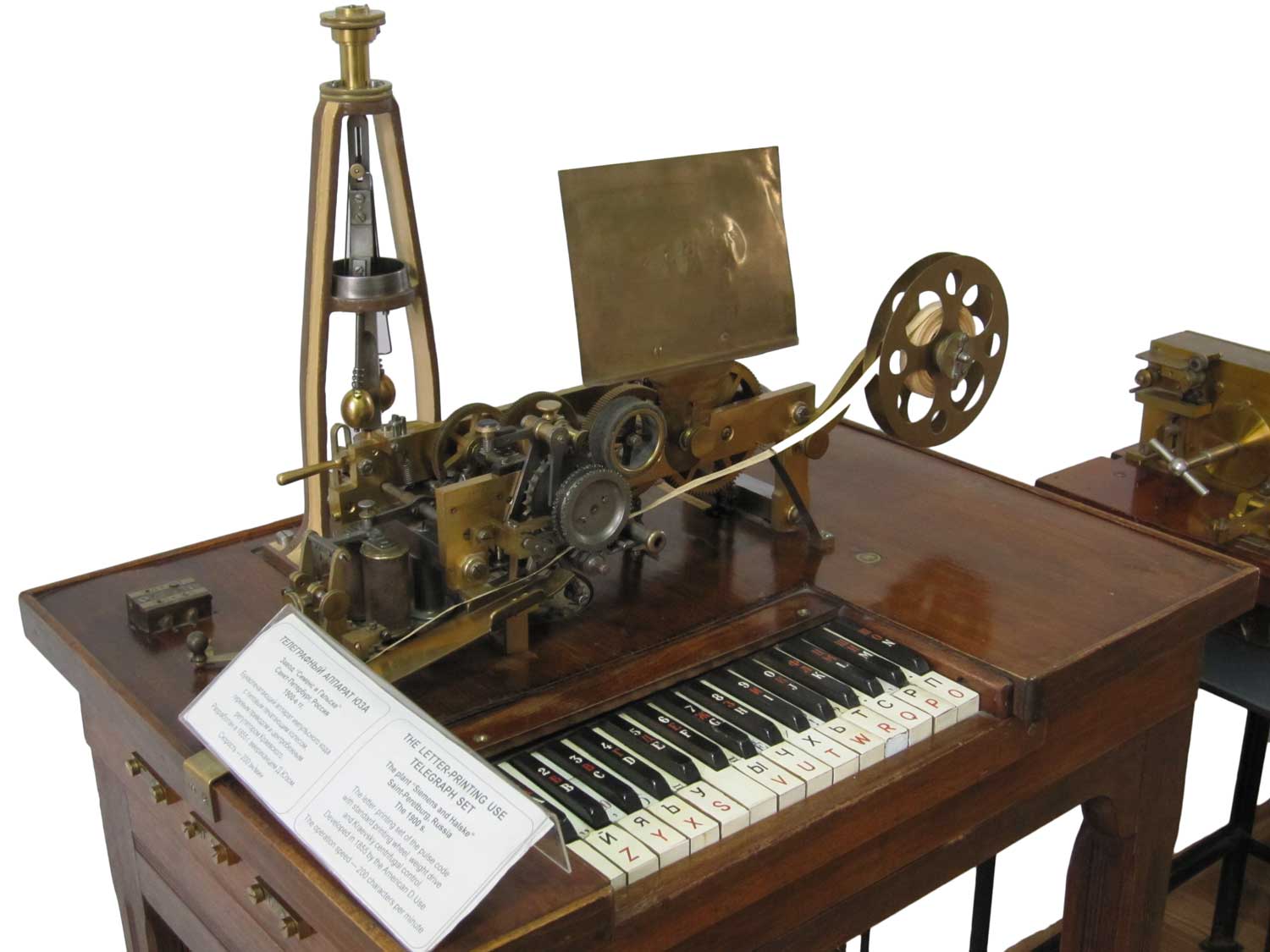 A printing telegraph | Source: Wikipedia
There are many myths surrounding the origins of the QWERTY (including QWERTZ and AZERTY) keyboard. Most relate to the problems typewriters had, such as the idea that the aim was to make the user type more slowly because the old-fashioned typewriter would jam if you typed letters in quick succession. Or that the most frequently used letters were deliberately placed far apart on the keyboard so that you could not type them in quick succession.
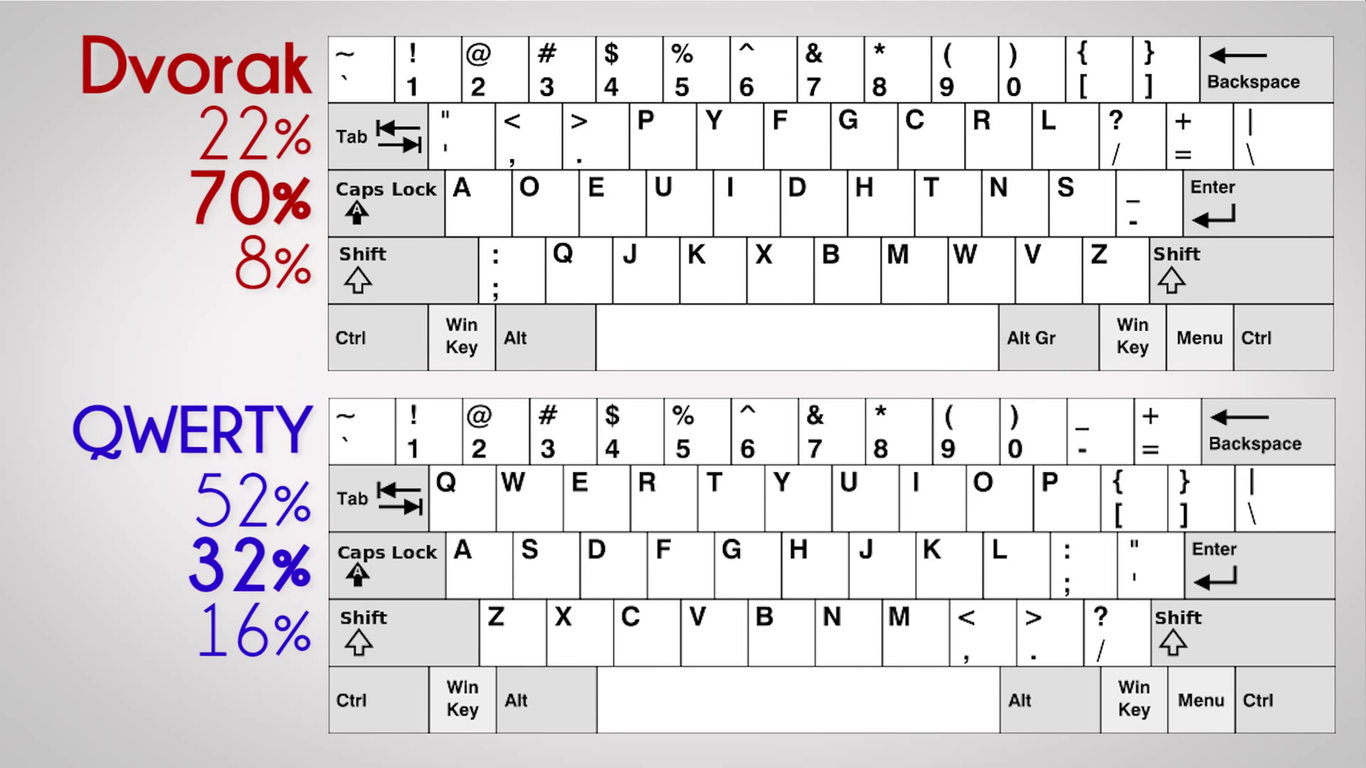
However, the layout of the QWERTY keyboard came about rather arbitrarily. In the late 19th century, the first patents were filed by the Sholes and Glidden Typewriter Company for a QWERTY layout. This was followed by a few modifications at the insistence of telegraph operators, and eventually this gave rise to the keyboard as we know it today. Because the QWERTY keyboard was essentially created at random, there have also been people who wanted to improve it; one of the best-known of these is the Dvorak layout. After much research, Dr August Dvorak developed his own layout that meant you had to make fewer finger movements (mainly when typing in English). Below is a brief comparison.
 Source: thekindle3books.com
The image shows how many keystrokes on which row need to be pressed for a text of 1,000 words. This shows that most keystrokes occur on the so-called ‘home row’, so when using the Dvorak layout, your fingers need to deviate less from their natural position.
2. A few ‘technical’ terms before you read on.
Before we delve further into the ins and outs of the keyboard world, it’s important that we’re all on the same page. So here’s a brief rundown of some keyboard jargon.
| Glossary: Nerd<->Plain English | ||
| Switch(es) | The switch(es) that make contact. | |
| 100% to 40% | A designation indicating the size of the keyboard. | |
| TKL | TenKeyLess, i.e. a keyboard without a NumPad. | |
| NumPad | The numeric keypad found on the right-hand side of a 100% keyboard. | |
| Keycap | The top part of the key where the letters are printed. | |
| Linear | A switch that provides the same resistance from the top to the bottom of the keystroke. | |
| Tactile | A switch that provides a slight resistance at the moment of actuation. | |
| Clicky | A switch that provides a slight resistance at the moment of actuation and makes a clicking sound. | |
3. Posture
A keyboard can have a significant influence on one of the most important aspects of ergonomic typing, namely your posture. It is important that you pay attention to a number of things regarding your posture when using a keyboard.
- Supination
- Pronation
- Flexion
- Extension
3.1 Rotation | Supination and Pronation
Here, supination and pronation are the terms used to describe the rotation of the hand and upper arm.
From an ergonomic perspective, the aim is always to achieve the most natural posture possible; this means seeking a posture that causes the least possible strain during everyday use. As you may have noticed with our ergonomic mice, they often have a more vertical position, which relieves pressure on the forearm and wrist. With a mouse, this is of greater importance due to the dynamic nature of its operation. A keyboard is an input device that (in most cases) is operated statically. In simpler terms, this means that the mouse needs to be moved, whilst the keyboard is operated from a stationary position.
However, this does not mean that a keyboard does not benefit from a more vertical position. At present, however, there are still very few keyboards that can be adjusted so that your hand moves closer to a neutral position whilst typing. Fortunately, some split keyboards already offer this option; when the centre of the keyboard is higher than the outer edges, your hand is placed in a more neutral position. This adjustment is known as ‘tenting’.
3.2 Horizontal curvature
However, this does not mean that we cannot apply some of the ergonomic tips and tricks we have learnt from mice to keyboards. You will see that some premium keyboards feature adjustments that help bring the rotation of your hand closer to a neutral position. This is not a trend we see very often, though; where development is really heading is towards reducing strain in terms of wrist flexion.
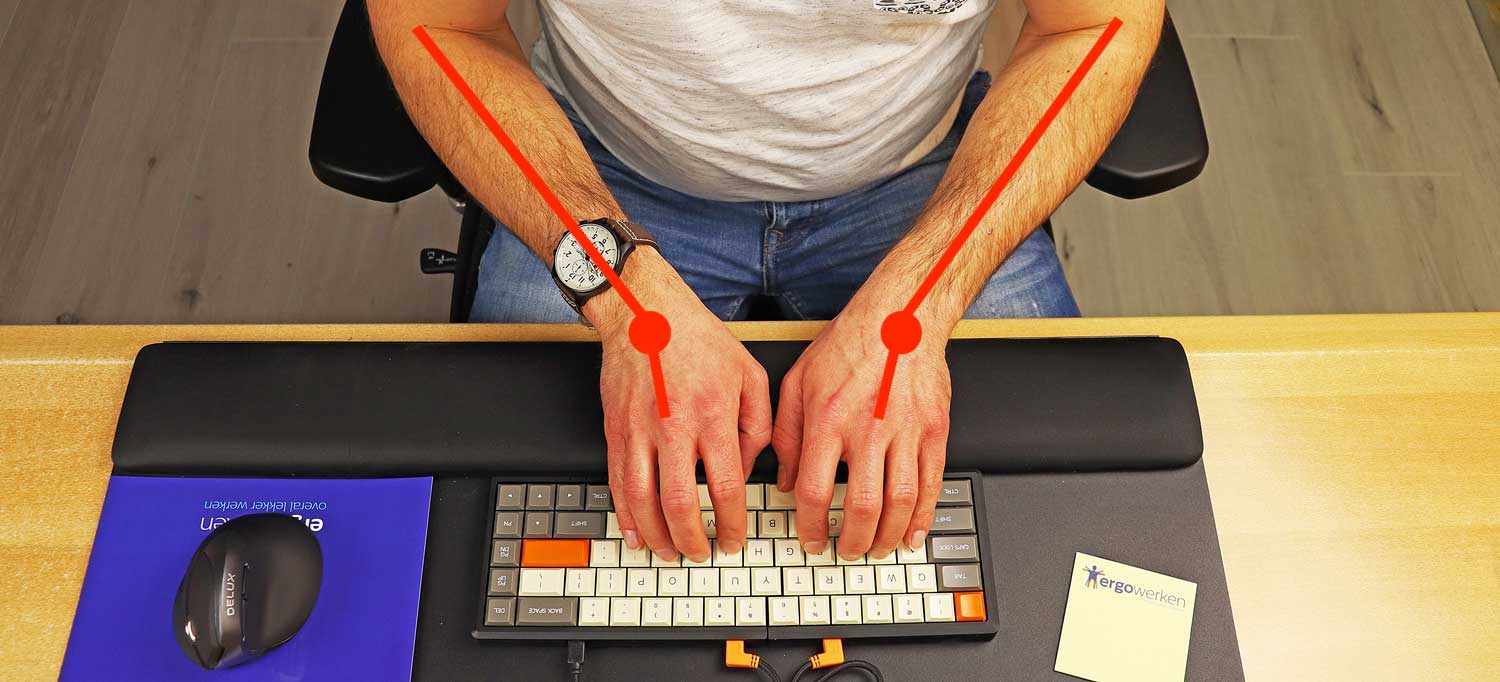 Traditional keyboard > wrists are under strain.
When you rest your forearms on the desk from a relaxed position, you will see that they form a slight triangle. The fingers point towards each other whilst the elbows point slightly apart. A split keyboard builds on this further.
By splitting the keyboard in two, you are able to rest your forearms and wrists in a natural position on the desk whilst typing. These keyboards will be discussed separately later in this article.
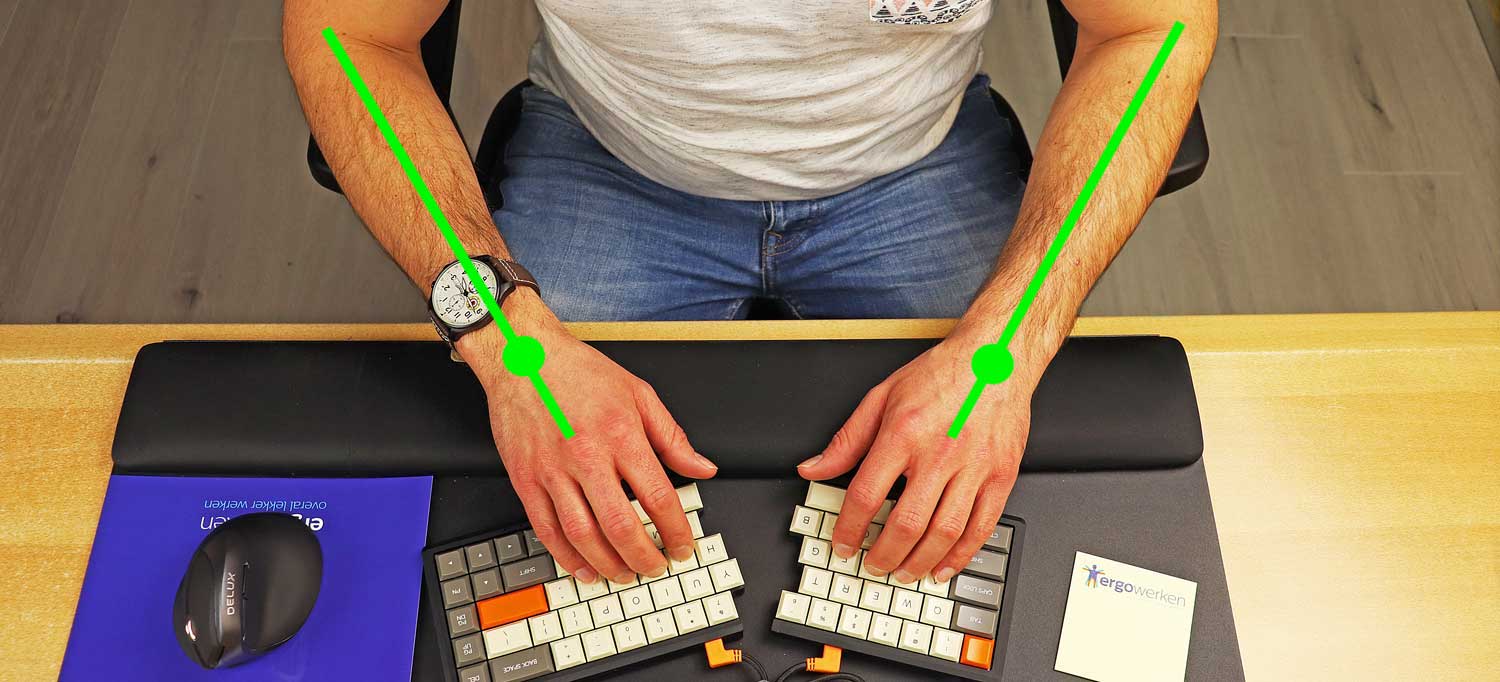 Split keyboard > wrists and forearms in a straight line reduce strain on the wrists.
3.3 Vertical flexion and extension

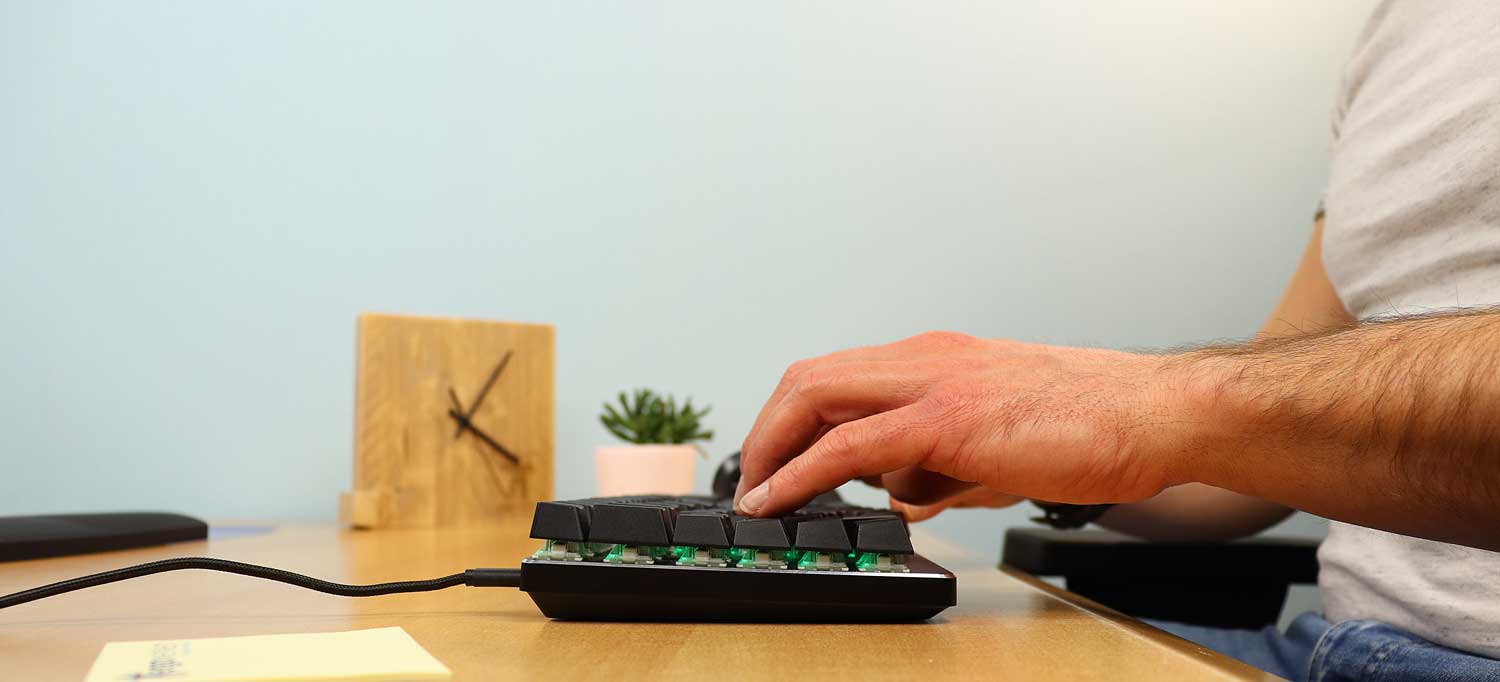
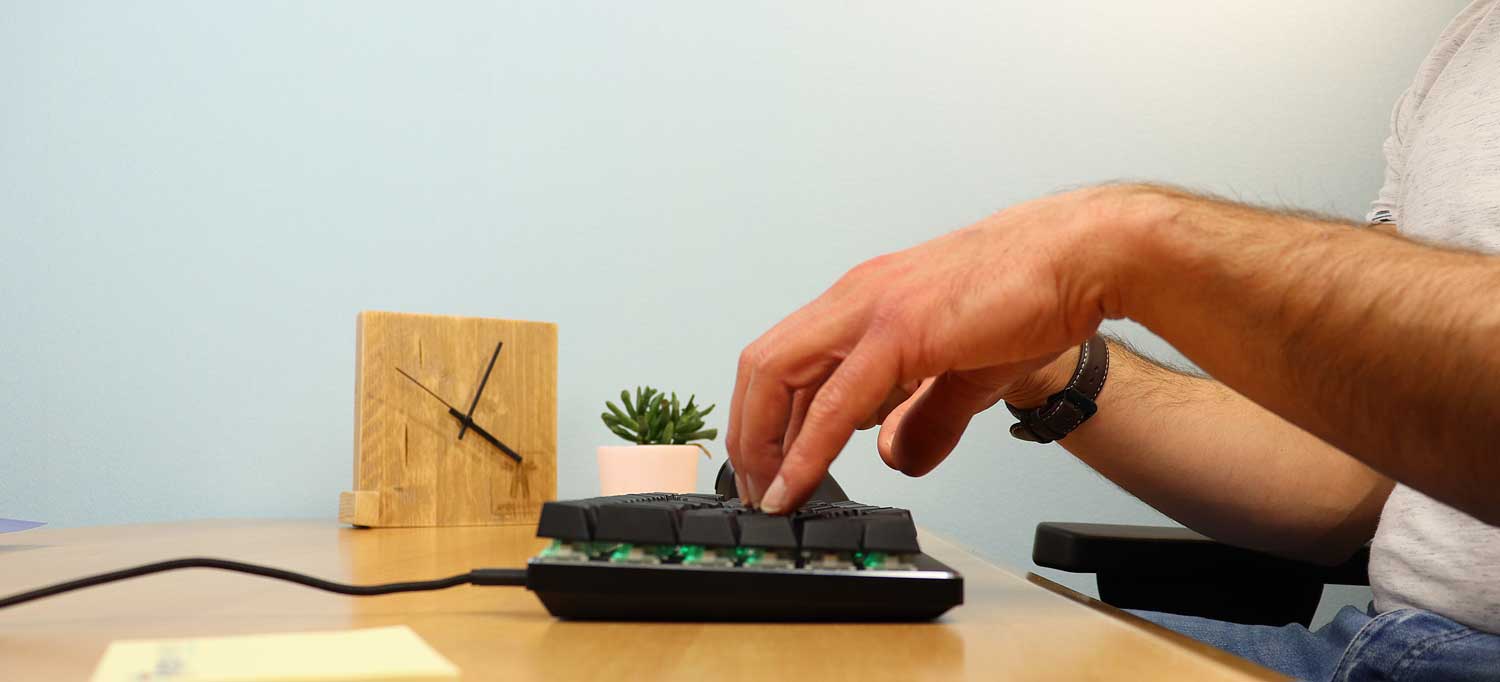
Something we have long been accustomed to is the vertical bending and stretching of the wrists whilst typing. This is simply a fancy term for the position of the forearms in relation to the hand in terms of height. How does the hand rest on the keyboard: with the hand and wrist in a straight line, or bent upwards or downwards? Everyone is familiar with the fold-out risers on the back of your keyboard. Many people use these feet but don’t actually know what they were designed for. These feet are intended for people who do not touch-type. The tilt of the keyboard makes it easier to read the keys. From an ergonomic point of view, however, this is precisely not the intention.
Just as in the paragraphs above, we aim for a posture that is as tension-free as possible for the fingers, hands, wrists, arms and shoulders. Using these feet results in what is known as vertical wrist extension; current ergonomic developments address this by using wrist rests and developing increasingly flatter keyboards. This gives your wrist a more neutral position. Ideally, you could even make use of the natural bend of the wrist; by placing the wrist in a higher position than the hand, you achieve a slight downward bend of the wrist. This is a relaxed position and therefore causes the fewest complaints for most people during prolonged use.
4. Narrower keyboards
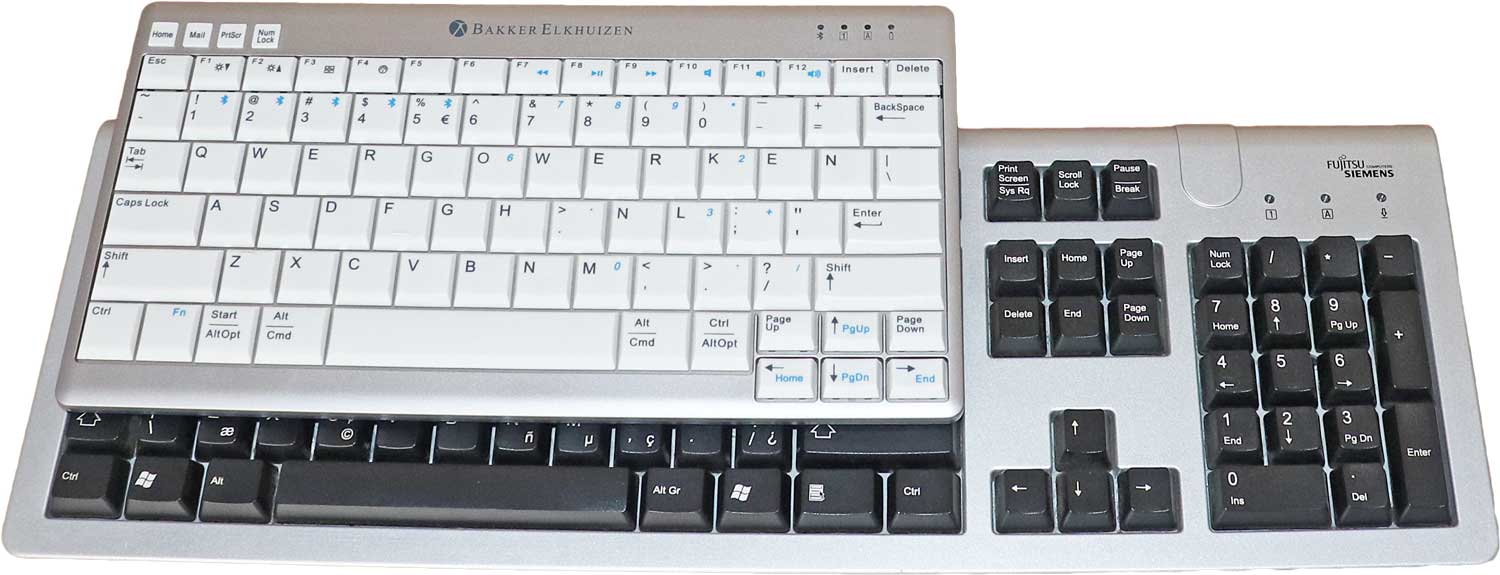
Do you hate it when you ask your colleagues how to do that one function on your computer and immediately lose your mouse and keyboard? That colleague who pushes you aside to grab your mouse and keyboard so he can ‘demonstrate’ the trick, after which you still don’t know how to do it because you haven’t done it yourself.
Or has your office switched to flexible workspaces, but you still want to keep that one spot by the window? Then set your computer up for a left-hander; this often deters most right-handers enough to prevent them from choosing that spot to work at. Instead of having to contend with 85–90% of your colleagues, you now only have to deal with 10–15% of them.
4.1 Tenkeyless (TKL)
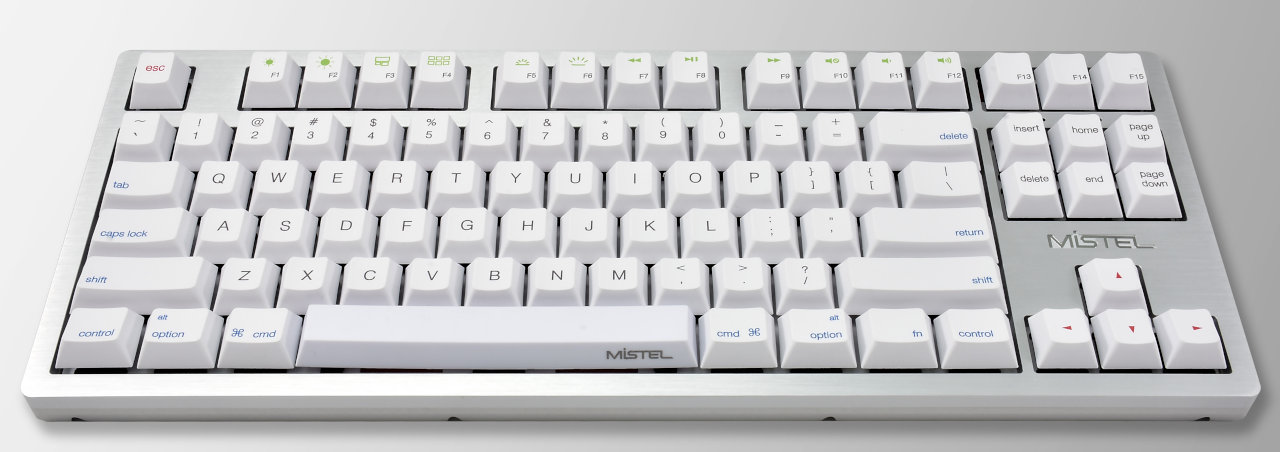 Mistel Sleeker MD870
 You could say that the foundations of keyboard ergonomics were laid by Dr Dvorak. Unfortunately, his invention never caught on, but most operating systems still support the layout. There are currently several trends regarding keyboard ergonomics. One of the most prominent is a narrower keyboard.
By removing the NumPad from the keyboard, you achieve a slimmer profile; this means the mouse can be positioned closer, reducing strain on your shoulders and arms as you need to make a smaller movement from the keyboard to the mouse. Such a keyboard is known as a tenkeyless keyboard.
4.2 Compact
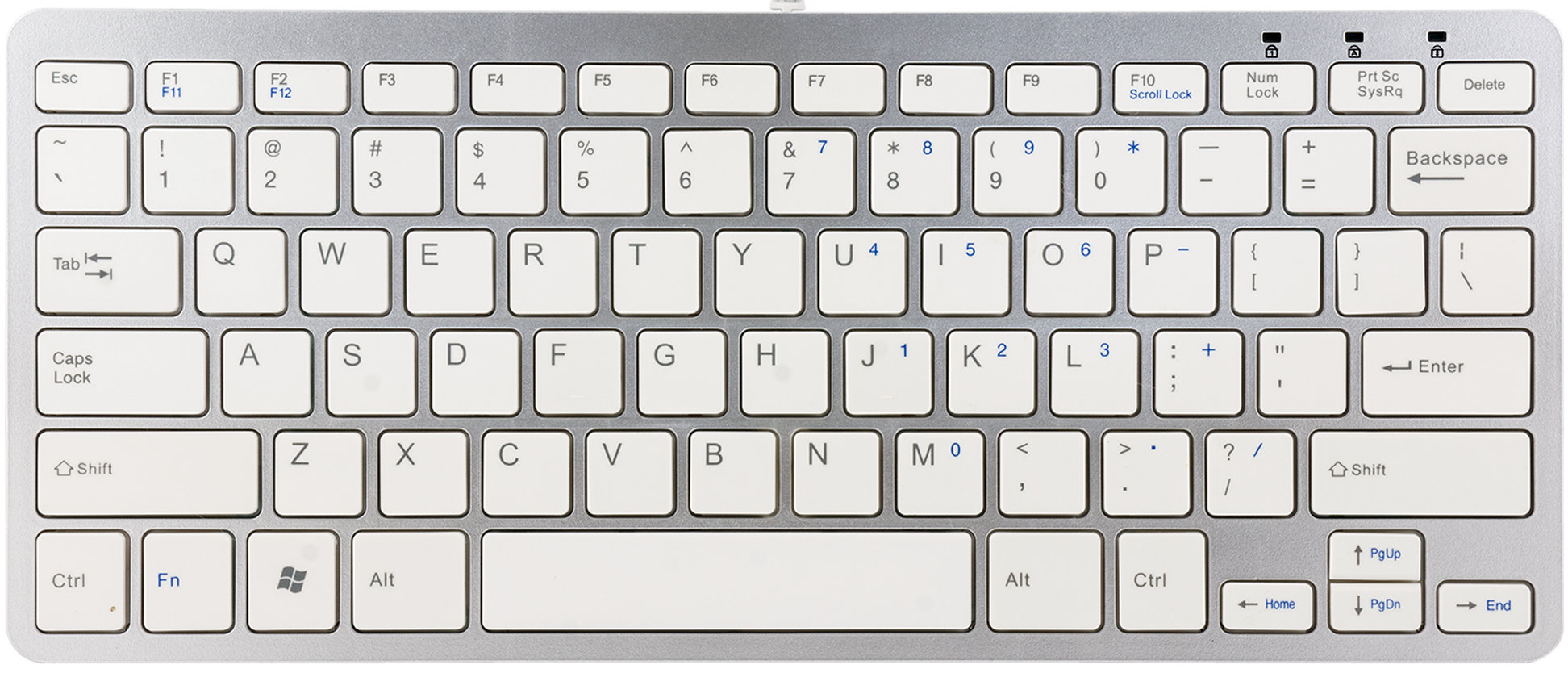 Ergo Compact keyboard
If you opt for an even more compact keyboard, even more keys are removed from the sides. This means that the row containing the Home, End and arrow keys is repositioned; this is also a common feature on laptops. A compact keyboard is often described in terms of percentages compared to a full-size keyboard.
4.3 Split keyboards
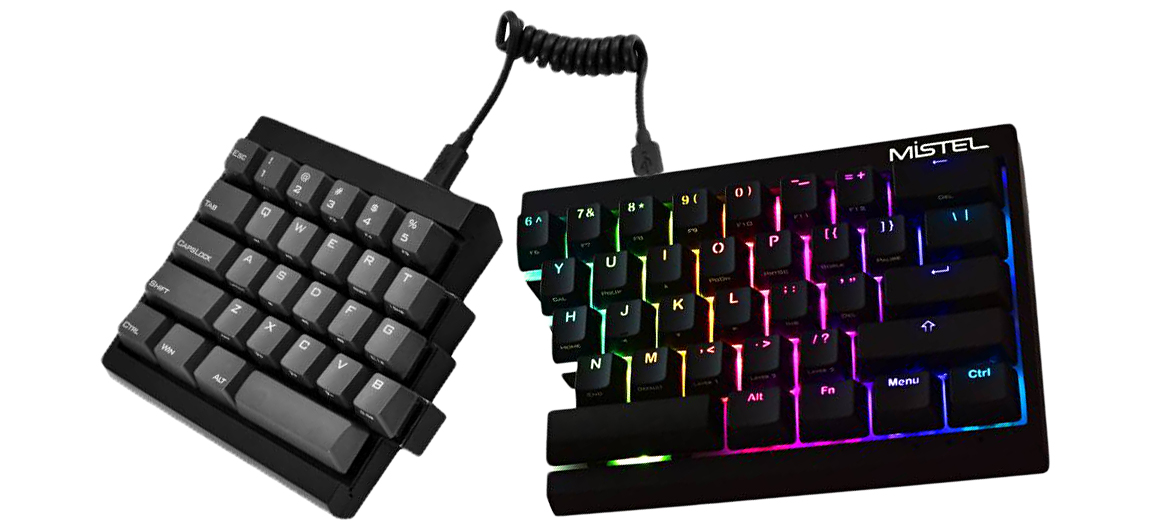 Mistel MD600 Barocco
As well as making the keyboard narrower, more attention is now being paid to the natural position of the wrists, which are slightly turned inwards when you rest them on the table in front of you. The ‘split keyboard’ was developed from this natural posture. This means that the keyboard is divided into two parts; the keys are slightly rotated on the board, creating a blank space in the middle.
As every person is unique, a fixed angle at which the keys are positioned is not always ideal. The full ‘split-keyboard’ has been developed for this user group. Here, the keyboard is split completely in half and the two halves are connected by a cable, allowing you to position the keyboards in such a way that your arms and wrists are under the least amount of strain. An example of this is the Kinesis Freestyle2 keyboard.
4.4 Mini/Tablet keyboards
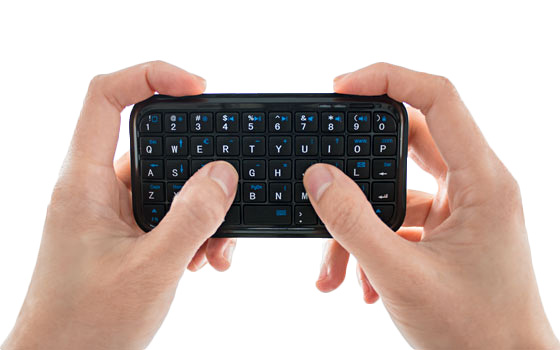
For people who are frequently on the move, even smaller keyboards are also available; these are often used in combination with a phone or tablet. Nowadays, these keyboards are also frequently marketed as multimedia keyboards because, with the rise of smart TVs, a keyboard offers a welcome alternative to the standard remote control for entering text. For everyday use in the office, however, this is not a good alternative as the extremely compact size means the keys have become very small and are therefore difficult to operate with two hands.
5. Membrane, scissor or mechanical switches?
Apart from the layout of the letters, the narrowing of the keyboard and the position of the keys in relation to your wrists, there is another factor to consider when purchasing a keyboard. The switch that registers the keystroke also influences the shape of the keyboard and how you type on it. There are various techniques for registering keystrokes, and here too there are degrees of how ergonomically sound they are. At present, there are three commonly used types:
- Membrane switches
- Scissor switches
- Mechanical switches
5.1 Membrane switches
The membrane switch is the most common type of switch found in keyboards. If you’re sitting in an office, there’s a good chance you’ve got a keyboard with a membrane switch in front of you right now. Most of these switches consist of a rubber membrane with domes on top; as soon as the dome is pressed, it makes contact with the circuit board, registering a keystroke. This has a few advantages, but as the wise Johan Cruijff always said, every advantage has its disadvantage.
Advantages:
- Lower production costs
- These keyboards require cheaper materials and use older technology, resulting in lower production and therefore purchase costs.
- Quiet in use
- The rubber cushions the keystrokes, making the membrane keyboard one of the quietest types
- Lightweight and therefore portable
- Membrane keyboards are generally made of plastic, unlike mechanical keyboards, for example. This makes for a relatively lightweight keyboard, ensuring it is easy to carry around.
Disadvantages:
- Lifespan
- Although a membrane keyboard can handle several million keystrokes, this is nothing compared to a mechanical switch. Generally speaking, a membrane keyboard will last a few years with average use.
- Feel
- You have to press the key all the way down to make contact, and because the only resistance is the rubber dome, the key feels less stable; some describe it as a ‘mushy’ feeling when using a membrane keyboard.
- Typing errors
- Because the keystroke is only registered when you press the contacts together, you have to press the key all the way down before it works. This means that fast typists in particular can easily make mistakes.
- Back pressure
- Another consequence of having to press the key all the way down is that you end up pressing the keys harder; the resistance can lead to tired fingers and eventually to painful symptoms in the hand.
- Cleaning
- Cleaning a membrane keyboard isn’t really possible; the rubber mat collects dust, the remains of your lunch and the crumbs from that slice of cake your colleague treated everyone to on their birthday. The keys on a membrane keyboard can usually only be removed once (after which they’re ruined).
5.2 Scissor switches
The scissor switch is an improved version of the membrane switch; the underlying mechanism is the same. The scissor switch stabilises the key and limits its travel, making it possible to achieve a shorter keystroke. These keys are therefore often used in laptops as they are lower-profile than those on a mechanical or membrane keyboard.
 Schematic diagram of a scissor switch | Source: Wikipedia
Some users prefer a keyboard with this technology, though the short key travel is something many people have to get used to. Many laptops and thinner keyboards use this technology because of the slimmer profile it allows. Most portable keyboards also use the scissor mechanism for this reason.
Advantages:
- Compact
- Low profile ensures good portability.
- Tactile feel
- The mechanism provides a more tactile click than that of a membrane keyboard, which enhances the typing experience.
- Key stability
- The mechanism stabilises the key, meaning that when pressed, the key wobbles less and your finger therefore does not make slight sideways movements
Disadvantages:
- Back pressure
- The keys require a full stroke; the keystroke is only registered at the bottom, meaning your fingers experience back pressure with every keystroke. This is exacerbated by the short travel of the keys.
- Cleaning
- Cleaning a keyboard with a scissor mechanism is a tad more difficult than cleaning a standard membrane keyboard because, in principle, it is a membrane keyboard with a scissor mechanism around the rubber dome. Either skip that aniseed biscuit because your colleague has had a baby, or eat it properly in the canteen.
5.3 Mechanical switches
Recently, there has been a growing interest in mechanical keyboards, and with good reason. Mechanical keyboards offer many advantages, but as mentioned earlier, every advantage has its downside.
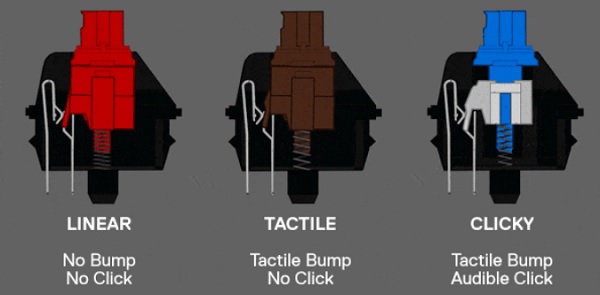 Schematic diagram of various mechanical switches | Source: kitguru.net
There are various types of switches for mechanical keyboards. As shown in the figure opposite, the most common are linear, tactile and extra ‘clicky’ switches.
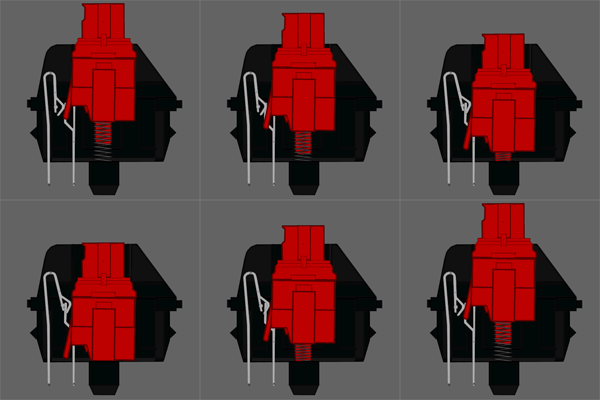
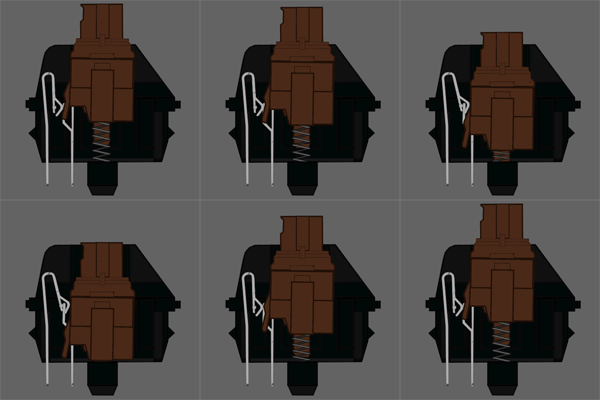
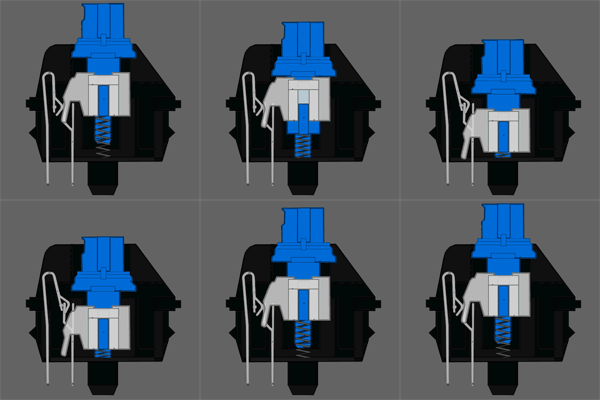
How a mechanical switch works | Source: howtogeek.com
5.3.1 Fully customisable to the user.
Because there are so many manufacturers of individual components for these keyboards, mechanical keyboards can be fully customised to suit the user. And we’re not just talking about typing comfort; aesthetics matter too. The large following of fans of this type of keyboard has created a market for ‘customising’ their keyboards. For example, there are switches with LEDs available that illuminate the keyboard or even the keys themselves, various separate keycaps, and special designs for the connection cables. You name it, it probably already exists.
Below, I’ll introduce you to some of the most popular switches. (Please note, this is just a handful of all the possible switches.)
| Types of switches | |||
| Brand | Model | Colour | Type |
| Cherry | MX | Red | Linear |
| Cherry | MX | Blue | Clicky |
| Cherry | MX | Brown | Tactile |
| Cherry | MX | Clear | Tactile |
| Gateron | KS-3 | Red | Linear |
| Gateron | KS-3 | Blue | Clicky |
| Gateron | KS-3 | Brown | Tactile |
| Matias | Click | White | Linear |
| Matias | Quiet Click | Grey (formerly white) | Clicky |
| Matias | Quiet Linear | Red | Linear |
Keycaps
Keycaps are the (usually) plastic keys used to operate the switches. What most people refer to as ‘keys’ are actually the keycaps. There are countless different varieties of these too.
Colour
First of all, the colour. You’ll usually come across white or black, and very occasionally the old-fashioned beige. But these days, keycaps are available in every colour of the rainbow.
Material
When it comes to materials, there’s one clear winner: plastic. Almost every keycap on the market is made from some form of plastic. The best known is ABS plastic, followed by the higher-quality PBT plastic. But that doesn’t mean all keycaps are made of plastic. There are also special keycaps made from wood, bamboo, metal and epoxy resins. You name it, it exists.
Compatibility
When purchasing a new set of keycaps, it is important to consider which switch you have. Many manufacturers use the characteristic Cherry mounting system, but that also means there are still plenty of manufacturers who have their own mounting mechanism.
Advantages:
- Weight
- A mechanical keyboard is generally heavier than other types; whilst this can be a disadvantage, it also means that more vigorous typists can be assured that the keyboard will stay firmly in place.
- Key travel
- To register a keystroke, the mechanical switches do not need to be fully depressed; this boosts your typing speed and ensures your fingers do not have to contend with any resistance.
- Cleaning
- The keys are easy to remove and therefore easy to clean.
- Durability
- Most mechanical keyboards are built to last a long time; some are even so robust that you could pass them down to your grandchildren as heirlooms. What’s more, every key works, every time. The ‘E’ won’t get stuck because you spilled your mocha frappuccino on it, and you won’t have to press the ‘O’ any harder than before because you’ve used it so often to send that surprised smiley to your colleague :O.
- Less resistance
- Thanks to the audible click and tactile feedback, the keys give you the impression that you’re actually pressing a switch; this means you’re less likely to press the key all the way down, so you experience less resistance on your fingers.
Disadvantages:
- Less suitable for open-plan offices
- A mechanical keyboard can cause irritation if you work closely with colleagues. The loud clicking might be music to your ears, but your nearest colleague might feel differently. It is, however, a good way to let the manager know that the open-plan office wasn’t such a great idea after all.
- Weight
- Due to the often higher weight of a mechanical keyboard compared to its competitors, it is not the most portable option.
- Price
- A mechanical keyboard is generally a more expensive option than the variants discussed previously. This is often because a mechanical keyboard can be ‘customised’ by using different types of switches or different ‘keycaps’.
6. Which keyboard is right for you?
That’s a question I can’t answer. It sounds very clichéd, but every person is unique and therefore has their own individual requirements for a keyboard. From an ergonomic point of view, you might opt for a 60% mechanical keyboard, but ultimately you also need to consider the practical aspects. If you always sit in the same spot, a mechanical keyboard might be just the thing for you, but if you regularly carry your keyboard in your laptop bag, you might be better off choosing a keyboard with a scissor mechanism. If you work in a busy office environment with lots of colleagues, it would be considerate to use a quieter keyboard. If you’re still unsure about your choice, please feel free to contact us via our chat or by phone on 076-2600207.