




Stel hier je vraag over dit product
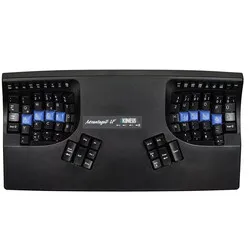
Kinesis Advantage2 Quiet Low-Force Ergonomic Keyboard – QWERTZ – German layout

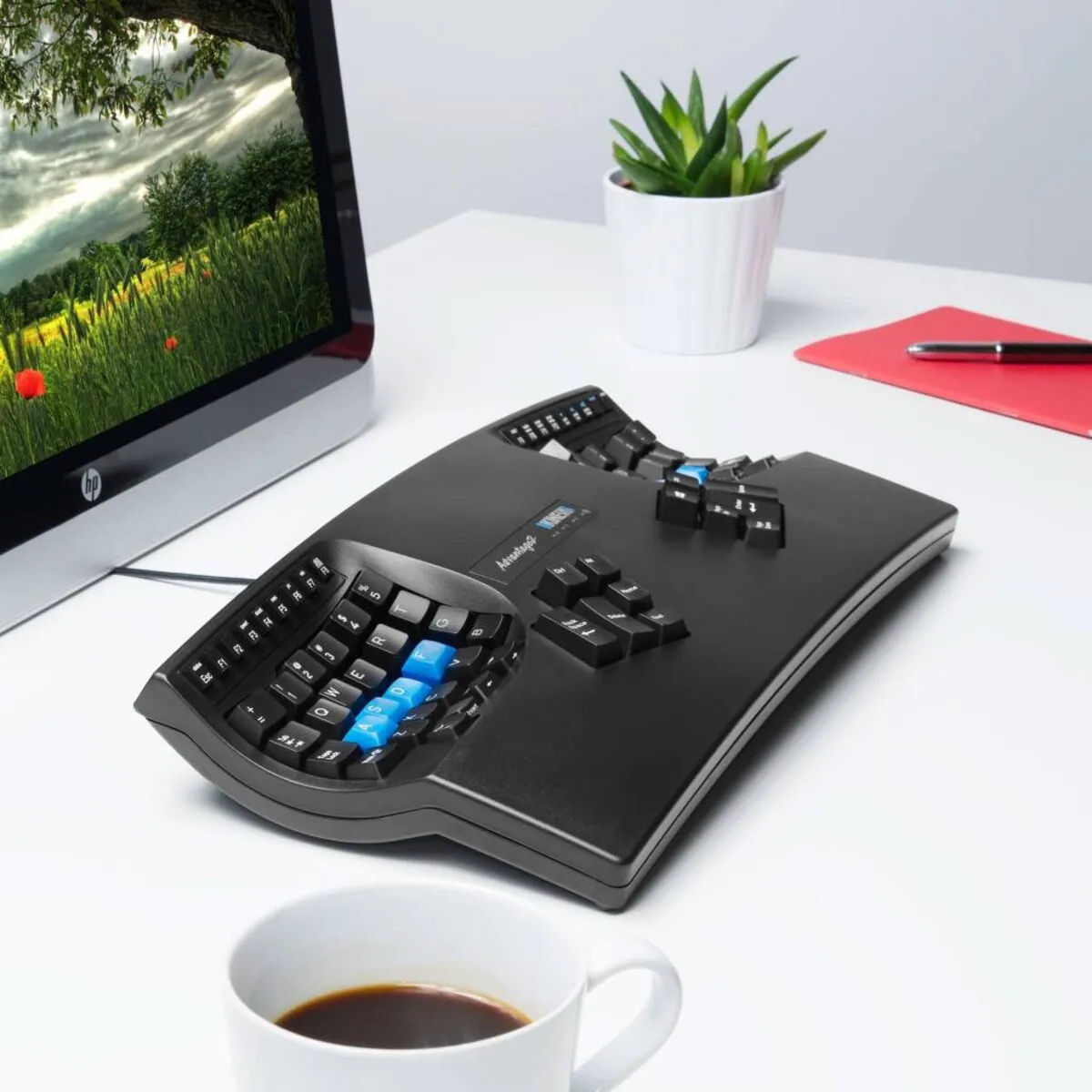
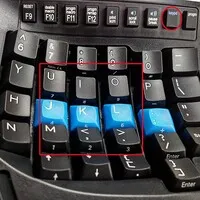
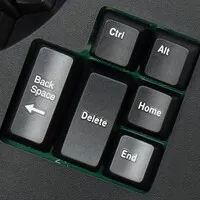

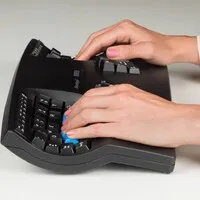
Product description of Kinesis Advantage2 Quiet Low-Force Ergonomic Keyboard – QWERTZ – German layout
Is this keyboard right for me?
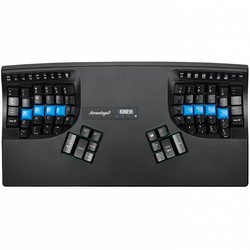
| Width | 419 mm |
| Depth | 232 mm |
| Height | 73 mm |
| Version | PC and Mac |
| Key layout | QWERTZ |
| Key type | Cherry MX Quiet Red linear mechanical keys |
| Connection | Wired (USB) |
It doesn’t get any better than this
Patience is a virtue
Week 1: “What a %^$&* device!”. Week 2: “Oh no, I’ve hit the backspace key again instead of the space bar”. Week 3: “Never anything else again! Woooeeee!”. That’s roughly how it will go.
Why the Kinesis Advantage2 Quiet Low-Force?
Maximum comfort
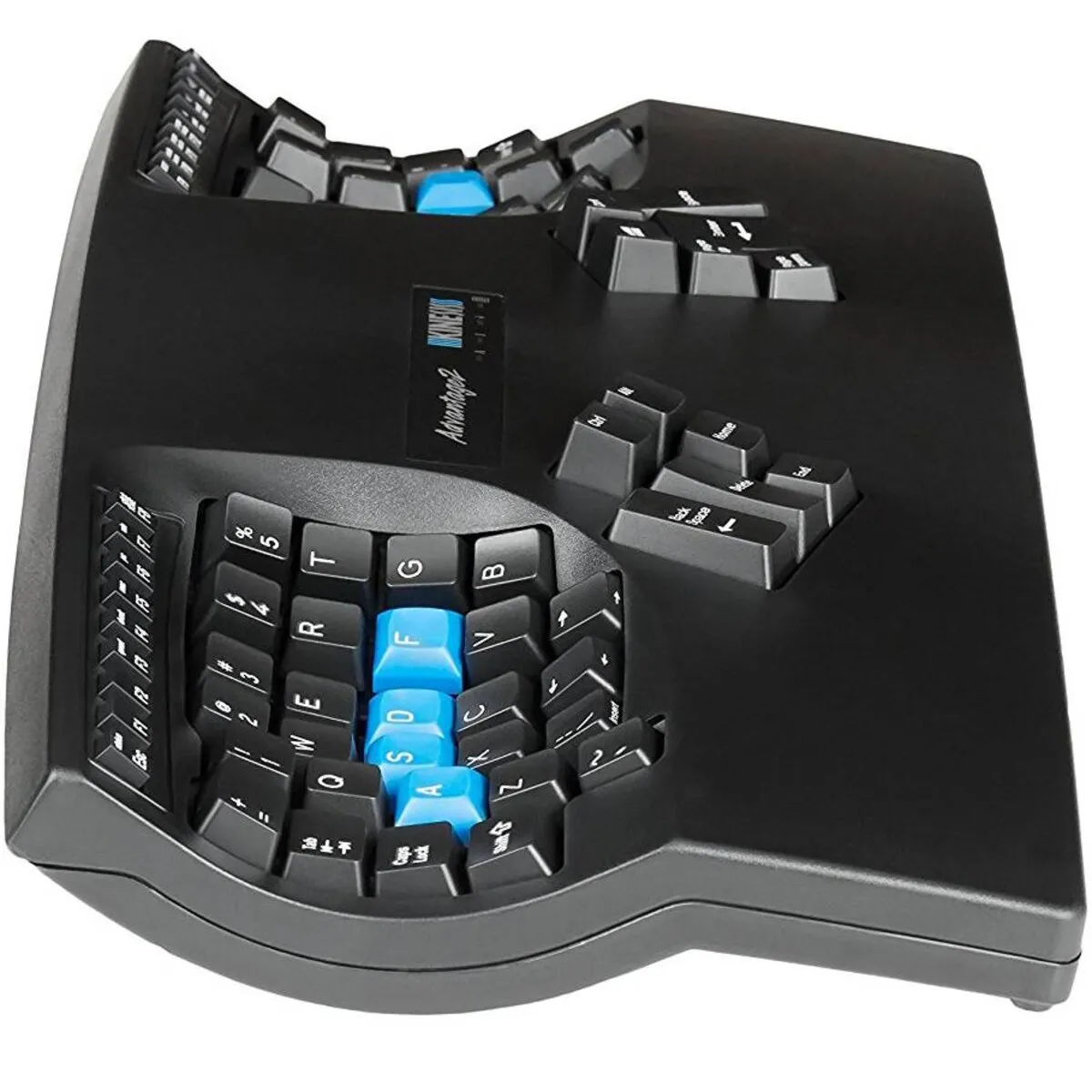
The Kinesis Advantage2 range has been designed based on 25 years’ experience in building ergonomic keyboards. The design, combined with the so-called low-force mechanical keys, focuses on combating the risks associated with prolonged keyboard use by offering maximum comfort.
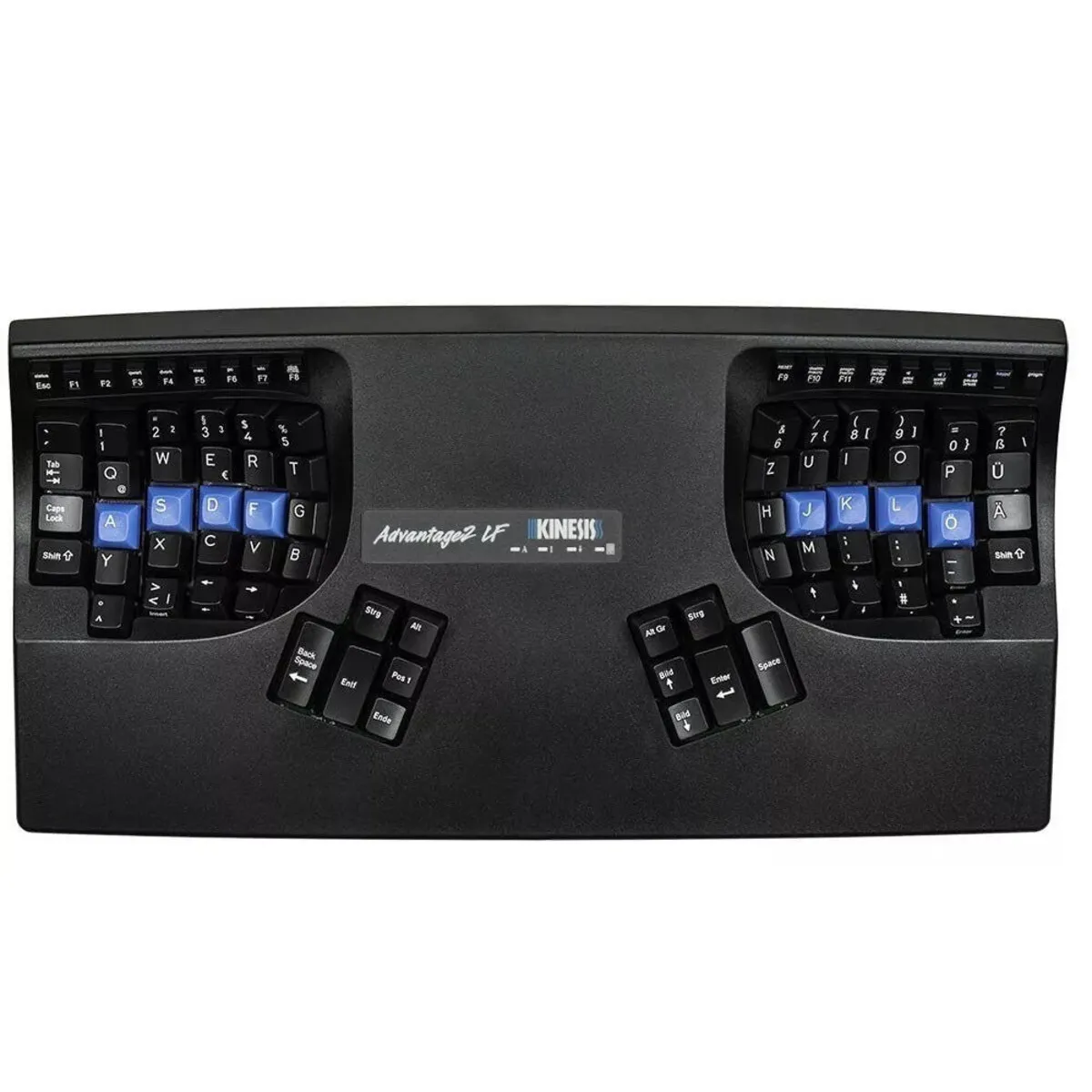
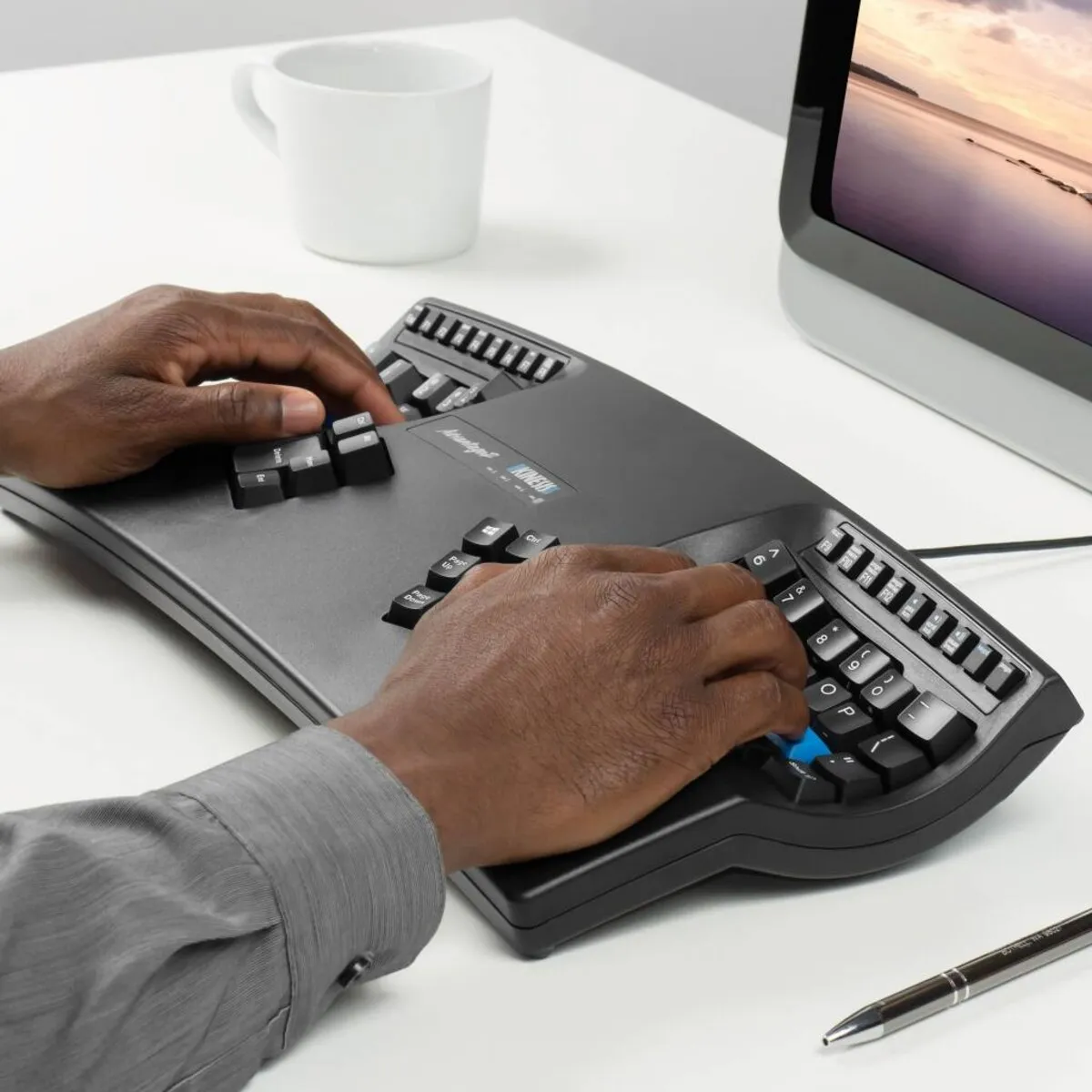
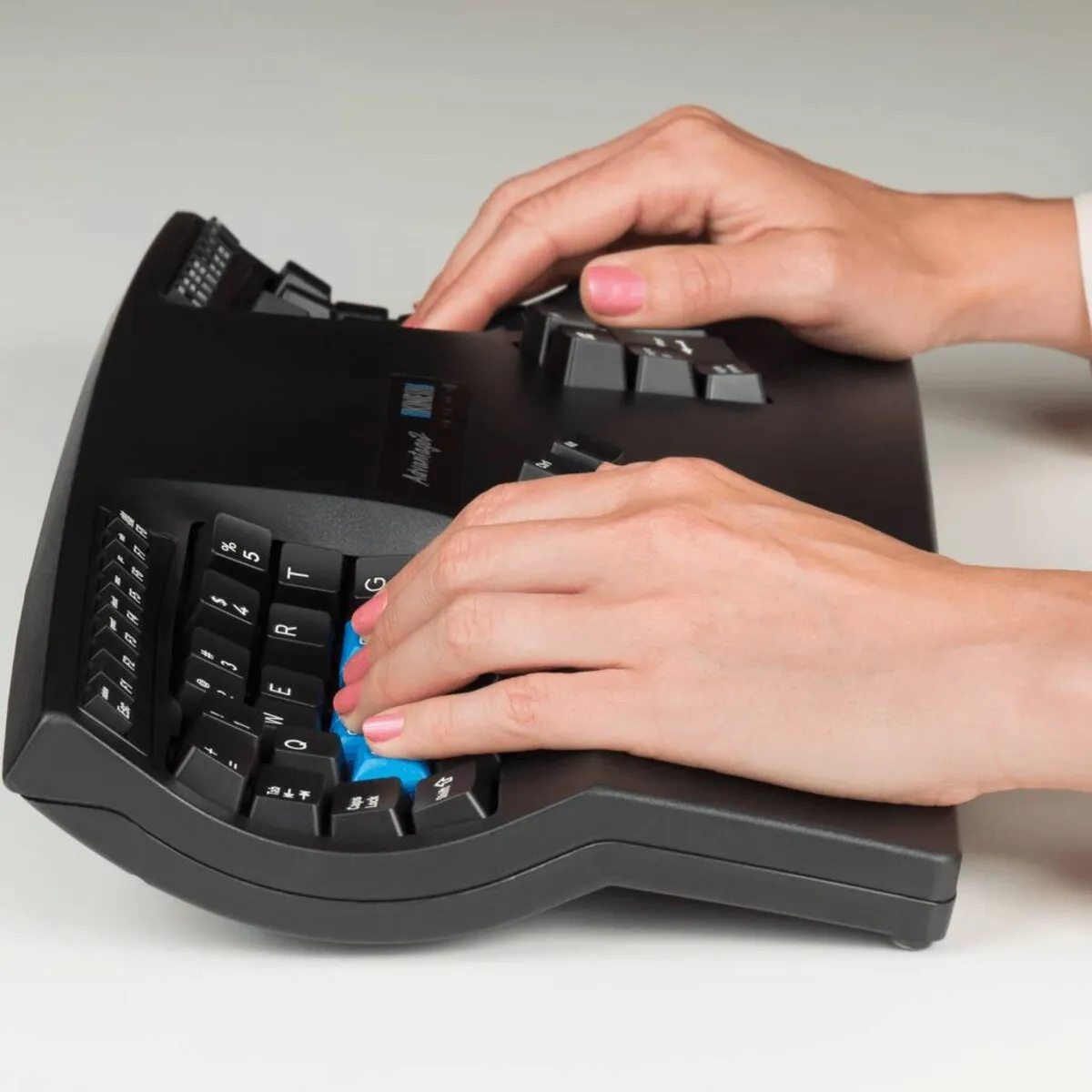
The keyboard is shaped in such a way that the arms are shoulder-width apart and the wrists remain in a natural position. Furthermore, the included palm rests minimise strain on the wrists, and a relatively large number of keys are operated with the thumbs to relieve the weaker little finger. The cockpit-shaped design also ensures much greater relaxation for the fingers, as the keys are positioned closer together.
Features
The inside of the Advantage2 is just as impressive as the outside. Firstly, the keyboard is fitted with Cherry MX Quiet Red mechanical switches. These have low resistance when pressed and are quieter thanks to sound-dampening components.
The keyboard also features Kinesis’s new programming system, which allows you to reprogram the keys to your own preferences. The great thing about this is that the programme is built into the keyboard and its 4MB memory card. This means you don’t need to install any additional software on your computer; you can do everything directly from the keyboard.
What makes an ergonomic keyboard so good?
Anyone who spends a lot of time working on a computer knows that this can put strain on your wrists, shoulders, back and neck. A good keyboard can help with this. The Kinesis, for example, has a unique design for maximum comfort. The keys are also particularly easy to press. Furthermore, you can place your mouse right next to the keyboard. All of this is designed to minimise muscle tension, thereby preventing or reducing injuries.
Get the most out of this product
The Kinesis Advantage2 not only offers many options but also types completely differently from other keyboards. So take your time to get fully used to the typing style. Also, create macros if you often type the same (sections of) text. This allows you to conjure up whole sections of text with a key combination (for example: Shift+H).
Don’t miss this either
If you prefer a visual guide when programming the keys, you can open the SmartSet App directly from the keyboard. Here, you can view keyboard layouts, add and customise macros, and change your keyboard settings.
By the way, if you’re looking for the newer and improved versions of the Advantage2, the new Advantage360 and Advantage360 Pro are waiting for you via the links below.
How happy does this make me?
- Wrist
- Shoulder
- Hand
- Arm
Pros and cons
- Programmable keys
- For PC, Mac, Linux and Android
- With low-force keys
- Comfortable working posture
- Quite wide
Key specifications
| Warranty | 3 years |
| Product weight | 997 grams |
| Plug & Play | |
| Ergonomic design | |
| Cable length | 190 cm |
| View all specifications |
Product features
- Ergonomic design
- Unique shape to prevent RSI
- Split components for maximum comfort
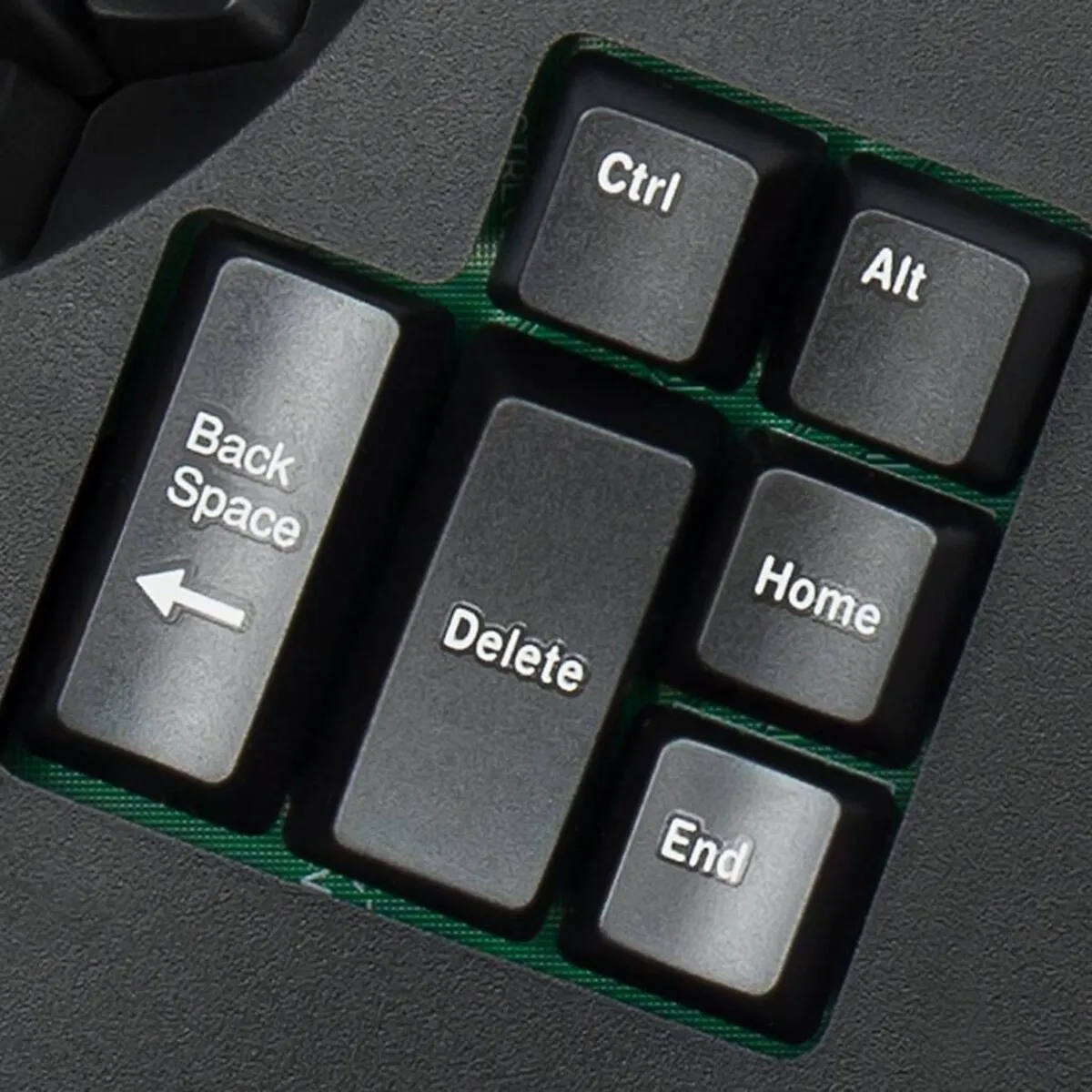
- Separate thumb keys
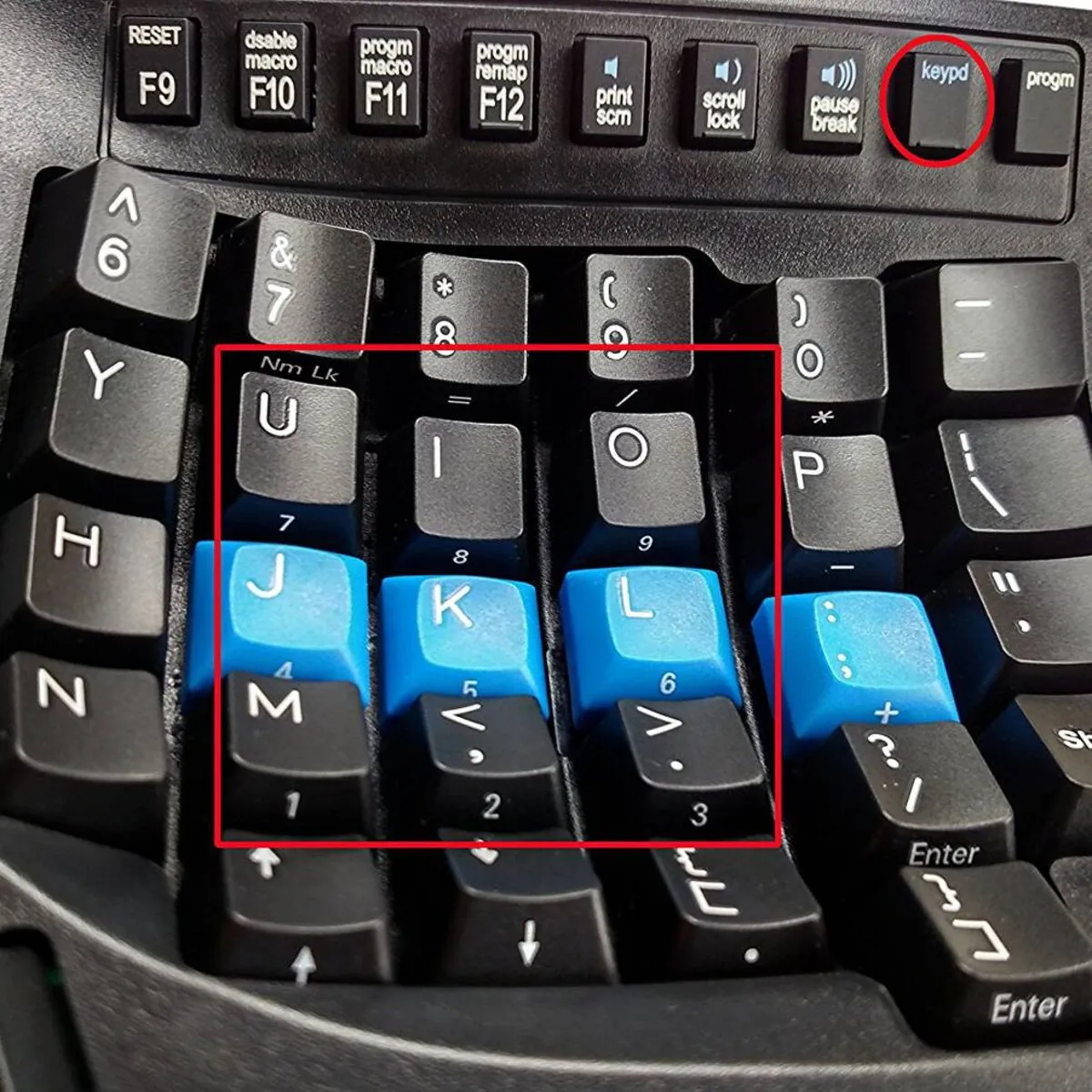
- Integrated numeric keypad
- Included palm rests
- Works with Windows, Mac, Linux and Android
- Cable length 190 cm
- Cherry MX Quiet Red linear mechanical switches
- Cherry ML low-force mechanical function keys
- With SmartSet Programming Engine
- Modern design
- Switch between QWERTZ and Dvorak
What’s in the box?
- 1 x Advantage2 keyboard
- 1 x Self-adhesive palm pads
- 1 x Keycap puller
- 1 x Quick Start Guide
- 4 x extra keycaps: (2) Command, (1) Alt/Option and (1) Alt
User experience (Tim)
Chances are you came across the Advantage through a friend, acquaintance or an online review. It’s also quite possible that you already know a great deal about this keyboard before you found us. It’s not the sort of ‘impulse buy’ you just snap up on a whim.
When we started stocking the Advantage, I spent some time working with it. Four weeks, to be precise. The main reason for this was to see if this product is really worth the money. I’m not even talking about the build quality or the extensive features it offers. I mainly wanted to know if I could get used to the keyboard and whether it would actually be more comfortable to use than an average keyboard.
The answer after four weeks: absolutely and without a doubt. I’d regained my speed, my hands and wrists could relax wonderfully, and I was proud of the fact that I’d finally tamed the beast. The answer after three days: “BLIMEY, WHAT AN INCREDIBLE PIECE OF CRAP”. For me, the Advantage presented two major challenges that gave me a headache for about two to three weeks.
Number 1 was the distance between the keys. Due to the design, where the keys are set in a sort of recess, the reach between the keys is shorter. From the home row (ASDF-JKL;), all the other keys are closer. The challenge here is that the benefit isn’t the same for every key. Take the B, for example. It’s right next to the F key, whereas on a standard keyboard they’re never even close. After 4 weeks, that shorter ‘reach’ is very pleasant, as your fingers stretch and bend much less. After the aforementioned 3 days, you keep hitting the casing, because your brain thinks that’s where the B should be.
Challenge number 2 was the relocation of a number of crucial keys such as backspace, enter and space. Kenisis has assigned these to the thumb, which makes perfect sense from an efficiency perspective. Once you’re used to it, it works lightning fast, but here too it took me about 2–3 weeks to get the hang of it. A good example is the backspace key by the left thumb. Ever since I learnt to type, I’ve always used my left thumb to press the space bar. With the Advantage, this resulted, much to my annoyance, in sentences like ‘heKinesiAdvantagtoetsenbortyplekkemaadispatiebaliwenne’.
In summary, I would advise you to give yourself time with the Advantage. At first, you won’t reach your old speed and you might even type a bit stiffly. As the days go by, you’ll get more and more used to it and find it more comfortable to work with. I promise you it won’t let you down.
Frequently asked questions
Specifications
| Item number | ERGO-KIADVLF-DE |
| Brand | Kinesis |
| Warranty | 3 years |
| Type of guarantee | Ergowerken free warranty return service |
| Colour | Black |
| Keyboard type | Compact |
| Ergonomic design | |
| Keyboard layout | QWERTZ |
| Bluetooth | N/A |
| Type of keys | Cherry MX Red linear mechanical, Cherry ML low-force function keys |
| Numeric keypad | Integrated |
| Shortcut keys | |
| Programmable buttons | |
| Trackball/touchpad | N/A |
| Type of power supply | Wire |
| Battery type | N/A |
| Rechargeable | N/A |
| Minimum system requirements | Mac OS X v10.5, Mac OS X v10.6, Mac OS X v10.7, Mac OS X v10.8, Mac OS X v10.9, Mac OS X v10.10, Mac OS X v10.11, Windows XP, Windows Vista, Windows 7, Windows 8, Windows 10 |
| Plug and play | |
| Dimensions length x width x height | 419 x 232 x 73 mm |
| Product weight | 997 gram |
Reviews Kinesis Advantage2 Quiet Low-Force Ergonomic Keyboard – QWERTZ – German layout
Customers who write a review enter a prize draw for a voucher. We pick one winner and publish all reviews, including critical ones.