


Offerte aanvragen
Jouw offerte op maat, binnen 24 uur in je mailbox. Voor als je interesse hebt in aantallen. Of goedkeuring nodig hebt voor je bestelling.
Je vraagt een offerte aan voor:
Stel hier je vraag over dit product
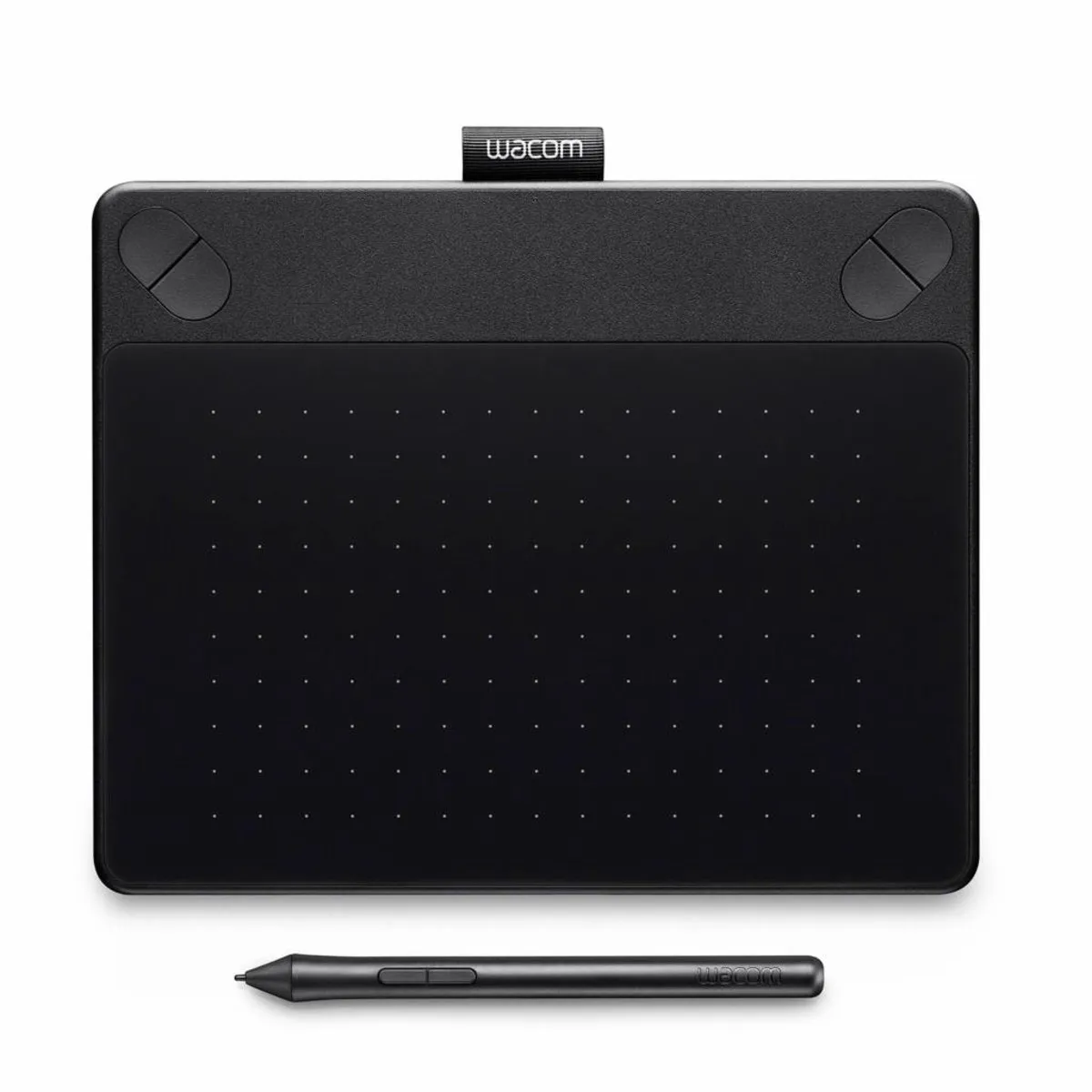
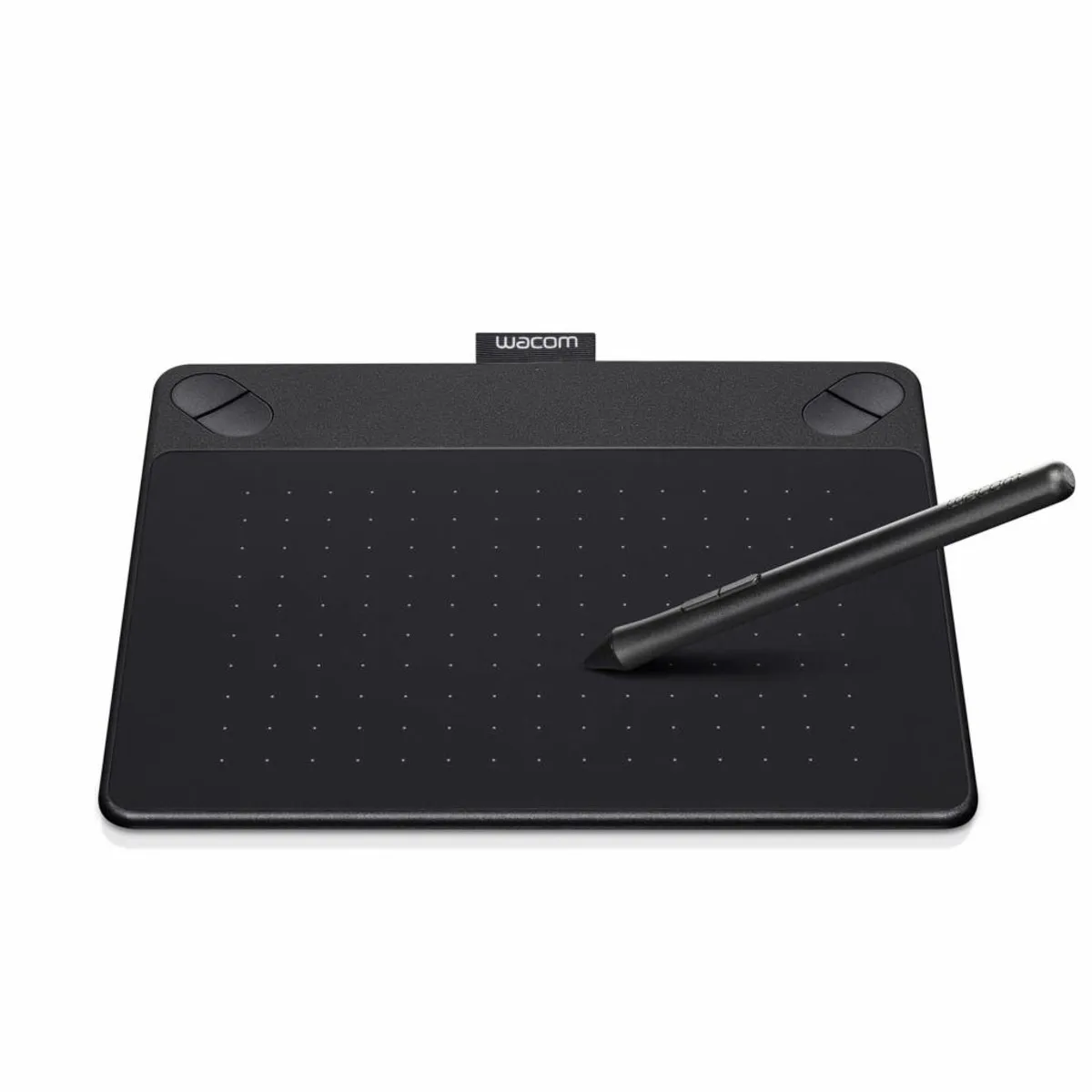
Wacom Intuos Comic Pen & Touch Small drawing tablet Black

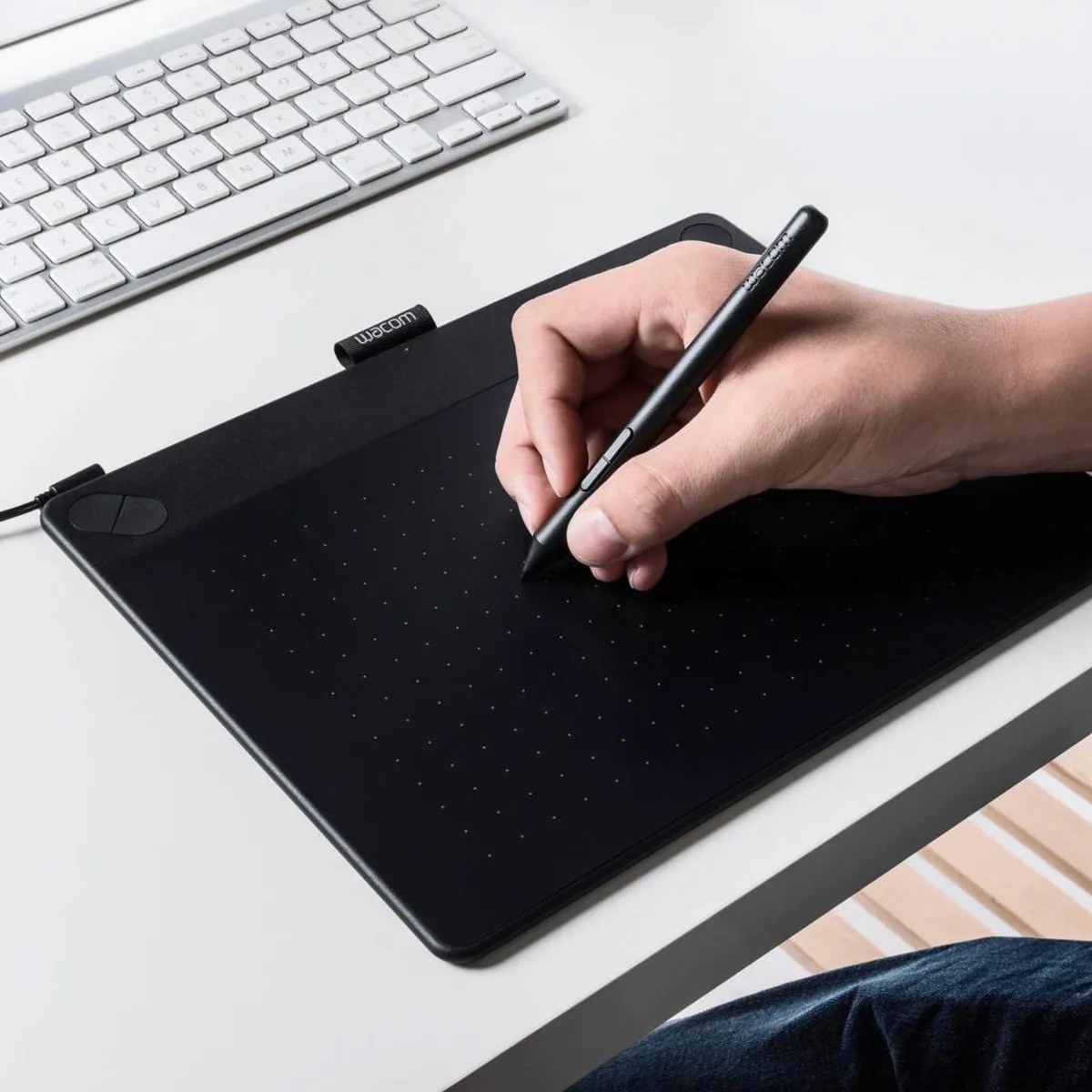
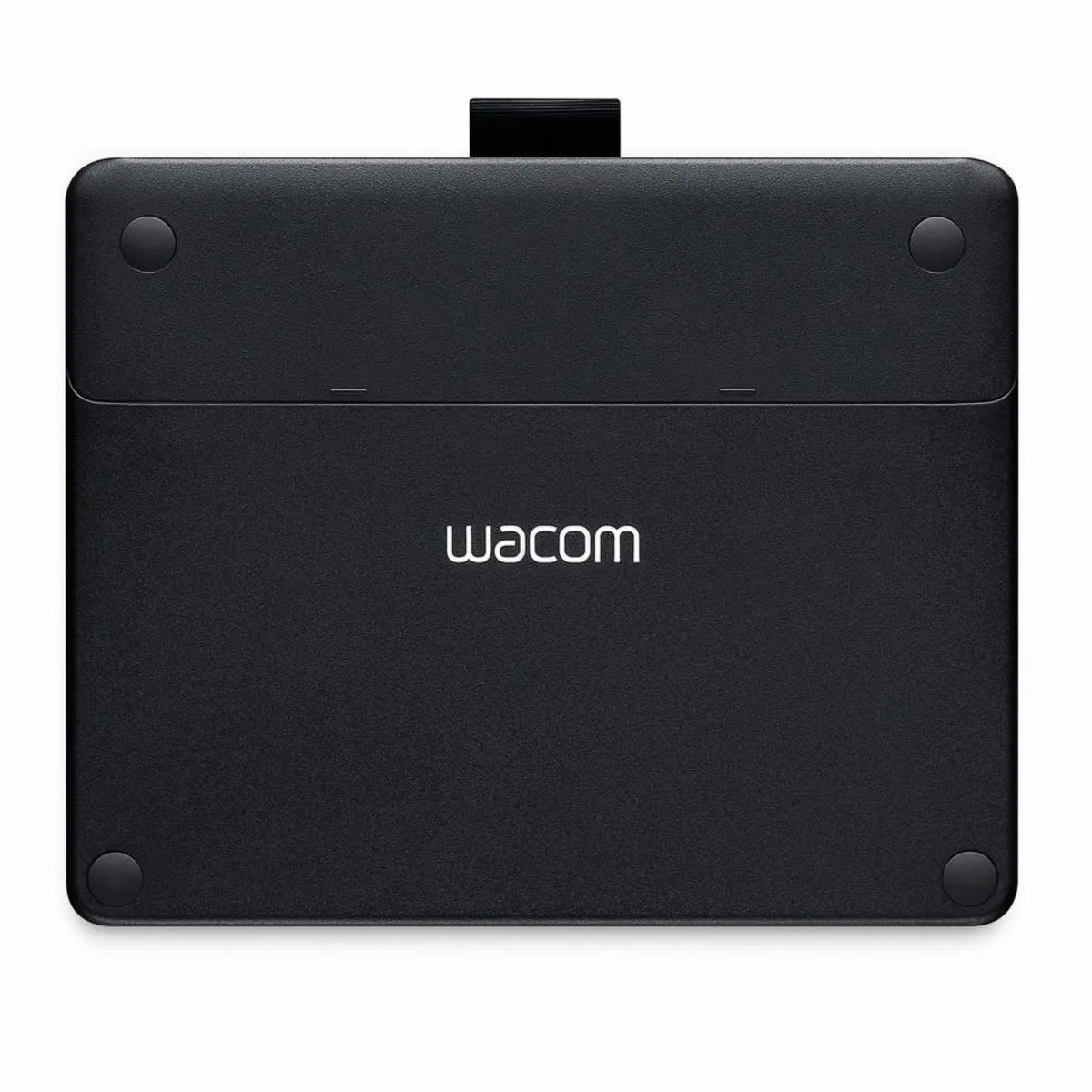
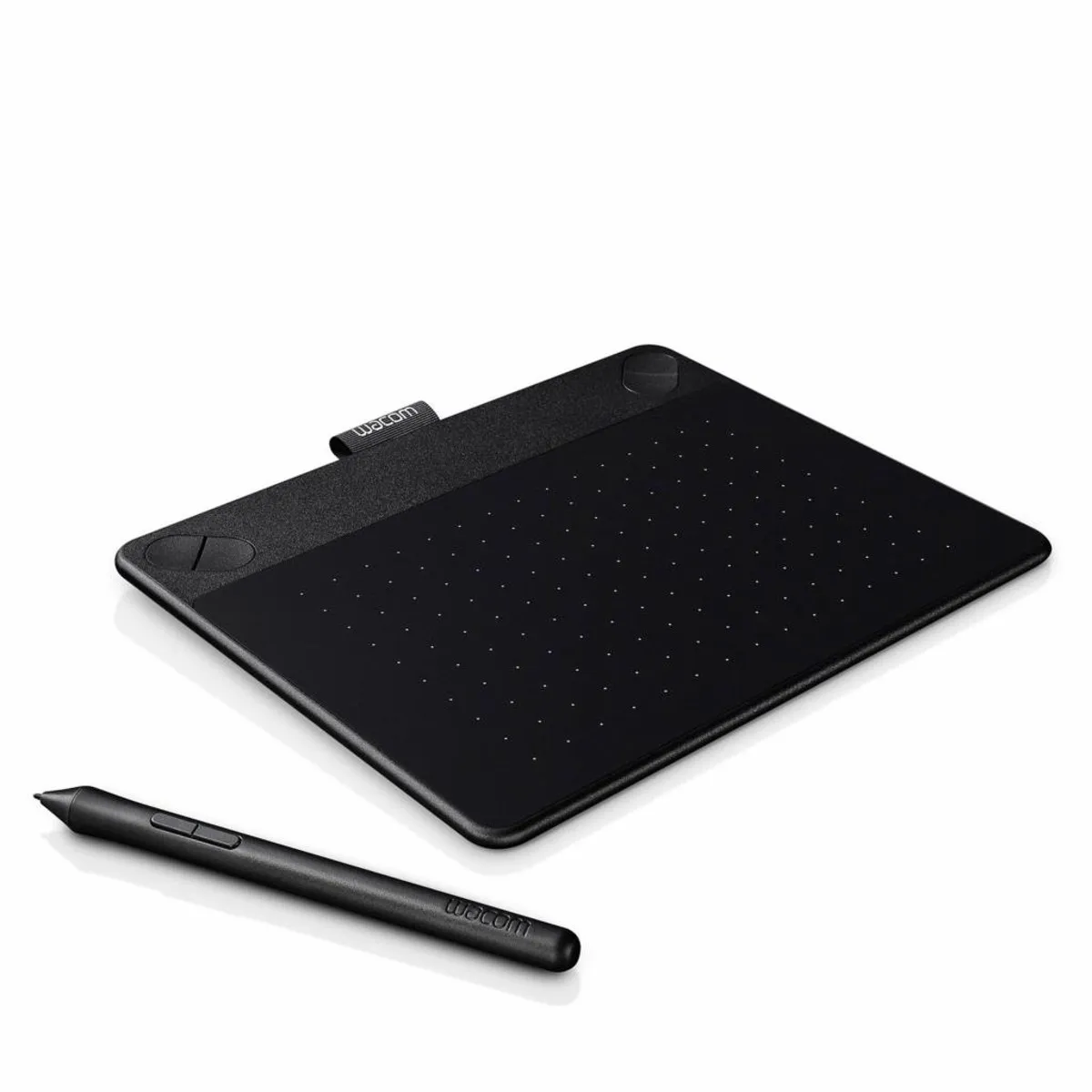
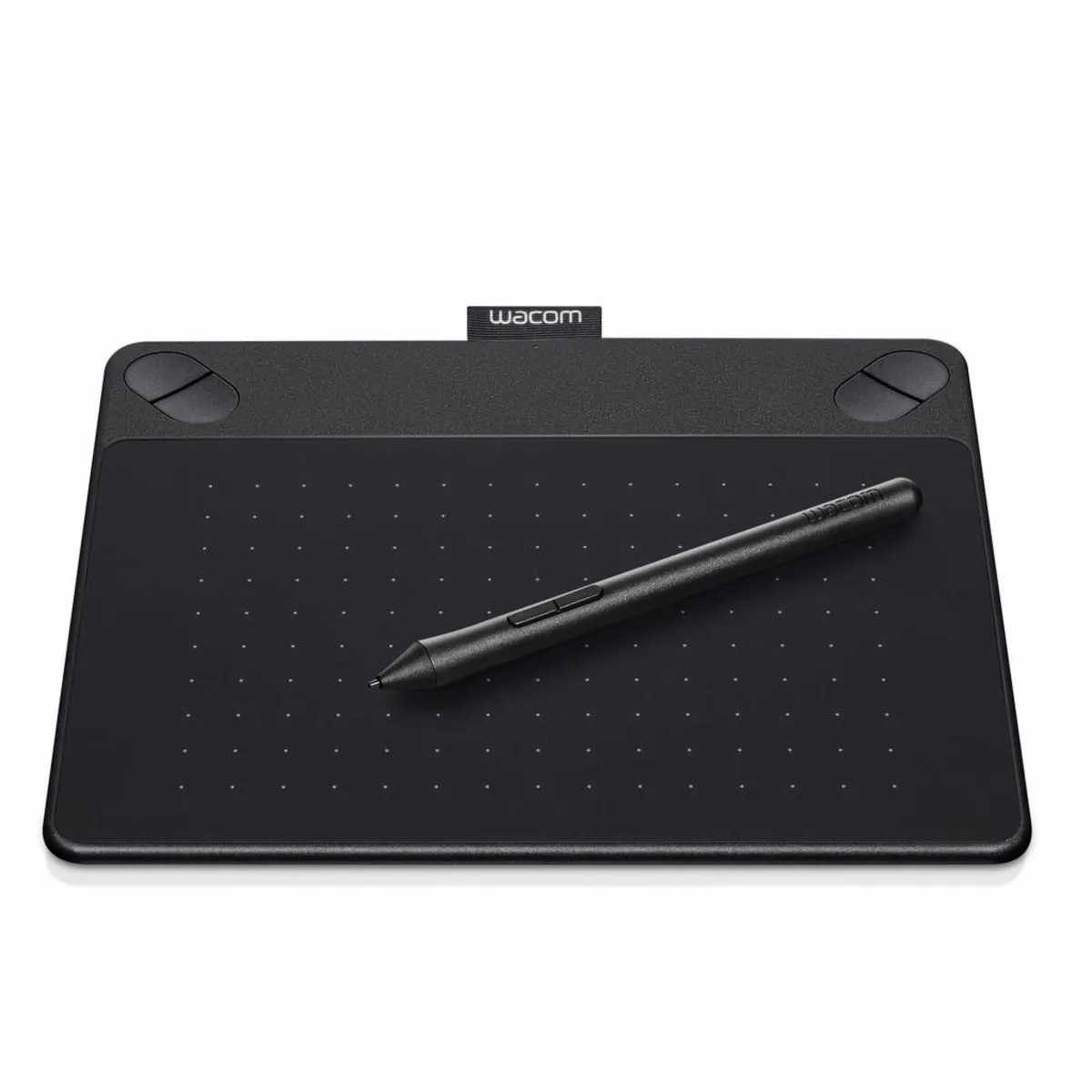
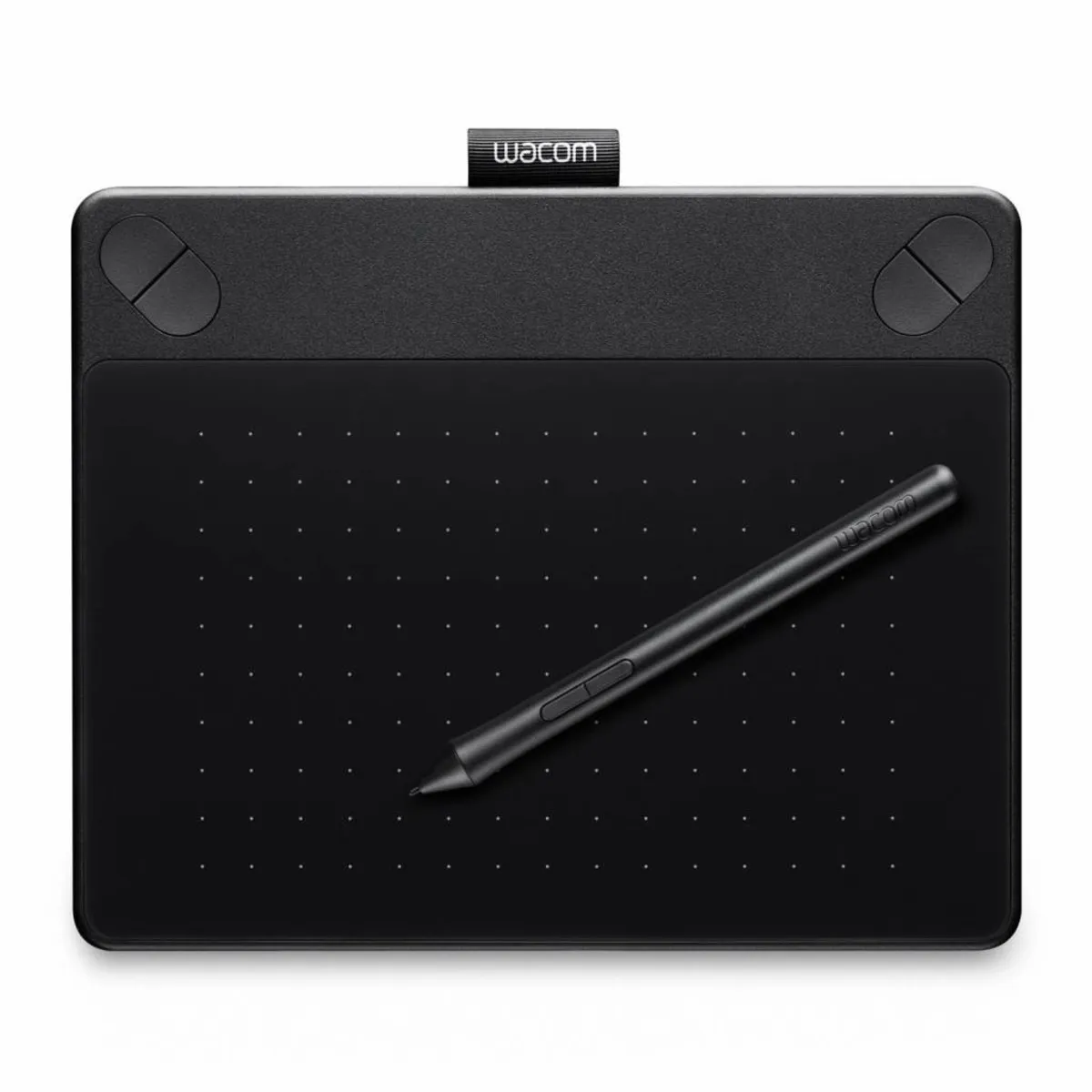
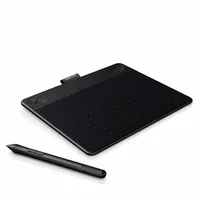
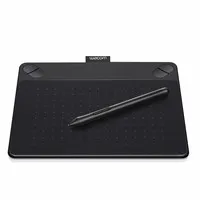
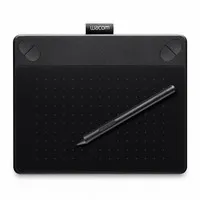
Beschrijving Wacom Intuos Comic Pen & Touch Small drawing tablet Black
Wacom Intuos Comic Pen & Touch Small drawing tablet - black
Does the Intuos Comic fit my hand?
Yes, the Intuos Comic is suitable for any hand size
Description
BOOM! WHAM! KABLAM!
Always thought of yourself as a superhero? With the Intuos Comic, you can sketch yourself into the most heroic scenarios. Give those bad guys a good thrashing!
Why the Wacom Intuos Comic drawing tablet?
The Intuos Comic could easily become your new best friend. Eye-catching design, high quality, and a joy to use. Whether you want to use it purely as a mouse or also as a drawing tool. When you think of a pen tablet, you think of Wacom. And not without reason, by the way. The quality is, without exaggeration, fantastic, and you can see that the products are not only made for users but also by users.
With the Wacom Intuos Comic drawing tablet, you can transform the most beautiful stories into comic drawings. Thanks to the fine and precise movements you make on the Intuos Comic, it's quick and comfortable.
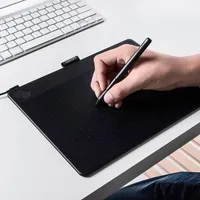
Of course, you can also simply use the drawing tablet as a mouse. Move the pen and the cursor faithfully follows across the screen; to click, simply tap the tablet with the pen.
Tired of the pen for a moment? You can easily work on the tablet with your fingers. Thanks to multi-touch support, you can easily move the mouse, scroll, zoom, rotate, and switch between windows with your fingers.
What does a drawing tablet mean for your posture?
The familiar posture of holding a pen allows you to work more relaxed. This puts significantly less strain on your wrist and arm muscles than with a flat mouse.
Additionally, you can place the pen tablet nicely centred in front of your body, so you don't have to work beyond shoulder width. Your shoulder muscles will also appreciate this.
An additional advantage is that the drawing tablet makes no distinction between left-handed and right-handed users. You can easily alternate to distribute the load. It also makes it possible to operate the tablet with two hands. You can move the cursor with one hand and operate the buttons with the other.
For good posture, place the drawing tablet as close to your body as possible. Place the keyboard directly above it so that it is also not too far from your body. If you're going to work more with the keyboard for a while, it's wise to slide the drawing tablet aside.
During testing, we noticed that you tend to grip the pen tightly. In our opinion, this is somewhat amplified by the small buttons on the standard included pen. We therefore advise you not to use these buttons and to link their functions to the keys on the drawing tablet. This can be done very easily with the included Wacom driver.
Gripping the pen also has a bit to do with getting used to it. So, give it a week or two to get accustomed to the new way of working.
With multi-touch, you can simply use your fingers for regular mouse and click work. This gives you an extra option to alternate with. That can make mousing just a little more pleasant.
This is what makes the Wacom Intuos Comic so good
Wacom's years of experience in developing high-quality drawing tablets are clearly evident in this model. Everything has been well thought out. The pen weighs approximately 10 grams, which is equivalent to a normal pen. This means it doesn't add extra strain. The flat design (6 mm at the front) of the Intuos Comic ensures that you don't have to lift your arm while operating the drawing tablet.
Moving the pen across the Intuos Comic drawing tablet feels very pleasant. It gives you enough resistance to make you feel like you're actually drawing with a marker. The tablet also registers how hard you press the pen.
This makes it much easier to perform drawing tasks. For maximum precision, it's best to disable the pen's functions so that you only move the cursor with the pen. The extra buttons can be used as mouse buttons.
The extra buttons can be found on the top of the drawing tablet and can be programmed as desired using the Wacom Intuos driver. The functions can even be adjusted per application.
By the way, you don't necessarily have to touch the drawing tablet with the pen to move the cursor. You can set it so that it registers movements from about one cm above the surface. This can be very useful when drawing. You want to be able to move your brush without getting all sorts of lines across your work.
The fine details
The drawing tablet is available in two sizes. The small variant is particularly suitable for travelling between different workplaces. It weighs 280 grams and comes with a detachable 150 cm USB connection cable. The small Wacom label at the top serves as a holder for your pen and ensures you don't lose it while travelling.
The dimensions of the small version are 210 x 170 x 6-10 mm. The area that registers the pen is slightly smaller, namely 152 x 95 mm. The advantage of this is that you don't have to balance the pen on the edge of the tablet to reach the edge of the screen.
If your stories don't fit on the small drawing tablet, there's also a large version available. This might be less convenient for travel but gives you the opportunity to go into even more detail. It measures 275 by 217 mm, and like its smaller sibling, it is 6 mm thick at the front and 10 mm at the back. At 480 grams, it's not very heavy. The area that registers the pen is 216 x 135 mm.
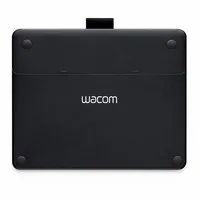
For an additional charge, you can equip the drawing tablet with a rechargeable Li-Ion battery and a wireless USB receiver. You can find the kit to make your Wacom wireless here. At the bottom of the drawing tablet, you'll find a compartment where you can neatly store both the battery and the USB receiver. This compartment is easily accessible via the removable cover.
We also discovered that 3 spare pen nibs are hidden here. That's very handy! The pen nibs wear down over time. Friction occurs between the pen and the surface of the drawing tablet. This is deliberately done to bring the experience as close to reality as possible. If you don't press too hard, the wear on the nibs is not too bad. You can also play with the pressure sensitivity to extend the life of the nib.
Wear and tear naturally depends on the tasks you perform with it. If you press hard or make many short movements, the nib will wear out faster. Wacom states that the nib should last approximately 20 million pen strokes and advises replacing the nib when it still protrudes by 1 mm. By replacing the nib in time, you prevent scratching your tablet.
The pressure sensitivity of the pen is a nice extra, by the way. It allows you to influence the thickness of lines without having to change various settings. This makes it possible, for example, to start with a thin line and gradually make it thicker.
You shouldn't miss this either
Wacom has created
Specificaties
| Item number | ERGO-WACICSBK |
| Manufacturer's item number | CTH-490CK |
| Brand | Wacom |
| Warranty | 2 years |
| Type of guarantee | Ergowerken free warranty return service |
| Colour | Black |
| Ergonomic design | Yes |
| Management | Pen |
| Left- or right-handed | Can be used by both left- and right-handed people |
| Hand length | Suitable for any arm length |
| Hand width | Suitable for any hand width |
| Connection | Wired via USB |
| USB port | Yes |
| USB version | 2.0 |
| Number of buttons | 6 buttons |
| Adjustable buttons | Yes |
| Scroll wheel | No |
| Adjustable sensitivity | Yes |
| Resolution | 2540 Ipi |
| Pressure sensitivity | Yes, 2048 pressure levels |
| Reading speed | 133 pps |
| Control surface dimensions | 152 x 95 millimetres |
| Dimensions length x width x height | 210 x 170 x 6–10 millimetres |
| Product weight | The drawing tablet weighs 280 grams and the pen weighs 10 grams. |
| Minimum system requirements | Mac OS X v10.8 and above / Windows 7 and above |