












5 Reasons to Use Keyboard Shortcuts
Table of Contents
1. Efficiency2. Prevents complaints
3. Improves your typing skills
4. Less prone to errors
5. It’s Magic!
6. Fast, faster, shortcut keys
Your keyboard feels neglected
The mouse and the keyboard are both input devices for your computer. Since operating systems switched to a GUI (Graphical User Interface), we have become accustomed to using the mouse as an input device.
In the past, everything was still operated using the keyboard. The mouse made operating the computer a lot more user-friendly. It is now impossible to imagine office life without the mouse. However, this has also meant that the use of keyboard shortcuts has quickly fallen into oblivion. Below are a few reasons why you should put your mouse aside more often and rediscover your keyboard.
1. Efficiency
Who wouldn’t want to have more time left over at the end of the day? To achieve this, you don’t need to work harder, but more efficiently. By using your keyboard to take over certain functions from the mouse, you can input data into your computer more quickly, all with fewer hand movements.
In short, you make smaller, quicker movements that achieve the same result. It may seem like a minor saving until you realise how many tedious tasks you’ve been performing for years with the mouse that you can also do with a keyboard shortcut. Take copying and pasting, for example: instead of copying with your mouse by moving to the word, selecting it, right-clicking, copying, moving to the desired spot in your text, right-clicking, and pasting, you can also use Ctrl+C and Ctrl+V.
2. Prevents complaints

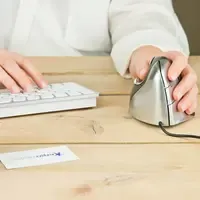
The arm/hand that operates the mouse is most likely your dominant hand, the hand you already use for all your other tasks. The name of the condition, RSI, says it all: Repetitive Strain Injury. An injury you sustain by frequently making the same movement. A blog post on ‘Why you should use your left hand to operate your mouse, even if you’re right-handed’ will be published shortly. Do have a look at that if you’re looking for a more balanced distribution of strain across both hands.
Keyboard shortcuts ensure you make fewer and smaller movements, thereby reducing the risk of discomfort. Do make sure you maintain good posture and use a good keyboard if this is your approach. Read more about this in our blog on Ergonomic Keyboards or browse our range.
3. Improves your typing skills
Nowadays, almost everyone can type somewhat by touch. But almost no one has a good typing technique; you pick up bad habits. Most keyboard shortcuts are designed to be operated with one hand; by focusing on learning these shortcut combinations, you’ll also learn to press the correct keys with the correct hand. This in turn leads to better typing technique, ultimately helping you type faster and with fewer mistakes.
4. Reduces the likelihood of errors

How many times a day do you click the wrong button? The mouse is a less accurate tool than a keyboard. Who hasn’t accidentally cut a section of text from their work instead of copying it? Those who are proficient in using keyboard shortcuts will eventually make fewer of these mistakes.
If you do happen to make a mistake, your fingers will already be ready to press Ctrl+Z to undo it.
5. It's Magic
You can pretend to be a computer wizard, performing tasks on the computer that would take your colleague five clicks with just one simple key combination, and watch how surprised they are at the speed with which you get the same tasks done.
You can deny it, but even in the workplace, a bit of ‘performance and showmanship’ counts for something. Do you make three trips to bring six cups of coffee to your colleague, or do you manage it all in one go with six fingers? Do you get up to throw a crumpled piece of paper in the bin, or do you deftly flick it in from the comfort of your chair?
Yes, you need three trips for that coffee, and your basketball skills are a bit lacking for that scrap of paper. However, whilst you’re carrying out your tasks as the king of shortcuts, you hear three jaws hitting the floor next to you.
6. Fast, faster, shortcut keys...
For a complete overview of these combinations, Windows users can check out this site. If you use a Mac, you can take a look here.
These sites might be a bit overwhelming, making it hard to see the wood for the trees. That’s why I’ve put together a handy table below for Windows and Mac users, featuring some of the most commonly used functions. Give them a go and make them your own; I’d love to hear in the comments below whether these tips have been helpful to you.
| Windows | |
| Key combination | Action |
| Ctrl+X | Cut the selected item |
| Ctrl+C | Copy the selected item |
| Ctrl+V | Paste the selected item |
| Ctrl+Z | Undo last action |
| Ctrl+T | Open a new (browser) tab |
| Ctrl+W | Close the active window (or tab) |
| Ctrl+Shift+T | Reopen the last closed tab |
| Alt+Tab | Switch between open windows |
| Alt+F4 | Close the active programme |
| Windows+L | Lock the PC |
| Windows+D | Show the desktop |
| Mac OS | |
| Key combination | Action |
| ⌘Cmd+X | Cut the selected item |
| ⌘Cmd+C | Copy the selected item |
| ⌘Cmd+V | Paste the selected item |
| ⌘Cmd+Z | Undo last action |
| ⌘Cmd+T | Open a new (browser) tab |
| ⌘Cmd+W | Close the active window (or tab) |
| ⌘Cmd+Shift+T | Reopen the last closed tab |
| ⌘Cmd+Tab | Switch between open windows |
| ⌘Cmd+Q | Close the active programme |
| Cmd+Eject/Power | Lock the Mac |
Have you got used to leaving the mouse alone? Then do take a look at the follow-up to this blog soon: "Shortcut keys for advanced users".