















Table of Contents
1. Introduction2. What are we talking about?
3. Unboxing
4. Connecting
5. Using the keyboard
6. Conclusion
1. Introduction
Today is 5 June, the first day I’m getting to grips with the finished product from a new manufacturer on the keyboard market. I’d previously been sent a prototype of this revolutionary new keyboard. I gave it a brief try; now that the finished product is finally available in Europe, I’ll take you through the process of getting used to this new keyboard.
2. What are we talking about?
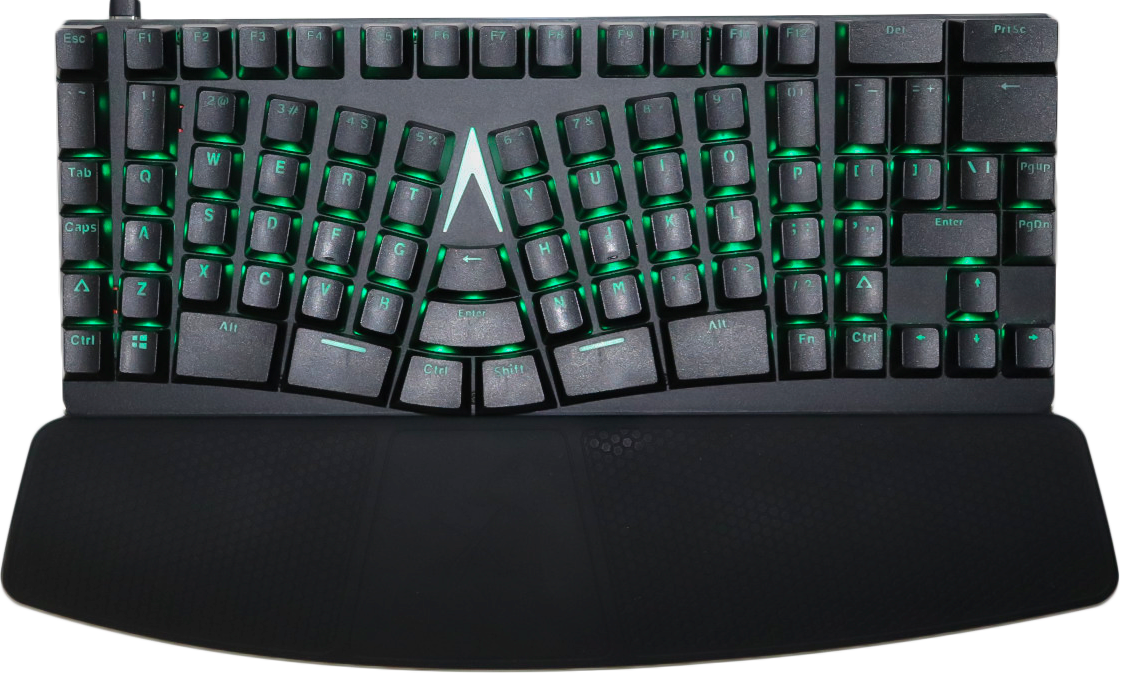
We’re talking about the X-bows Mechanical Ergonomic Keyboard, in this case with the matching wrist rest. Starting today, I’ll be working with this keyboard for a while and I’ll tell you all about my experience.
3. Unboxing
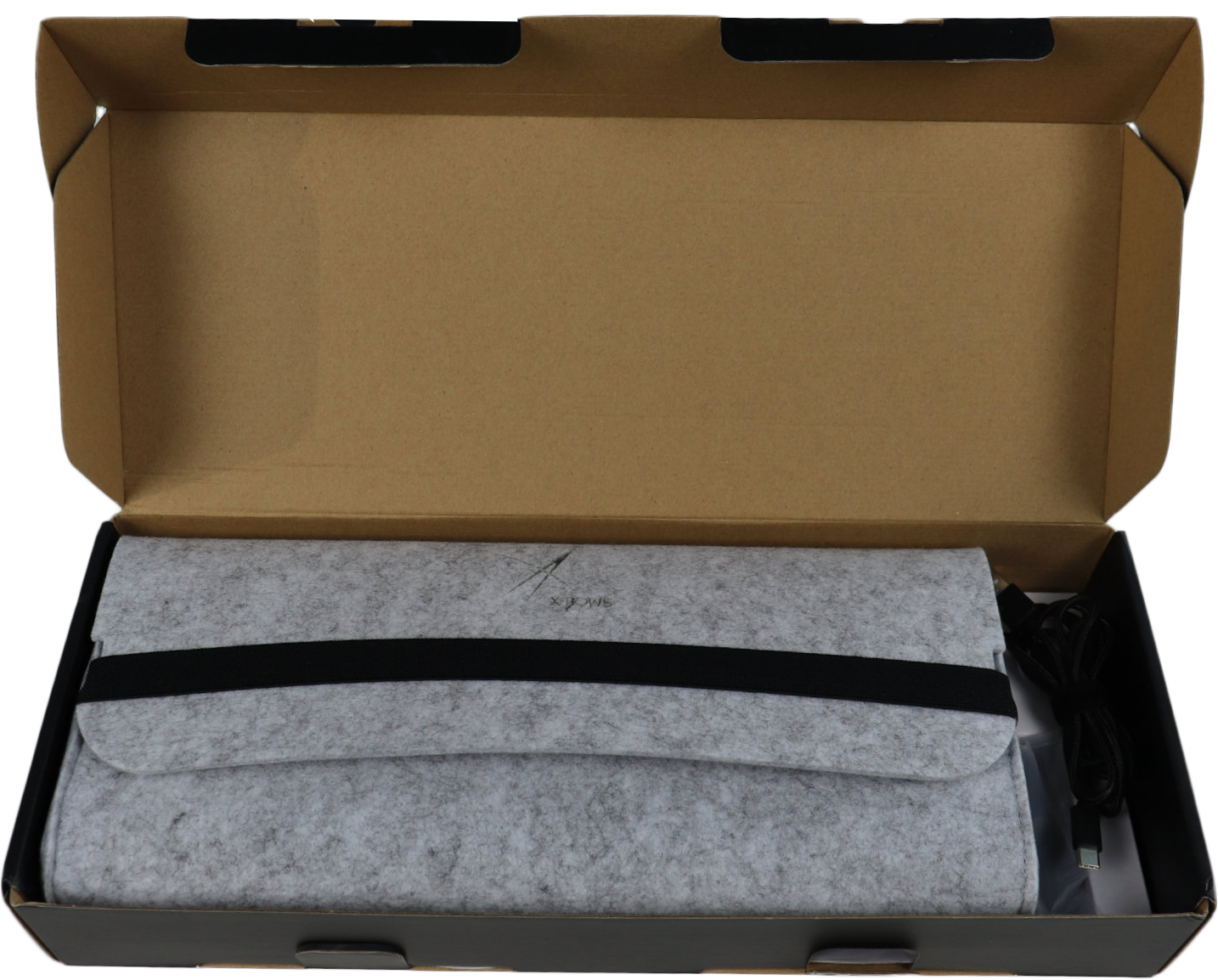 X-Bows product packaging
The X-Bows packaging looks very attractive. We received a neat outer box containing the product packaging. The product packaging is a matte black box with the X-Bows logo printed in a ‘shiny’ metallic finish. When you open the box, you’re greeted by a neatly packaged product, snugly fitted inside the box with an anti-static plastic sleeve around the keyboard to protect it from damage and dust.
For a mechanical keyboard, it feels reasonably light, though this does not detract from the build quality. Thanks to the aluminium base plate, there is no ‘flex’ in the keyboard.
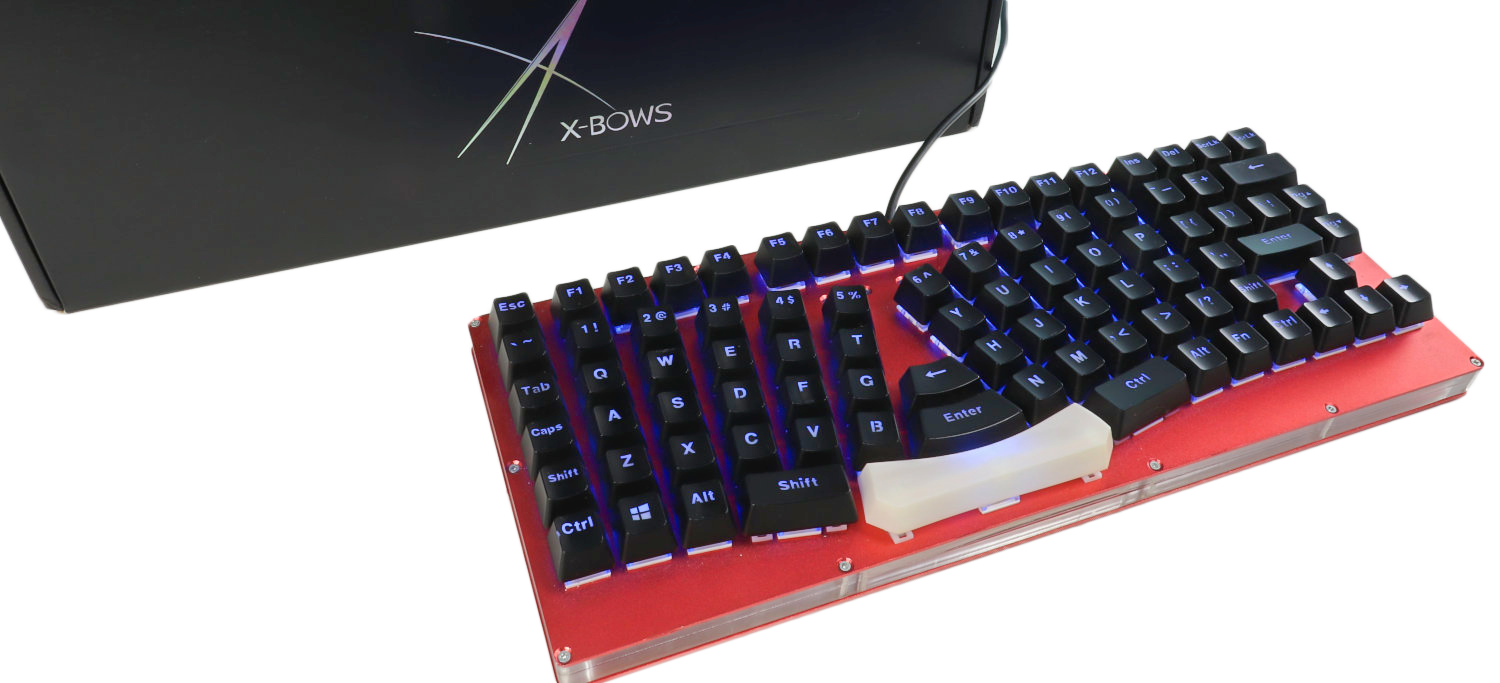 Prototype X-Bows
This time, I’ve therefore opted for the brown Gateron switch, a switch that still has a tactile click but doesn’t produce an excessive clicking sound.
At first glance, the keyboard looks solid, feels good and has an innovative design. There are few frills, at first sight. Just a shiny milled edge on the aluminium base plate.
The keyboard naturally comes with a connection cable; this is a standard USB-A to USB-C cable with a nicely finished braided outer layer. We also find a small tool for changing the keycaps, a silicone wrist rest and a perfectly fitting protective felt cover, which is very handy if you want to take it with you.
4. Connecting
Connecting it is as simple as you’d expect from a keyboard: just plug it in. One end into the keyboard, the other into your computer, and you’re all set. Well, you can use the keyboard straight away. If you want to use all the features, you’ll need to download the driver from the website. I can’t use it yet because I’m working on a Mac; the driver for Mac and Linux is still in development. The one for Windows computers is already available.
When you plug it in, you’re treated to a lovely light show that demonstrates what these RGB LEDs are capable of.
5. Use
Case and Plate
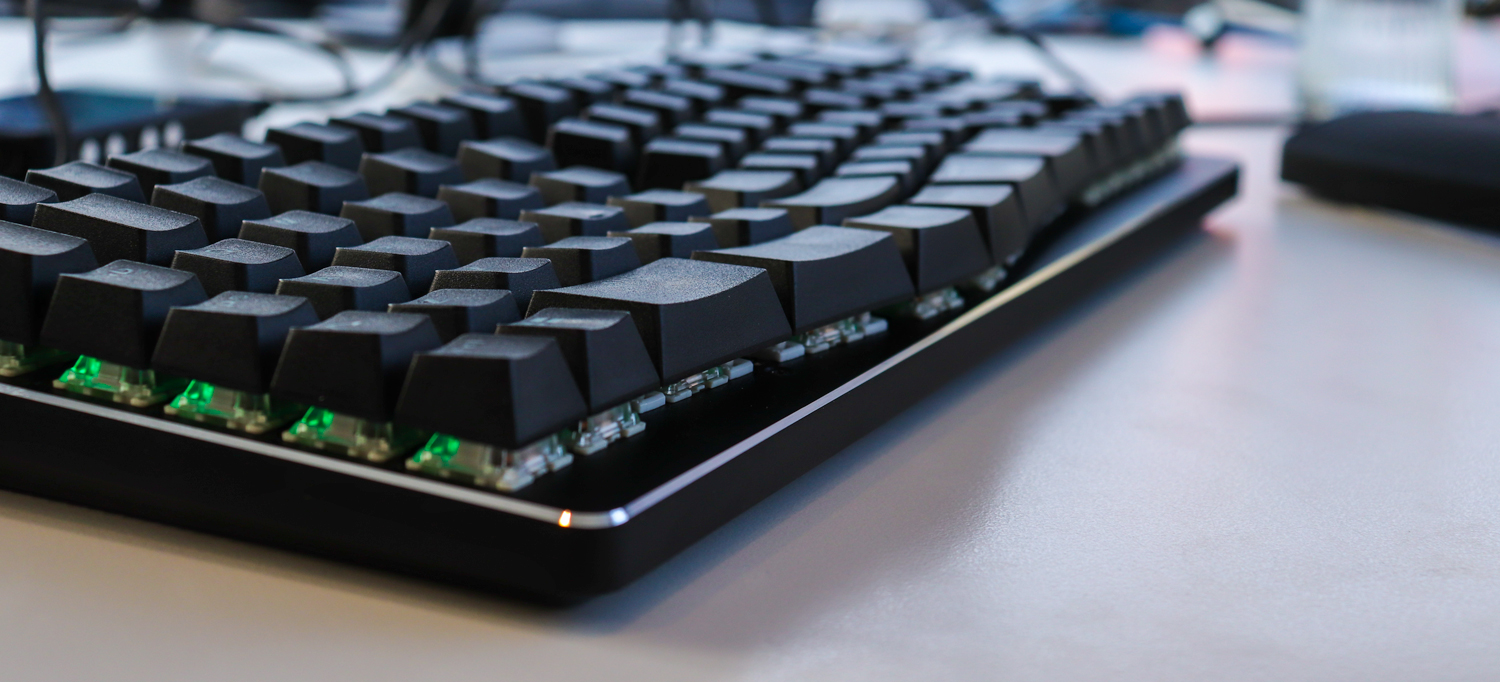 Finish of the aluminium edge
The case and plate beneath the keys are made of aluminium, which gives the keyboard a satisfyingly substantial feel. The weight conveys a sense of quality and ensures that even the most aggressive typists cannot cause the keyboard to shift. The plate features an attractive decorative edge that has been milled along the outer edge of the keyboard. As well as being decorative, this ensures that the top edge does not feel sharp, as is often the case with unfinished metal edges.
Like most keyboards, the X-Bows also features fold-out feet on the underside, which are handy if you can’t touch-type, but from an ergonomic point of view, it’s better to keep them folded in.
Layout
As you can see from the previous images, the X-Bows uses a rather unusual key layout. Firstly, it is a so-called ‘split keyboard’, which means that the keyboard is divided into two sections; the left and right sides are separated by a small gap. This space is now utilised by an extra ‘enter’ and ‘backspace’ key.
In addition to the keyboard being split, it soon becomes clear that the keys are not arranged diagonally above one another as on a standard keyboard, but in straight columns; this is known as an ortholinear layout. This change in particular takes quite a bit of getting used to, as I have regularly worked with split keyboards but have never before used one with a ‘column layout’.
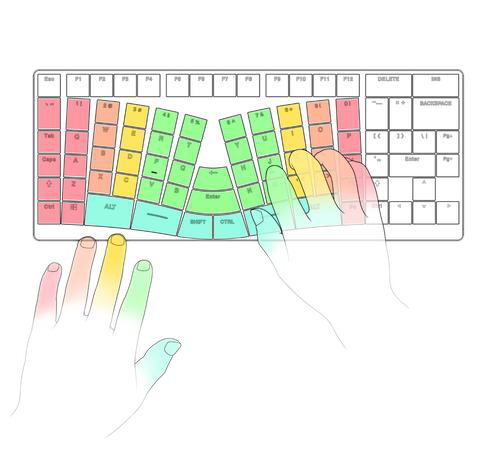 Schematic representation of which fingers should press which keys
Using a split keyboard quickly exposes people with poor typing technique. According to the rules, you need to be able to touch-type with all ten fingers if you want to experience all the benefits and not end up throwing the keyboard into the corner in frustration after a few days. A split keyboard punishes you mercilessly and leaves you frustrated if you don’t perfect your typing technique.
On the other hand, if you already have good typing technique, a split keyboard is a perfect replacement for the standard, straightforward layout. It gives your wrists and arms a more natural posture whilst typing. This, in turn, ensures that you ultimately develop fewer complaints from prolonged computer use and feel less fatigue in your hands and wrists at the end of the day.
Key stroke
This keyboard is fitted with brown Gateron switches; let me bore you first with the dry ‘specs’.
| Gateron Brown Specifications | |
| Mounting | PCB |
| Actuation force | 45 grams |
| Type | Tactile |
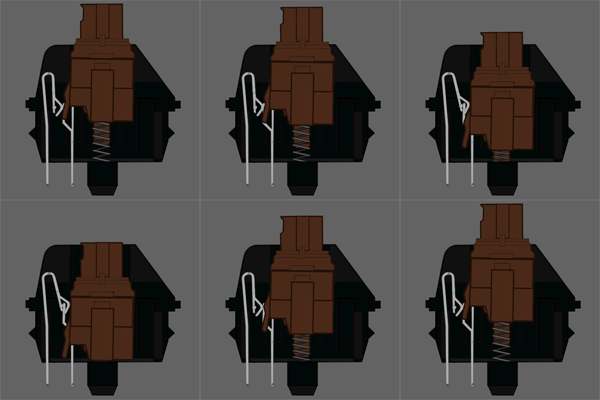 Operation of a Gateron Brown switch
In short, you need 45 grams of force to press a key; it is a switch that is soldered directly onto the circuit board and falls under the ‘Tactile’ variants, which have a noticeable click at the point of contact.
Although I prefer blue ‘clicky’ switches, I try to be considerate every now and then. The blue switches are virtually the same but also produce a loud clicking sound that can drive your colleagues up the wall.
The brown switches require 10 grams less force to register a keystroke, and you can feel the difference. With frequent use, you’ll notice that you’re applying less force to the keys. You do feel the slight click, something you’ll need to get used to if you’re switching from a standard keyboard. The click indicates that you’ve registered a keystroke and so you don’t actually need to press the key any further.
From an ergonomic point of view, this is highly desirable as it prevents you from pressing the keys all the way down, thereby avoiding the counter-pressure on your fingers. That counter-pressure is what causes you to tire quickly and results in sore fingers.
The keyboard is also available in various versions. In terms of switches, you can choose from:
- Brown (Tactile)
- Blue (Clicky)
- Red (Linear)
- Silent Red (Linear)
All switches are supplied by Gateron, a manufacturer of mechanical switches that has been making a name for itself in this market for many years.
Backlighting
The keyboard is equipped with RGB LED lighting, which is not surprising in this segment but looks great. The LEDs can be individually configured via the driver; a minor drawback is that, at present, the driver is only available for Windows. If you use this keyboard with a Windows computer, you can treat yourself to every colour of the rainbow. The keys are individually backlit and, thanks to the floating design of the keys, there is also a coloured glow along the sides and on the base plate. In addition to the keys, the logo in the centre of the keyboard is also beautifully illuminated.
Light show when connecting the X-Bows
The keyboard also features various modes that you can set via the drivers; for example, it is possible to display a wave pattern in the lighting when you press a key.
Layers
Like many of the more compact keyboards in this segment, this keyboard has multiple programmable layers – five in total. This means that, in addition to the standard layer that most people are familiar with, you also have one layer that can be configured via the driver. This allows you to assign a different function to each key. In addition to the standard layer (QWERTY) and the layer that can be configured via the driver, the X-Bows also has its own memory in which you can set up a further 3 fully customisable layers, allowing you to use the layers on any computer without installing the driver. This is handy for those of us who use the keyboard for programming, use lots of shortcuts, or type using a non-standard layout such as DVORAK instead of QWERTY.
Getting used to it
My first impression of this keyboard is very positive; however, the layout differs significantly from a conventional keyboard, which means I’m currently making a lot of mistakes and typing more slowly. In 10 days’ time, I’ll write an evaluation on how the adjustment is going. For comparison, I will take a speed test to see how many keystrokes per minute I can achieve with this keyboard and how many mistakes I make. I will repeat this test every few days to see how quickly I get used to the keyboard. My baseline from a ‘normal’ keyboard was 93 words per minute.
| How quickly did I get used to it? | ||
| Date | Words/minute | Accuracy |
|---|---|---|
| 05-06-18 | 50.00 | 82.73% |
| 07-06-18 | 57.06 | 93.36% |
| 09-06-18 | 63.16 | 97.31% |
| 14 June 2018 | 57.34 | 98.10% |
| 20 June 2018 | 57.75 | 97.52% |
| 28 June 2018 | 54.75 | 98.08% |
| 07/07/19 | 68.01 | 99.76% |
As you can see from the figures, it appears that after a few days of intensive use (with a bit of swearing and ranting, I won’t lie), I’m starting to get used to the board. After a few days, I already began to notice that I was making fewer mistakes in my typing. Even after a few weeks, my speed isn’t quite back to what it was on a standard keyboard, but that may still come.
6. Conclusion
After using the keyboard for a few weeks, I’ve got used to it quite well. Although getting used to a different keyboard layout is always a tough task – and for a touch typist it’s even harder – I have to say that this keyboard soon felt familiar. The first few days feel awkward, but after about a week you get used to the different layout. It took me a couple of weeks to get back to my usual level in terms of speed and number of typing errors.
The Gateron switches feel good. I had the chance to try the brown (tactile) and blue (clicky) switches. Both feel great, with the brown ones providing noticeably lighter feedback; a minor caveat is that you’re better off not using the blue ones in a busy office environment or as a gaming keyboard whilst your girlfriend is asleep. They make a very loud clicking sound, which is great for enthusiasts but less so for those around you.
If you’re looking for a keyboard with a split design in a so-called ortholinear layout, then this is a brilliant little keyboard to use.